Preflight Errors
Overview
Section titled “Overview”Before PrivateACB runs an ACB or capital-gains calculation, it runs a preflight check — a quick dry-run of the calculation engine that surfaces problems while they’re still cheap to fix. If preflight finds a blocking issue, the asset’s row in the Asset Table says so and the calculation is held back until you resolve it.
Preflight runs:
- When you click Calculate on an asset
- When the Asset Table refreshes (after import, after deletions, after market-data fetches)
- When you switch jurisdictions or methods that change what the engine needs
Preflight is read-only. It never modifies your database, never persists results, and never triggers exports. Its only job is to tell you “this asset isn’t ready for a real calculation, here’s why.”
Reading the Preflight Report
Section titled “Reading the Preflight Report”From version 2.11.0, every asset row unfolds into a Preflight Report. Click the row’s chevron (▶) or its Preflight Check label — the label names what the row needs (Fetch prices, Needs transfer, Needs attention, or Review), and it’s always clickable, including when everything passed.
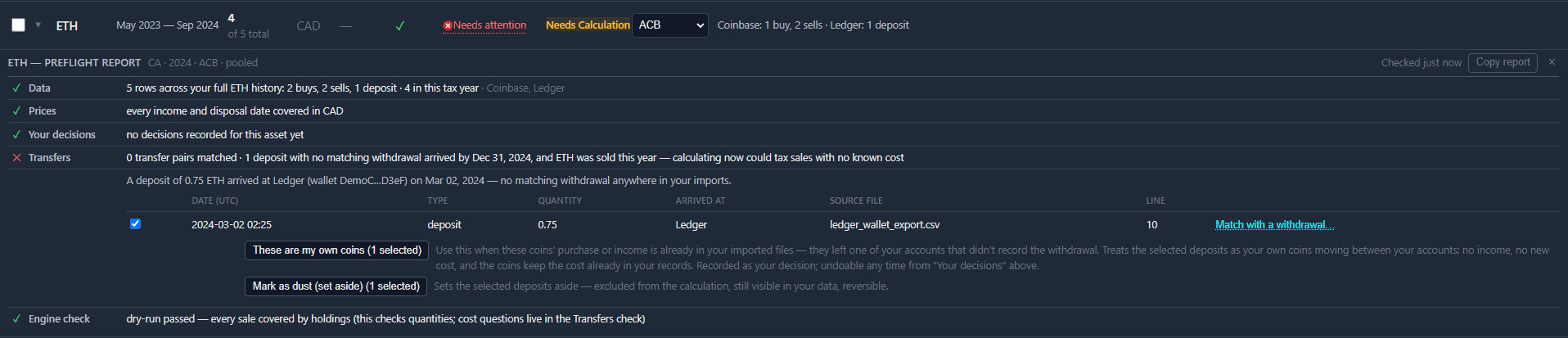
The report shows five checks, and it shows them whether they pass or fail — you get the good news too, not just the problems:
| Check | What it tells you |
|---|---|
| Data | How many rows loaded across your full history, broken down by type, and how many fall in the selected tax year |
| Prices | Whether every income and disposal date has a price in your reporting currency |
| Your decisions | Every assertion you’ve recorded for this asset — with dates, and the way to undo them |
| Transfers | Transfer pairs matched, and any deposits with no matching withdrawal in your imports |
| Engine check | Whether a dry-run calculation completed — every sale covered by holdings |
Each check states its finding as a plain sentence. Where a finding rests on specific rows, the report shows those rows in an evidence table — the actual date, type, quantity, where the units arrived, the source file, and the exact line in that file — so you can go straight to the row in question. Some findings carry actions you can take right there; see Transfer Assertions.
The report header has a Copy report button, which captures the whole report — all five checks and their evidence — as plain text. Useful for support tickets, your own notes, or sending to your accountant.
After Upgrading PrivateACB
Section titled “After Upgrading PrivateACB”PrivateACB caches preflight results between app sessions to keep the dashboard fast. The cache is keyed by transaction state, not by app version — which means after you install a new version, your dashboard may briefly show preflight results that were generated by the previous build.
To force a fresh preflight after upgrading:
- Click Calculate on the affected asset. This re-runs preflight and replaces the cached result.
- Or re-import the source CSV. Importing invalidates the cache for all assets in the file and exercises any new import-time logic the upgrade introduced.
This is most relevant when an upgrade adds a new preflight check (such as the unmatched transfer-in check shipped in v2.8.x). Existing assets won’t surface the new check until the cache is refreshed.
The layout of the report — which checks exist and how they read — never goes stale this way: it is re-derived from the stored verdict every time you open a row, so an upgrade that adds or reworks a check shows up immediately. It’s the verdict that can be cached, which is what the steps above refresh.
Common Preflight Errors
Section titled “Common Preflight Errors”Cost basis is unknown for a transfer-in
Section titled “Cost basis is unknown for a transfer-in”This error fires when PrivateACB sees a deposit or transfer-in for an asset, but the cost basis for those units cannot be established from the data you’ve imported. Most commonly:
- External wallet deposits — you transferred crypto into the exchange from a wallet whose history isn’t in your imports.
- Fork credits and airdrops — your exchange credited you with a new asset (e.g., post-Merge ETHW) without a purchase event.
- Manual self-transfers between exchanges — when only one side of the transfer was imported.
Without a cost basis, the engine can’t compute a gain or loss when you eventually dispose of these units, and any subsequent sale would silently understate the cost — so PrivateACB blocks the calculation rather than producing wrong numbers.
When it blocks — and when it doesn’t
Section titled “When it blocks — and when it doesn’t”A deposit can only affect tax years that end after it arrived. PrivateACB applies that rule literally, so you are never blocked by something that happened after the year you’re calculating:
- The deposit arrived during or before the year you’re calculating, and you sold the asset that year — the calculation is blocked. A sale that year might be drawing on units whose cost is unknown.
- The deposit arrived after the year ends — the report tags it (after this tax year), leaves it out of the blocking count, and lets you calculate. It will tell you which year you’ll need to resolve it by.
- The deposit is in range, but you sold nothing that year — the calculation still runs. Nothing is being valued against the unknown cost yet, so it’s a warning, not a blocker.
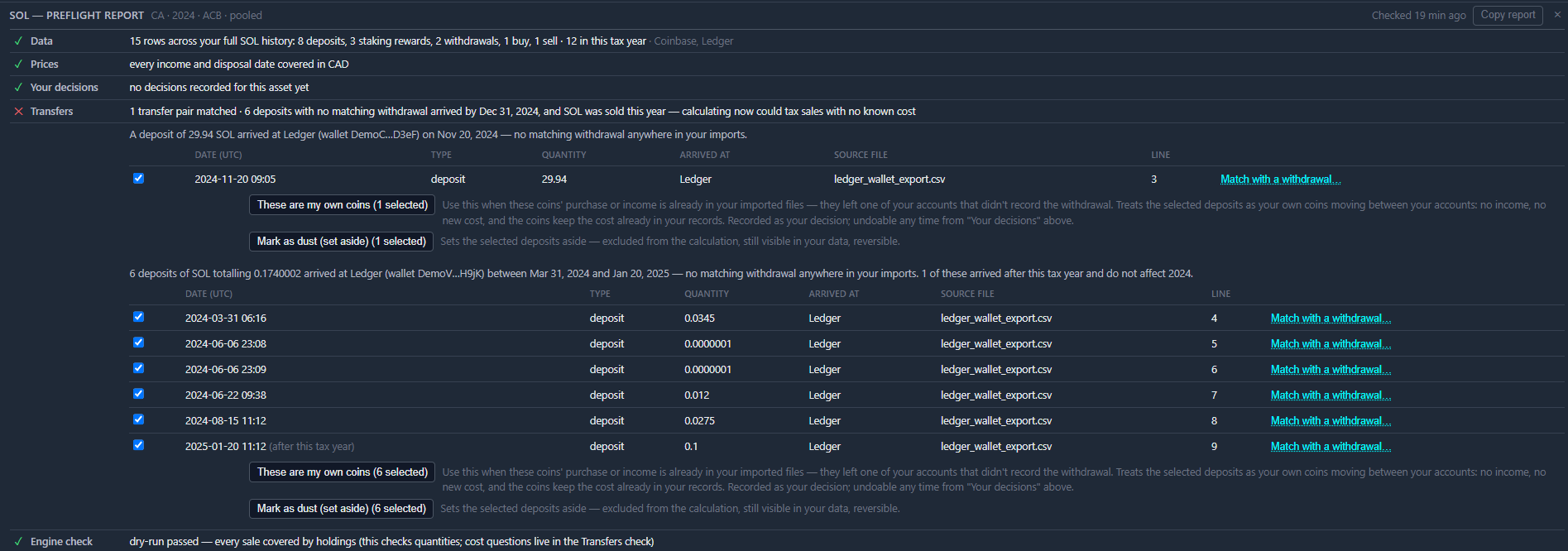
Where a group of deposits mixes these cases, the report says so explicitly — for example, “1 of these arrived after this tax year and do not affect 2024.”
What the report shows you
Section titled “What the report shows you”Open the asset’s Preflight Report and look at the Transfers check. It names the deposits that have no matching withdrawal — grouped by the account or wallet they arrived at, since one wallet usually tells one story — and shows the underlying rows: date, type, quantity, where they arrived, the source file, and the line number in that file.
Resolution paths
Section titled “Resolution paths”The five questions that sort this out, and the channel each answer points at, live in the Resolution Guide — the same guide the app opens under Help → Resolution Guide, generated from the program itself, so it always matches the version you’re running. Two worked examples follow the whole thing through:
- Your own coins coming back — matching the two legs, and what to do when the other leg was never imported.
- Coins from a fork or an airdrop — including the source hint the finding may carry (“Looks like an airdrop.”) and why income is the one route that takes a re-import.
Start with the actions on the Transfers check itself: they cover the most common case — the coins were yours all along — and resolve it without touching your imported data. Each is recorded as your decision, and each is undoable. See Transfer Assertions for the walkthrough with screenshots.
If the units genuinely weren’t yours, the income route is a delete and re-import with the row classified in Step 3 of the wizard; the guide’s fork walkthrough covers it step by step.
The tax meaning of reclassifying as Income depends on your jurisdiction:
- Canada: Income reported at FMV; future disposals use that FMV as the ACB.
- United States: Ordinary income at receipt; the receipt-date market price becomes your basis for capital-gains purposes.
- Australia: Ordinary income or CGT depending on the nature of the receipt; PrivateACB defaults to ordinary-income treatment.
- United Kingdom: Income tax at FMV on receipt; that FMV enters the Section 104 pool.
Confirm with a tax professional if you’re unsure whether the receipt is income in your jurisdiction.
Excluding the asset instead
Section titled “Excluding the asset instead”Use this when you don’t intend to report the asset at all — for example, dust holdings or test-mode receipts you never disposed of.
Open the asset’s row in the ACB Calculator, click Exclude, and confirm. The asset stops appearing in calculations and reports until you restore it. See the Deletion Guide for details on the exclude-vs-delete distinction.
Insufficient quantity for a disposal
Section titled “Insufficient quantity for a disposal”A disposal needs more units than the calculation holds at that moment — see A sale larger than holdings for what the finding means and where to look first. In practice the cause is almost always one of:
- Missing earlier transactions — purchases made on an exchange you haven’t imported yet.
- Imported the same file twice with different deduplication — duplicates suppressed disposals or amplified them.
- Decimal precision issues at boundaries — extremely rare; PrivateACB uses an 8-decimal tolerance internally.
Open the ACB Summary report for the affected asset and walk forward through the transaction list. The first row where the running balance goes negative is where data is missing. Import the missing transactions, delete the old calculation, and recalculate.
This error has been around since the earliest versions of PrivateACB and is by far the most common preflight blocker after a fresh import.
Missing prices for required dates
Section titled “Missing prices for required dates”PrivateACB needs a market price for every date on which a calculation needs to value a transaction — disposals always, and acquisitions when the receipt is income. If the price is missing, preflight blocks the calculation rather than guessing. See Rows missing a price for what the check reports.
Resolution: go to the Market Data tab, select the affected asset and date range, and click Fetch. PrivateACB auto-routes between CoinGecko (recent) and the keyless DefiLlama + Binance deep-history tier; for dates older than 365 days, the deep tier handles the lookup automatically (USD prices are cross-rated to your reporting currency via Bank of Canada FX).
If neither source has a price for the asset on the required date — for instance, a thinly-traded altcoin on a weekend — use the manual entry path on the Market Data tab to type in a rate from a third-party source (CoinMarketCap, the exchange’s own historical data, etc.).
See the Market Data Guide and Crypto Price Fetching Guide for the full workflow.
No lots in target wallet (US per-wallet only)
Section titled “No lots in target wallet (US per-wallet only)”US-specific. When Account-by-Account Tracking is enabled (Treasury Decision 10000, in effect from 2025), each disposal must consume lots from the wallet it physically left. If preflight finds a disposal in a wallet with no acquired lots, it blocks the calculation.
This usually means a transfer between your own exchanges wasn’t matched — PrivateACB doesn’t know that the lots in Wallet A “moved” to Wallet B because the transfer rows weren’t paired up at import time.
The report’s Engine check offers + Create Transfer directly on this finding, which opens the dialog to record the movement between your accounts. The button only ever appears when Account-by-Account Tracking is actually in force — it can’t show up for pooled jurisdictions, where it would mean nothing.
See the US 1099-DA & Account-by-Account Guide for the full troubleshooting workflow, including how to add a manual transfer match or temporarily disable Account-by-Account Tracking to verify your data.
When the Preflight Check Doesn’t Run
Section titled “When the Preflight Check Doesn’t Run”If you click Calculate and nothing happens, preflight isn’t blocking — something earlier in the chain is. Verify in order:
- Config Bar selections — jurisdiction, method, and at least one asset must be selected.
- License status — calculations require an active license or a non-expired trial. Check Settings → License.
- Active calculation in progress — if a previous calculation is still running, the Calculate button is disabled until it finishes or is cancelled.
See your jurisdiction’s calculation guide for the full Config Bar walkthrough — Canada, United States, Australia, United Kingdom.
Related Guides
Section titled “Related Guides”- Resolution Guide — What each finding means and what each channel records, generated from the app itself
- Transfer Assertions — Resolving deposits with no matching withdrawal, without editing your data
- Canadian ACB Calculation — CRA workflow and troubleshooting
- US Tax Calculation — FIFO/LIFO/HIFO + wash sale + per-wallet
- Australian CGT Calculation — 50% discount, Q18 netting
- UK Capital Gains Calculation — Section 104 pool + matching rules
- Import Flow Guide — How transactions flow into PrivateACB
- Classification Review Guide — Step 3 of the import wizard
- Market Data Guide — Fetching exchange rates and crypto prices
- Error Reporting — Validation errors during CSV import
Last Updated: July 2026 PrivateACB Version: 2.12.0