Market Data Guide
Overview
Section titled “Overview”The Market Data tab is where you populate the prices PrivateACB uses to convert your transactions into your reporting currency. Every taxable disposal needs a price on the disposal date; every income receipt (staking, mining, airdrops) needs a price on the receipt date; every foreign-currency trade needs a fiat exchange rate on the trade date. If any are missing, ACB calculations are blocked.
There are two kinds of price data:
- Exchange rates — fiat-to-fiat conversions (USD → CAD, USD → AUD, etc.) — needed when your exchange traded in a different currency from your tax jurisdiction.
- Cryptocurrency prices — crypto-to-fiat prices on a specific date — needed when your transaction has no recorded purchase price (income receipts, swap legs without a base price, etc.).
Why market data matters:
- Tax authorities require figures in your local currency (CAD / USD / AUD / GBP)
- Many exchanges trade in USD even for non-US users
- Income transactions (staking, mining, airdrops) have no purchase price — the engine values them at FMV on the receipt date
- Missing market data blocks ACB calculations at the preflight stage
The Two Sections
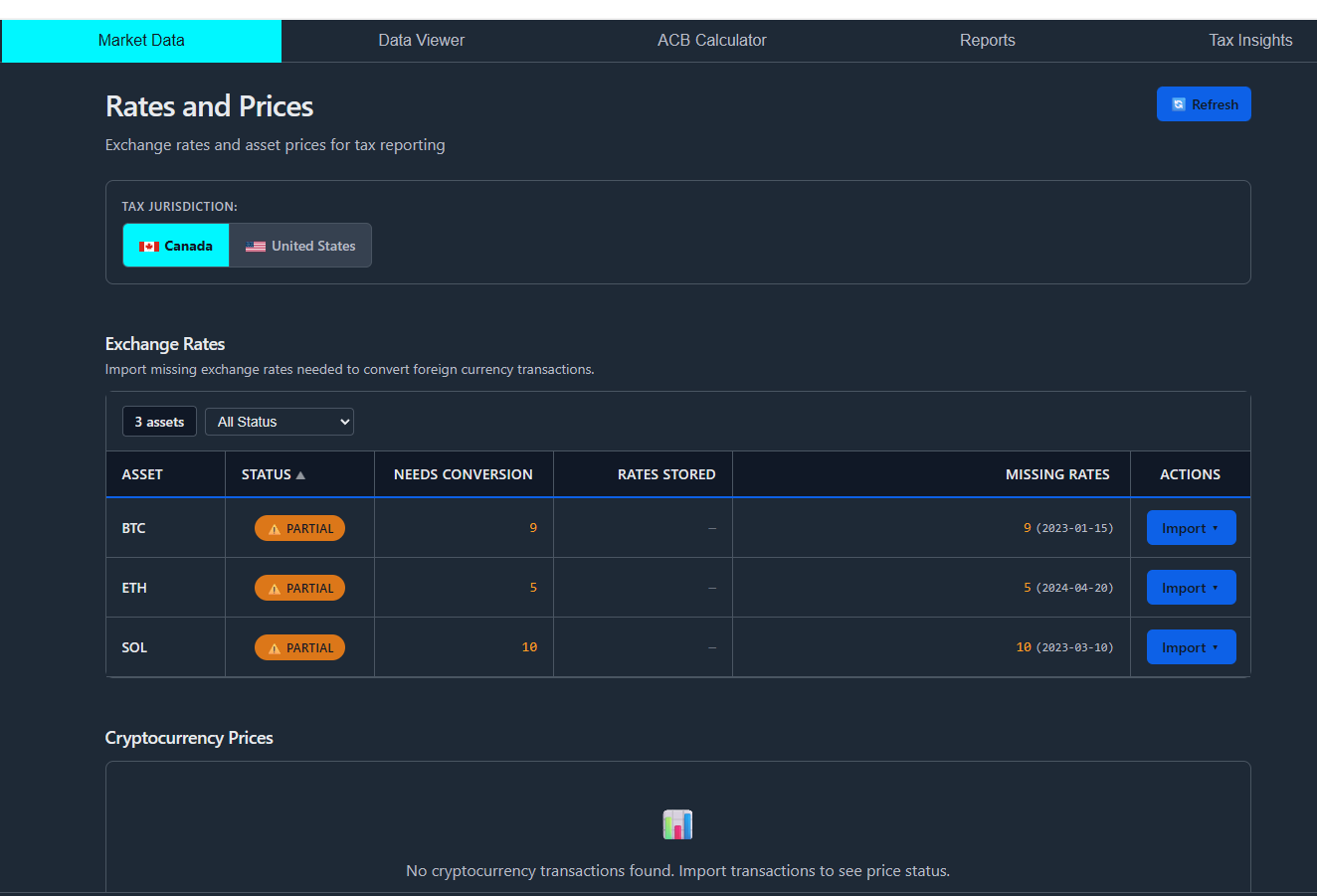
Section titled “The Two Sections”The Market Data tab renders top to bottom:
- Exchange Rates — assets that need fiat conversion appear here
- Cryptocurrency Prices — assets that need historical crypto prices appear here
- Recent Imports footer — the last 10 fetches across all sources, for verification
Each section uses the same pattern: an asset table with status indicators, a per-asset Action menu, and inline panels that slide in when you start an import.
Day-based vocabulary
Section titled “Day-based vocabulary”PrivateACB caches one rate per asset per day. The asset table reads in those terms:
- “3 days needing rates” means three calendar days have transactions but no cached rate
- “15 days cached” means fifteen calendar days have a rate stored
- “Date range: 2024-03-12 → 2025-11-08” covers every day the asset has any transaction activity
This is a deliberate shift from older “missing dates” language. A day-by-day model matches how tax authorities expect FX conversion to work — one rate per disposal date — and gives you a precise progress count.
Jurisdiction-aware asset filtering
Section titled “Jurisdiction-aware asset filtering”The asset table filters by what your currently selected jurisdiction actually needs:
- CA: shows assets whose transactions priced in non-CAD currencies need rate conversions
- US: shows assets whose transactions priced in non-USD currencies need rate conversions
- AU: shows assets whose transactions priced in non-AUD currencies (CoinGecko serves AUD natively, so often fewer rows here)
- UK: shows assets whose transactions priced in non-GBP currencies
If you switch jurisdictions in the dashboard controls, the asset table updates to match. An asset that needed USD/CAD conversion under CA may not appear under US — your transactions were already priced in USD natively.
Exchange Rates Section
Section titled “Exchange Rates Section”Three input methods
Section titled “Three input methods”Each row’s Action menu offers three ways to populate rates for that asset:
| Method | When to use | Setup |
|---|---|---|
| Bank of Canada (CA) / Federal Reserve (US) — API fetch | Default for the listed jurisdiction. Fast, official, no manual work. | BoC: no key needed. FRED: free API key required. |
| CSV upload | Custom rate sources, unsupported currency pairs (EUR/GBP/etc.), or working offline. | Format documented below. |
| Manual entry | One-off corrections or rare currency pairs without an API source. | Inline modal lists the missing days; type a rate per day. |
When you click an Action, an inline panel slides in below the row showing the suggested date range, source-specific options, and a Fetch button. The panel computes the date range from your actual transaction dates — there’s no risk of fetching outside what you need.
Bank of Canada (Canada)
Section titled “Bank of Canada (Canada)”Free, no API key. Provides the official daily noon rates that CRA accepts for tax filings.
- Select 🍁 CA - Canada (CAD) in the jurisdiction selector
- Find the asset in the Exchange Rates section
- Click Action → Bank of Canada
- Confirm the date range (auto-suggested from your transactions)
- Click Fetch Rates from Bank of Canada
Rate limit: 10 requests/minute. PrivateACB queues requests automatically.
Federal Reserve / FRED (United States)
Section titled “Federal Reserve / FRED (United States)”Requires a free API key (one-time setup). Provides H.10 daily reference rates.
- Get a key: FRED API Registration — fill the form, copy the key.
- Configure in PrivateACB: Settings tab → Data Sources → Currency API Configuration → Federal Reserve → Configure → paste key → Test → Save.
- Fetch rates: Market Data → Action → Federal Reserve → confirm date range → Fetch Rates.
Rate limit: 120 requests/minute.
CSV upload
Section titled “CSV upload”Supports any currency pair the file specifies. PrivateACB accepts the format below; column order is auto-detected.
date,from_currency,to_currency,rate2024-01-01,USD,CAD,1.35002024-01-02,USD,CAD,1.35252024-01-03,USD,CAD,1.3480| Column | Format |
|---|---|
date | YYYY-MM-DD |
from_currency | 3-letter ISO code |
to_currency | 3-letter ISO code |
rate | Decimal — units of to_currency per 1 unit of from_currency |
Action → CSV Upload → drop or browse the file → review preview → Import.
Manual entry
Section titled “Manual entry”For one-off rates or unusual currency pairs that have no API source.
Action → Manual Entry opens a modal listing every day the asset needs a rate. Type the rate inline; Enter or ↓ / ↑ moves to the next row. Click Save when done.
Cryptocurrency Prices Section
Section titled “Cryptocurrency Prices Section”The Cryptocurrency Prices section shows assets whose transactions have no recorded price — staking rewards, airdrops, deposits without a purchase event, swap legs that came in without quote currency. PrivateACB needs a market price to value these in your reporting currency.
Three sources, auto-routed
Section titled “Three sources, auto-routed”| Source | Best for | API key | Returns |
|---|---|---|---|
| CoinGecko | Recent prices (last 365 days; all dates with a Pro key) | Free demo key optional | Your reporting currency directly |
| DefiLlama | Deep history (older than 365 days) for top-100 coins | None (keyless) | USD — cross-rated for you |
| Binance | Fallback for deep dates DefiLlama misses, plus coins not on CoinGecko | None (keyless) | USD — cross-rated for you |
When you click Fetch Prices on an asset, PrivateACB auto-routes each missing day to whichever source can serve it — recent days go to CoinGecko, older days fall through to the keyless DefiLlama → Binance deep-history tier. The deep sources return USD, which PrivateACB cross-rates into your reporting currency using Bank of Canada FX (keyless for CAD/AUD/GBP; USD reports need no conversion). The results dialog shows the per-source split (e.g., “CoinGecko: 37 prices, DefiLlama: 675 prices”).
A Fetch All Missing button does the same for every asset on the table at once.
CoinGecko setup
Section titled “CoinGecko setup”- Get a key: CoinGecko API — sign up for the free Demo plan, copy the key (it starts with
CG-). - Configure in PrivateACB: Settings → Data Sources → Currency API Configuration → CoinGecko → Configure → paste → Test → Save.
Demo plan limits: 30 calls/min, 10,000 calls/month, 365 days of historical data. A Pro key removes the 365-day limit on CoinGecko.
DefiLlama + Binance (no setup required)
Section titled “DefiLlama + Binance (no setup required)”The deep-history tier works out of the box with no API keys. DefiLlama serves dates older than 365 days for the top-100 mapped coins; Binance ({SYMBOL}USDT) fills any gaps DefiLlama leaves and covers coins that aren’t mapped on CoinGecko. Both return USD, which PrivateACB cross-rates to your reporting currency automatically.
Manual entry
Section titled “Manual entry”For assets neither source supports (typically tiny altcoins or experimental tokens), the Action menu offers Manual Entry. The modal lists every day the asset needs a price, asking for the price in your reporting currency. Use Enter or ↓ / ↑ to move between rows.
Where to find historical prices manually:
- CoinGecko website — search the asset, open Historical Data, find the date
- CoinMarketCap — historical charts back many years
- The exchange’s own trade history — often the most reliable source for niche coins
Status indicators
Section titled “Status indicators”Both sections use the same status semantics:
| Status | Icon | Meaning | Action |
|---|---|---|---|
| Complete | ✅ | All required days have data | None — ready for calculation |
| Partial | ⚠️ | Some days missing | Click Action → fetch the gaps |
| None / Needs | 🔴 | No data at all | Click Action → fetch immediately |
| Unavailable | ⚪ | Asset on none of the price sources (crypto only) | Use manual entry |
An asset disappears from its section the moment it reaches Complete — the table is a working list, not an inventory.
Recent Imports
Section titled “Recent Imports”The footer shows your last 10 imports across all sources, jurisdictions, and asset types:
Recent Imports🍁 USD → CAD | Bank of Canada | 365 rates | 2 hours ago🦎 BTC/CAD | CoinGecko | 180 prices | 1 day ago📁 Manual CSV | 45 rates | 3 days ago✏️ SOL/CAD | Manual entry | 8 prices | 5 days ago| Icon | Source |
|---|---|
| 🍁 | Bank of Canada |
| 🏛️ | Federal Reserve (FRED) |
| 🦎 | CoinGecko |
| 🔵 | DefiLlama / Binance (deep history) |
| 📁 | CSV upload |
| ✏️ | Manual entry |
Useful for verifying that a fetch actually landed in the database — particularly after a slow or partial fetch where the on-screen status is ambiguous.
API Configuration Summary
Section titled “API Configuration Summary”Settings → Data Sources → Currency API Configuration is the single place to manage the two keys PrivateACB uses:
| Service | Key required | Where to get it | Stored as |
|---|---|---|---|
| Federal Reserve (FRED) | Yes (free) | fred.stlouisfed.org/docs/api/api_key.html | DPAPI-encrypted in Windows Registry |
| CoinGecko | Yes (free demo plan) | coingecko.com/en/api | DPAPI-encrypted in Windows Registry |
| Bank of Canada | No | n/a | n/a |
| DefiLlama | No (keyless) | n/a | n/a |
| Binance | No (keyless) | n/a | n/a |
API keys are never saved in your encrypted database file — they live in the Windows Registry under DPAPI, which is bound to your user account on this machine. If you move databases between machines, you’ll need to re-enter the keys on the new one.
Workflow
Section titled “Workflow”The end-to-end flow Market Data participates in:
- Import transactions via the Import wizard
- Open Market Data — the asset tables now show what’s missing
- Fetch / upload / enter rates and prices until both sections clear
- Open the ACB Calculator — preflight should now pass
- Calculate — the engine reads from
asset_conversions(populated by Market Data) andmarket_rates(populated by the same source) - Generate reports — figures match the dashboard
If preflight blocks at step 4 with “Cost basis is unknown for a transfer-in”, that’s a different problem (an unmatched deposit, not missing prices). See the Preflight Errors Guide for resolution.
Troubleshooting
Section titled “Troubleshooting””Missing conversion rates” warning on the dashboard
Section titled “”Missing conversion rates” warning on the dashboard”You have transactions whose dates lack a fiat rate. Open Market Data, look at the Exchange Rates section, and fetch the gaps. The dashboard re-checks on every refresh.
Asset shows ⚪ Unavailable
Section titled “Asset shows ⚪ Unavailable”The asset is on none of the supported sources (CoinGecko, DefiLlama, Binance). Use Action → Manual Entry and source prices from the asset’s own page on a price aggregator or the exchange you bought it on.
”0 rates imported” after a fetch
Section titled “”0 rates imported” after a fetch”The rates already existed for those days — duplicates are silently skipped. Confirm by looking at the Recent Imports footer; the prior import is listed there.
”Connection test failed” when configuring an API key
Section titled “”Connection test failed” when configuring an API key”Verify the key is correct (CoinGecko’s starts with CG-; FRED’s is a 32-character hex string), check internet connectivity, and wait one minute before retrying — most transient failures are upstream rate limits.
Imported the rates but ACB still fails
Section titled “Imported the rates but ACB still fails”Two common causes:
- Wrong jurisdiction — you fetched USD→CAD rates but the active jurisdiction is the US (which needs the inverse). Switch jurisdiction or fetch the correct direction.
- Asset prices missing too — Exchange Rates and Cryptocurrency Prices are independent. An asset can have all its FX rates and still need a crypto price for a staking-reward day.
Fetch is slow
Section titled “Fetch is slow”Long date ranges naturally take time. The progress indicator updates as days are fetched. PrivateACB queues requests under each API’s rate limit; there’s no manual tuning to do.
Recent Import shows fewer rates than expected
Section titled “Recent Import shows fewer rates than expected”The fetch hit a non-trading day or a holiday and the source had no data. Bank of Canada has no rate for weekends; FRED skips US federal holidays. Surrounding days flow through normally — for the gap day specifically, the calculator falls back to the prior trading day’s rate.
Best Practices
Section titled “Best Practices”- Set up API keys before your first import. FRED + CoinGecko take five minutes each. Doing this once means every subsequent import is one-click.
- Visit Market Data after every import. Imports no longer pre-populate prices. Make this a reflex.
- Don’t pre-fetch. PrivateACB only asks for rates and prices on dates you actually have transactions for. Pre-fetching a year “just in case” costs API credits and accomplishes nothing.
- Confirm via Recent Imports. A fetch that looks successful but isn’t reflected in Recent Imports is a clue that the source returned no data. Re-check the date range.
- Use CSV upload for bulk corrections. Easier than typing 30 manual rates one at a time.
- Switch jurisdictions to verify cross-coverage. If you file in two jurisdictions (e.g., dual citizen), each needs its own rate set.
Quick reference
Section titled “Quick reference”| Need | Source | Where in PrivateACB |
|---|---|---|
| USD → CAD rate | Bank of Canada | Market Data → Exchange Rates → Action → Bank of Canada |
| CAD → USD rate | FRED | Market Data → Exchange Rates → Action → Federal Reserve |
| Recent crypto price | CoinGecko | Market Data → Cryptocurrency Prices → Fetch |
| Old crypto price (>365 days) | DefiLlama → Binance (auto) | Same — auto-routed, cross-rated from USD |
| Custom rate set | CSV upload | Market Data → Action → CSV Upload |
| Niche altcoin price | Manual entry | Market Data → Action → Manual Entry |
Related guides
Section titled “Related guides”- Crypto Price Fetching Guide — Deeper dive on the CoinGecko + DefiLlama + Binance auto-routing
- Preflight Errors — Resolving issues that block calculations
- Database Management — Where your fetched rates live
- Canadian ACB Calculation / US / AU / UK — How the engine consumes market data
Last Updated: July 2026 PrivateACB Version: 2.12.0