US Tax Calculation
Overview
Section titled “Overview”PrivateACB calculates your cryptocurrency cost basis and capital gains according to IRS rules. You choose from three lot selection methods (FIFO, LIFO, or HIFO), optionally apply the wash sale rule, and calculate multiple assets at once.
What is cost basis? Cost basis is what you paid for your cryptocurrency. When you sell, the IRS requires you to track which specific units (called “lots”) you’re selling to calculate your gain or loss.
Why calculate cost basis?
- Required by IRS for accurate tax reporting
- Needed for Form 8949 (Sales and Dispositions of Capital Assets)
- Needed for Schedule D (Capital Gains and Losses)
- Tracks short-term vs. long-term gains (different tax rates)
- Optionally applies the wash sale rule (IRS Section 1091)
- Generates Audit Provenance reports for IRS compliance
- Supports account-by-account tracking for 2025+ (IRS T.D. 10000)
Prerequisites: Import your transaction data first (see Import Flow Guide) and configure currency rates if needed (see Market Data Guide).
Before You Start
Section titled “Before You Start”What You Need
Section titled “What You Need”Transaction data imported:
- All cryptocurrency purchases, sales, trades
- Rewards, staking, mining, airdrops
- From ALL exchanges and wallets you’ve used
Currency rates (if trading in non-USD):
- If you traded on Canadian or international exchanges, you may need USD conversion rates
- The Source and Converted columns in the asset table will flag any issues
Understanding of lot selection methods:
- FIFO: Sells oldest lots first (most common)
- LIFO: Sells newest lots first
- HIFO: Sells highest-cost lots first (minimizes taxes)
Decision on wash sales:
- The IRS wash sale rule (Section 1091) is optional for cryptocurrency
- Default: DISABLED (regulatory uncertainty)
- You can enable it in the Config Bar when calculating
Important Notes
Section titled “Important Notes”Choose your method carefully:
- You can use different methods for different assets
- Once you file taxes with a method, you should be consistent year-to-year
- HIFO typically minimizes taxes, FIFO is most common
- Consult a tax professional about which method is best for you
Wash sale rule is OPTIONAL: Unlike Canada’s mandatory superficial loss rule, the US wash sale rule is uncertain for cryptocurrency. PrivateACB disables it by default. See the Wash Sale Guide for details.
The ACB Calculator Dashboard
Section titled “The ACB Calculator Dashboard”The ACB Calculator uses a 4-zone layout:
| Zone | Name | Location | Purpose |
|---|---|---|---|
| Zone A | Config Bar | Top (sticky) | Jurisdiction, tax year, method, account-by-account toggle, wash sale toggle |
| Zone B | Rules Banner | Below Config Bar | Shows active tax rules for your selections |
| Zone C | Asset Table | Main area | 10-column grid of all your assets with batch selection |
| Zone D | Calculation History | Bottom dock | Progress tracking and financial results for all calculations |
Step-by-Step: Running US Tax Calculations
Section titled “Step-by-Step: Running US Tax Calculations”Step 1: Open the ACB Calculator
Section titled “Step 1: Open the ACB Calculator”- Open your database in PrivateACB
- Click the ACB Calculator tab in the top navigation
Step 2: Configure Settings in the Config Bar (Zone A)
Section titled “Step 2: Configure Settings in the Config Bar (Zone A)”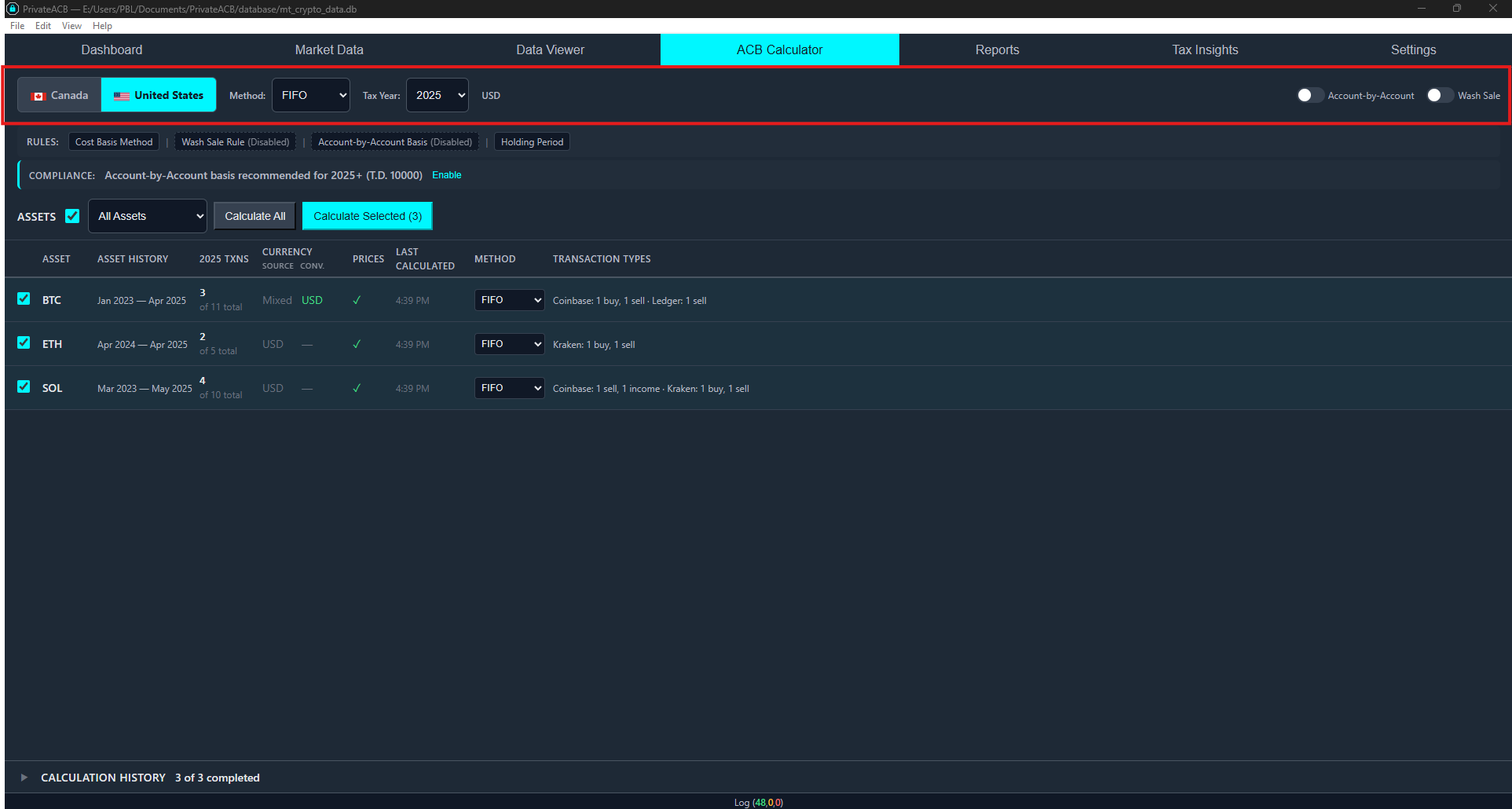
The Config Bar is a sticky header at the top of the dashboard. Set each option:
Jurisdiction: Click United States. This tells PrivateACB to use IRS tax rules and lot-based tracking (not average cost like Canada).
Tax Year: Select the year you’re filing for (e.g., 2024, 2025). The asset table below will update to show transaction counts for that year.
Method: Choose your lot selection method:
| Method | How It Works | Best For |
|---|---|---|
| FIFO (First In, First Out) | Sells oldest lots first | Simple tracking, general use. Often creates long-term gains. |
| LIFO (Last In, First Out) | Sells newest lots first | Minimizing short-term gains if prices fell recently. |
| HIFO (Highest In, First Out) | Sells highest-cost lots first | Minimizing total taxable gains. |
Account-by-Account (2025+ only): For tax year 2025 and later, IRS Treasury Decision 10000 (Treas. Reg. §1.1012-1(j)) requires account-by-account cost basis tracking. When enabled:
- Each exchange/account maintains its own lot pool
- Selling on Exchange A can only use lots purchased on Exchange A
- This toggle only appears for tax year 2025+
See the Account-by-Account Tracking Guide for details.
Wash Sale: Toggle ON to apply the IRS Section 1091 wash sale rule. Default is OFF. See “Wash Sale Rule” section below.
Step 3: Review the Rules Banner (Zone B)
Section titled “Step 3: Review the Rules Banner (Zone B)”Zone B displays a summary of the active tax rules based on your Config Bar selections:
- Jurisdiction and reporting currency (USD)
- Selected lot selection method
- Wash sale status (enabled/disabled)
- Account-by-account status (if applicable for 2025+)
This confirms your settings before you calculate.
Step 4: Select Assets in the Asset Table (Zone C)
Section titled “Step 4: Select Assets in the Asset Table (Zone C)”The Asset Table shows a 10-column grid of all your cryptocurrency assets:
| Column | What It Shows |
|---|---|
| Checkbox | Select/deselect for batch calculation |
| Asset | Cryptocurrency symbol (BTC, ETH, etc.) |
| Asset History | All-time date range of your transactions for this asset |
| {Year} Txns | Transaction count for the selected tax year (bold) and total across all years |
| Source | Original trading currency (USD, CAD, Mixed) |
| Converted | Currency conversion status — shows “N pending” in red if conversions are needed |
| Prices | Whether market prices are available for this asset |
| Last Calculated | When this asset was last calculated (shows STALE if data has changed since) |
| Method | Which method was used in the last calculation |
| Txn Types | Per-exchange transaction breakdown; shows account-by-account warnings for US 2025+ |
To select assets:
- Click the checkbox next to each asset you want to calculate
- Use the header checkbox to select/deselect all
- Assets with 0 transactions for the selected tax year are greyed out
- You can select multiple assets for batch calculation
Currency status: If the Converted column shows “N pending” in red, those transactions need USD conversion. Click the red text to navigate to the Market Data tab where you can fetch the needed exchange rates.
Step 5: Run the Calculation
Section titled “Step 5: Run the Calculation”Click the Calculate button. If you selected multiple assets, they are calculated sequentially — one after another, automatically.
What happens during calculation:
- Transactions are sorted chronologically
- Tax lots are created for each purchase
- When you sell, lots are consumed based on your method (FIFO/LIFO/HIFO)
- Capital gains/losses are calculated for each sale
- Short-term vs. long-term holding periods are tracked
- Wash sales are detected (if enabled)
- Account-by-account lot pools are enforced (if enabled for 2025+)
- Results are saved to your database
Step 6: Monitor Progress and Review Results (Zone D)
Section titled “Step 6: Monitor Progress and Review Results (Zone D)”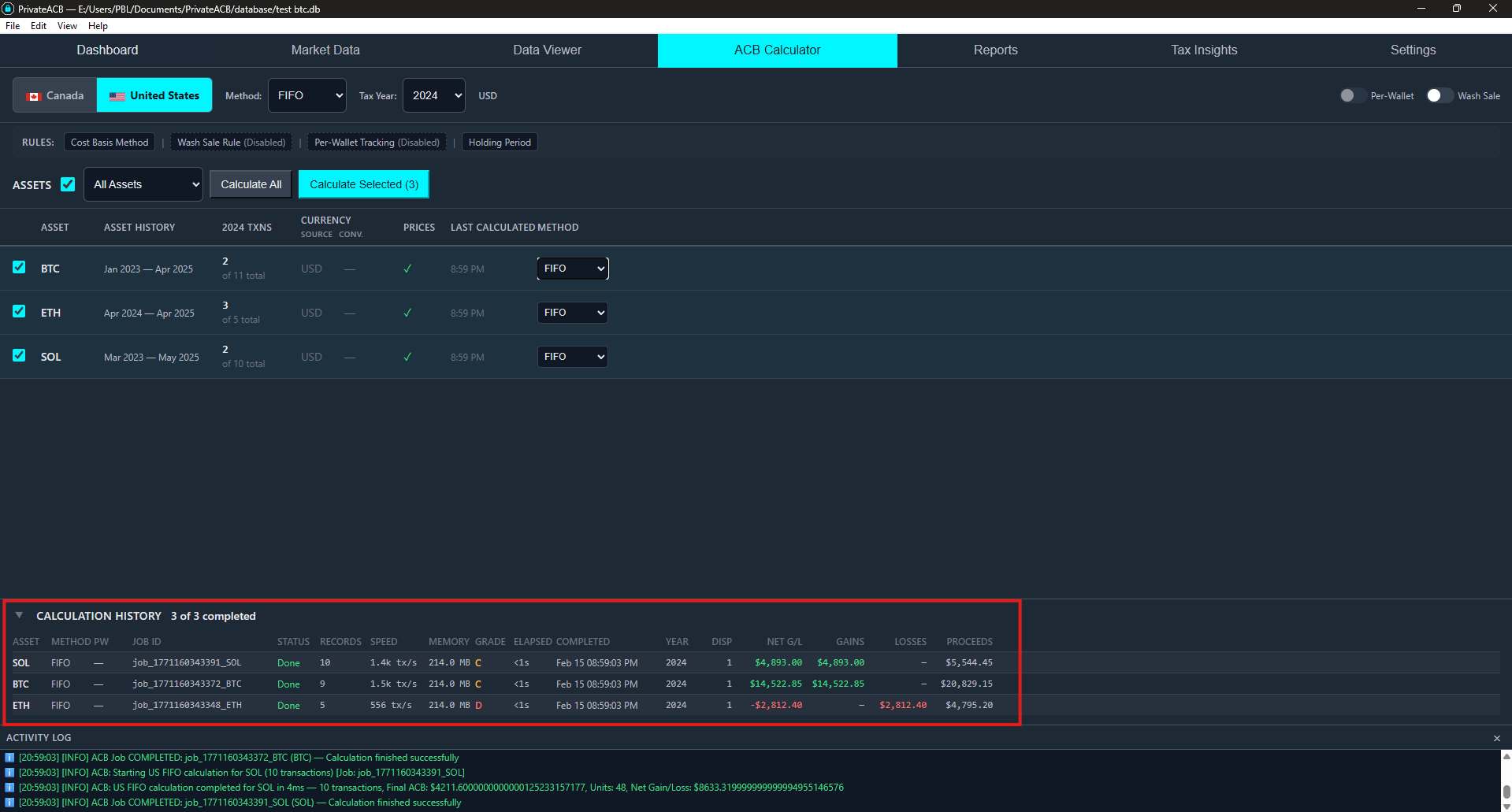
Zone D (Calculation History) shows every calculation job with real-time progress and financial results.
During calculation, each row shows:
| Column | What It Shows |
|---|---|
| Status | Percentage complete (e.g., 42%) |
| Records | Transactions processed so far |
| Speed | Transactions per second |
| Memory | Peak RAM usage |
| Grade | Performance rating (A/B/C/D) |
| Elapsed | Time since calculation started |
After completion, each row also shows financial results:
| Column | What It Shows |
|---|---|
| Year | Tax year calculated |
| Dispositions | Number of sales/trades |
| Proceeds | Total sale proceeds |
| Cost | Total cost basis of sold lots |
| Gain/Loss | Net capital gain or loss |
| ST Gain | Short-term capital gains |
| LT Gain | Long-term capital gains |
| Method | Lot selection method used |
| View Report | Link to open the report in the Reports tab |
All calculation history persists — you can always see past calculations and their results, even after restarting the app.
For details on performance grades, see the Performance Metrics Guide.
Understanding Your Results
Section titled “Understanding Your Results”What Are Tax Lots?
Section titled “What Are Tax Lots?”A tax lot is a specific purchase of cryptocurrency. Each time you buy, you create a new lot.
Example:
Jan 1:  Buy 1 BTC at $10,000    -> Lot #1 (1 BTC @ $10,000)Feb 1:  Buy 0.5 BTC at $15,000  -> Lot #2 (0.5 BTC @ $15,000)Mar 1:  Buy 2 BTC at $20,000    -> Lot #3 (2 BTC @ $20,000)
You have 3 active lots totaling 3.5 BTC
When you sell, the method determines which lot is used:
- FIFO: Uses Lot #1 first (oldest)
- LIFO: Uses Lot #3 first (newest)
- HIFO: Uses Lot #3 first (highest cost = $20,000/BTC)
Active lots are lots you still own (haven’t sold yet).
Short-Term vs. Long-Term Gains
Section titled “Short-Term vs. Long-Term Gains”Short-term gains:
- Asset held 1 year or less
- Taxed at your ordinary income tax rate (10%-37%)
Long-term gains:
- Asset held more than 1 year
- Taxed at preferential rates (0%, 15%, or 20% depending on income)
Why this matters: Long-term gains have much lower tax rates. A $10,000 long-term gain might be taxed at 15% ($1,500), while the same short-term gain could be taxed at 24% ($2,400).
How methods affect this:
- FIFO: Often creates more long-term gains (sells oldest lots first)
- LIFO: Often creates more short-term gains (sells newest lots first)
- HIFO: Mixed (depends on which lots have highest cost)
Reading Zone D Financial Results
Section titled “Reading Zone D Financial Results”After calculation, Zone D shows the financial summary for each asset:
- Dispositions = number of sell/trade transactions in the tax year
- Proceeds = total amount received from all sales
- Cost = total cost basis of the lots that were sold
- Gain/Loss = Proceeds minus Cost (your net capital gain or loss)
- ST Gain = portion from lots held 1 year or less
- LT Gain = portion from lots held more than 1 year
These numbers flow directly into your Form 8949 and Schedule D reports.
Wash Sale Rule (IRS Section 1091)
Section titled “Wash Sale Rule (IRS Section 1091)”The wash sale rule denies capital losses when you repurchase the same cryptocurrency within 30 days before or after a sale (61-day window). The denied loss is added to the cost basis of the replacement purchase — the loss is deferred, not eliminated.
Key points:
- The wash sale rule is optional for cryptocurrency (IRS has not definitively ruled it applies to crypto)
- PrivateACB defaults to DISABLED
- Toggle Wash Sale ON/OFF in the Config Bar (Zone A) — applies to the current calculation only
- Changing the setting does NOT update existing calculations; you must recalculate
For detailed examples, formulas, and guidance on whether to enable it, see the Wash Sale Guide.
Account-by-Account Tracking (2025+)
Section titled “Account-by-Account Tracking (2025+)”Starting with tax year 2025, IRS Treasury Decision 10000 (Treas. Reg. §1.1012-1(j)) requires cost basis to be tracked on an account-by-account basis — each exchange maintains its own lot pool, and selling on one exchange can only consume lots purchased on that exchange.
To enable: Select tax year 2025 or later in the Config Bar, then toggle Account-by-Account ON. PrivateACB automatically handles the pre-2025/2025+ transition within a single calculation and runs a preflight check to detect issues like missing transfers before you calculate.
For full details — including transfer handling, preflight checks, data quality requirements, and the Create Transfer feature — see the Account-by-Account Tracking Guide.
Comparing Methods
Section titled “Comparing Methods”You can calculate the same asset with different methods to see which minimizes your taxes:
Approach 1: Sequential Comparison
Section titled “Approach 1: Sequential Comparison”- Select US, your tax year, FIFO, and your asset
- Calculate and note the results in Zone D (Gain/Loss, ST, LT)
- Delete the FIFO calculation (Data Viewer > Deletion > Delete ACB Job)
- Change method to HIFO and recalculate
- Compare the results
Approach 2: Batch Comparison
Section titled “Approach 2: Batch Comparison”Since Zone D preserves all calculation history, you can:
- Calculate with FIFO, note results
- Delete the FIFO job
- Calculate with HIFO, note results
- Choose the method with lower total gains
Common Scenarios
Section titled “Common Scenarios”Scenario 1: First-Time Calculation (FIFO)
Section titled “Scenario 1: First-Time Calculation (FIFO)”- Open ACB Calculator
- Config Bar: United States > 2024 > FIFO
- In Zone C, check the assets you want to calculate (e.g., BTC, ETH)
- Click Calculate
- Monitor progress in Zone D
- Review financial results in Zone D after completion
Scenario 2: Tax Optimization with HIFO
Section titled “Scenario 2: Tax Optimization with HIFO”- Config Bar: United States > 2024 > HIFO
- Select your assets and calculate
- Review Zone D — HIFO should show lower gains than FIFO would (highest-cost lots sold first = smallest gains)
Scenario 3: Multiple Assets at Once
Section titled “Scenario 3: Multiple Assets at Once”- Config Bar: United States > 2024 > FIFO (or your preferred method)
- In Zone C, check BTC, ETH, ADA (or any combination)
- Click Calculate — assets are processed sequentially
- Each asset gets its own row in Zone D with individual results
Scenario 4: Wash Sales Enabled
Section titled “Scenario 4: Wash Sales Enabled”- Config Bar: United States > 2024 > Your method > Wash Sale: ON
- Select assets and calculate
- Zone D shows results including wash sale adjustments
- Form 8949 report will show “W” adjustment codes on affected transactions
- See the Wash Sale Guide for interpreting results
Scenario 5: Account-by-Account Tracking (2025+)
Section titled “Scenario 5: Account-by-Account Tracking (2025+)”- Config Bar: United States > 2025 > Your method > Account-by-Account: ON
- Review the preflight check (red X icons) for any transfer or data issues
- Select assets and calculate
- See the Account-by-Account Tracking Guide for full workflow
Using Your Results for Taxes
Section titled “Using Your Results for Taxes”After calculating, go to the Reports tab:
Form 8949
Section titled “Form 8949”- Select United States > Tax Year > Method
- Click Form 8949 > Aggregate (combines all assets)
- Review all transactions — proceeds, cost basis, gain/loss for each sale
- Part I = short-term, Part II = long-term (for 2025+, grouped by 1099-DA box category)
- Export to PDF for filing
Schedule D
Section titled “Schedule D”- Click Schedule D — shows combined totals from Form 8949
- Part I = total short-term, Part II = total long-term, Part III = net
- Export to PDF and include with your Form 1040
Lot Tracking
Section titled “Lot Tracking”- Select an individual asset’s calculation job
- See every active and exhausted lot with acquisition date, quantity, cost basis, holding period
- Useful for tax planning — identify which lots will be consumed next
Audit Provenance
Section titled “Audit Provenance”- Select an individual asset’s calculation job
- 6 collapsible sections: Data Sources, Import Trail, Calculation Metadata, Reconciliation, Rule Applications, System Events
- Keep for 7 years (IRS statute of limitations)
- Export to PDF for audit defense
See the US Reports Guide for full details on all 6 report types.
Troubleshooting
Section titled “Troubleshooting”Calculate button is disabled
Section titled “Calculate button is disabled”Verify all required Config Bar selections are made:
- Jurisdiction selected (United States)
- Method selected (FIFO, LIFO, or HIFO)
- At least one asset checked in Zone C
- License is active (trial allows calculations; expired trial blocks them)
Converted column shows “N pending”
Section titled “Converted column shows “N pending””This means transactions need USD conversion. The Source column shows the original trading currency (e.g., “CAD” or “Mixed”), and Converted shows how many are pending. Click the red text to navigate to the Market Data tab where you can fetch the needed exchange rates.
”STALE” appears in Last Calculated
Section titled “”STALE” appears in Last Calculated”This means new transaction data has been imported since the last calculation for that asset. Recalculate to update results.
Not sure which method to use
Section titled “Not sure which method to use”Calculate with multiple methods and compare Zone D results. Choose the method with the lowest total gains. HIFO typically minimizes taxes. Consult a tax professional for advice specific to your situation.
Total cost basis seems wrong
Section titled “Total cost basis seems wrong”Possible causes:
- Missing transactions (not all purchases imported)
- Duplicate transactions (same file imported twice)
- Method confusion (different methods consume different lots)
To verify: go to Reports tab, open the Lot Tracking report for the asset, and review the lot-by-lot breakdown.
Short-term vs. long-term split seems unexpected
Section titled “Short-term vs. long-term split seems unexpected”- Using LIFO or HIFO? These methods may sell newer lots (held < 1 year) even if you have older lots
- FIFO sells oldest lots first (more likely to produce long-term gains)
- Each sale is classified independently based on the specific lot consumed
Calculation is slow
Section titled “Calculation is slow”Large datasets (10,000+ transactions) may take several minutes. Monitor progress in Zone D — the Speed, Grade, and Elapsed columns show what’s happening. See the Performance Metrics Guide for details.
Best Practices
Section titled “Best Practices”1. Choose a Method and Stay Consistent
Section titled “1. Choose a Method and Stay Consistent”Pick one method (FIFO, LIFO, or HIFO) for each asset and use it consistently year-to-year. While changing methods between years is permitted (per §1.1012-1(j)(4), it’s not an accounting method change), frequent changes may raise audit questions. You can use different methods for different assets.
2. Import All Transactions Before Calculating
Section titled “2. Import All Transactions Before Calculating”Include every buy, sell, trade, reward, airdrop from ALL exchanges and wallets. Incomplete data produces incorrect cost basis and may trigger IRS audits. Don’t skip small transactions.
3. Decide on Wash Sales Before Calculating
Section titled “3. Decide on Wash Sales Before Calculating”Enable or disable the wash sale rule in the Config Bar before calculating. See the Wash Sale Guide for help deciding.
4. Use Batch Calculation
Section titled “4. Use Batch Calculation”Select all assets you need to calculate at once. They process sequentially, and you get results for each in Zone D. This is faster and more organized than calculating one at a time.
5. Review Zone D Before Exporting Reports
Section titled “5. Review Zone D Before Exporting Reports”Zone D gives you a quick financial summary. Verify the numbers look reasonable before going to the Reports tab to generate Form 8949 and Schedule D.
6. Export and Back Up Annually
Section titled “6. Export and Back Up Annually”After calculating each tax year:
- Export Form 8949 and Schedule D to PDF
- Export Audit Provenance for each asset to PDF
- Back up your PrivateACB database
- Keep records for 7 years (IRS statute of limitations)
Frequently Asked Questions
Section titled “Frequently Asked Questions”Which method should I use?
Section titled “Which method should I use?”It depends on your situation. FIFO is most common and easiest to understand. HIFO usually minimizes total taxes by selling highest-cost lots first. LIFO minimizes short-term gains if prices fell recently. Calculate with multiple methods and compare. Consult a tax professional.
Can I use different methods for different assets?
Section titled “Can I use different methods for different assets?”Yes. You can use FIFO for BTC, HIFO for ETH, and LIFO for ADA. Each asset is independent. But use the same method for the same asset year-to-year.
Do I need to enable wash sales?
Section titled “Do I need to enable wash sales?”It’s optional — PrivateACB defaults to disabled. See the Wash Sale Guide for details on the rule and guidance on whether to enable it.
What if I have transactions from multiple exchanges?
Section titled “What if I have transactions from multiple exchanges?”Import them all. PrivateACB combines transactions from all sources and tracks lots across all exchanges. For 2025+ with account-by-account tracking enabled, lots are tracked per exchange.
Can I calculate both Canadian and US taxes?
Section titled “Can I calculate both Canadian and US taxes?”Yes. Calculate with Canada jurisdiction (produces ACB results) and separately with US jurisdiction (produces lot-based results). Each jurisdiction’s results are independent. A Both license is required to access both.
What happens if I recalculate?
Section titled “What happens if I recalculate?”Each calculation creates a new job in Zone D. If you want to replace a previous calculation, delete the old job first (Data Viewer > Deletion > Delete ACB Job), then recalculate.
Related Guides
Section titled “Related Guides”- US Reports Guide — Understanding Form 8949, Schedule D, and other US reports
- US Tax Formulas (Technical) — Mathematical details of lot-based calculations
- Wash Sale Guide — Detailed guide to the wash sale rule
- Account-by-Account Tracking Guide — T.D. 10000 compliance for 2025+
- Market Data Guide — Setting up exchange rates
- Import Flow Guide — Importing transaction data
- Deletion Guide — How to delete old calculations
- Performance Metrics Guide — Understanding calculation speed and grades
Jurisdiction: United States Tax Authority: Internal Revenue Service (IRS) Last Updated: February 2026 PrivateACB Version: 2.0