1099-DA & Account-by-Account Basis
Overview
Section titled “Overview”Starting in 2025, two major IRS regulatory changes affect how cryptocurrency taxes are calculated and reported:
- 1099-DA Box Categorization — Exchanges that issue IRS Form 1099-DA classify your transactions differently on Form 8949 and Schedule D, requiring PrivateACB to sort disposals into the correct reporting boxes.
- Account-by-Account Basis (T.D. 10000) — IRS Treasury Decision 10000 (Treas. Reg. §1.1012-1(j)) requires brokers to track cost basis on an account-by-account basis starting January 1, 2025, rather than pooling all lots together.
PrivateACB supports both features, allowing you to generate IRS-compliant reports that match how exchanges will report your activity to the IRS.
What you’ll learn:
- How to configure exchange 1099-DA reporting status
- What Form 8949 box categories mean and how they work
- How account-by-account cost basis tracking changes your calculations
- How to use Create Transfer to resolve missing transfer records
- How to read the updated reports
- Troubleshooting common scenarios
Time to read: 15-20 minutes Prerequisites: Familiarity with US Tax Calculation Guide and US Reports User Guide
Part 1: 1099-DA Box Categorization
Section titled “Part 1: 1099-DA Box Categorization”What is Form 1099-DA?
Section titled “What is Form 1099-DA?”Form 1099-DA (Digital Asset Proceeds from Broker Transactions) is a new IRS form that cryptocurrency exchanges will issue starting in 2025. Similar to how your stock broker sends you a 1099-B, crypto exchanges will now send you (and the IRS) a 1099-DA reporting your proceeds from digital asset sales.
Why Does This Matter for Your Tax Filing?
Section titled “Why Does This Matter for Your Tax Filing?”When an exchange issues a 1099-DA, the IRS already knows about your transactions. This means:
- Your Form 8949 entries must match what the exchange reported
- Transactions are sorted into different boxes on Form 8949 depending on whether the exchange reported them
- Schedule D line items change based on the reporting status
Form 8949 Box Categories
Section titled “Form 8949 Box Categories”Form 8949 has multiple boxes that classify transactions based on two factors:
- Holding period — Short-term (held 1 year or less) or Long-term (held more than 1 year)
- 1099-DA reporting status — Whether the exchange reported the transaction to the IRS
Tax Year 2025 and Later (New Rules)
Section titled “Tax Year 2025 and Later (New Rules)”| Box | Holding Period | 1099-DA Status | Schedule D Line |
|---|---|---|---|
| G | Short-term | 1099-DA with cost basis reported | Line 1b |
| H | Short-term | 1099-DA without cost basis reported | Line 2 |
| I | Short-term | No 1099-DA received | Line 3 |
| J | Long-term | 1099-DA with cost basis reported | Line 8b |
| K | Long-term | 1099-DA without cost basis reported | Line 9 |
| L | Long-term | No 1099-DA received | Line 10 |
How to read this table:
- Box G means the exchange sent you a 1099-DA that includes both proceeds and cost basis, and the transaction was short-term. This goes on Schedule D Line 1b.
- Box I means the exchange did not send a 1099-DA (perhaps it’s a decentralized exchange or foreign exchange), and the transaction was short-term. This goes on Schedule D Line 3.
Tax Year 2024 and Earlier (Legacy Rules)
Section titled “Tax Year 2024 and Earlier (Legacy Rules)”For 2024 and prior years, 1099-DA did not exist. All transactions use simplified box categories:
| Box | Holding Period | Schedule D Line |
|---|---|---|
| C | Short-term | Line 3 |
| F | Long-term | Line 10 |
PrivateACB automatically applies the correct box categorization based on the tax year of your calculation.
Configuring Exchange 1099-DA Status
Section titled “Configuring Exchange 1099-DA Status”To generate correctly categorized reports, you need to tell PrivateACB which of your exchanges have issued (or will issue) a 1099-DA.
Step 1: Open Exchange Form Status Settings
Section titled “Step 1: Open Exchange Form Status Settings”- Navigate to the Settings tab
- Find the Exchange Form Status (1099-DA) card and expand it
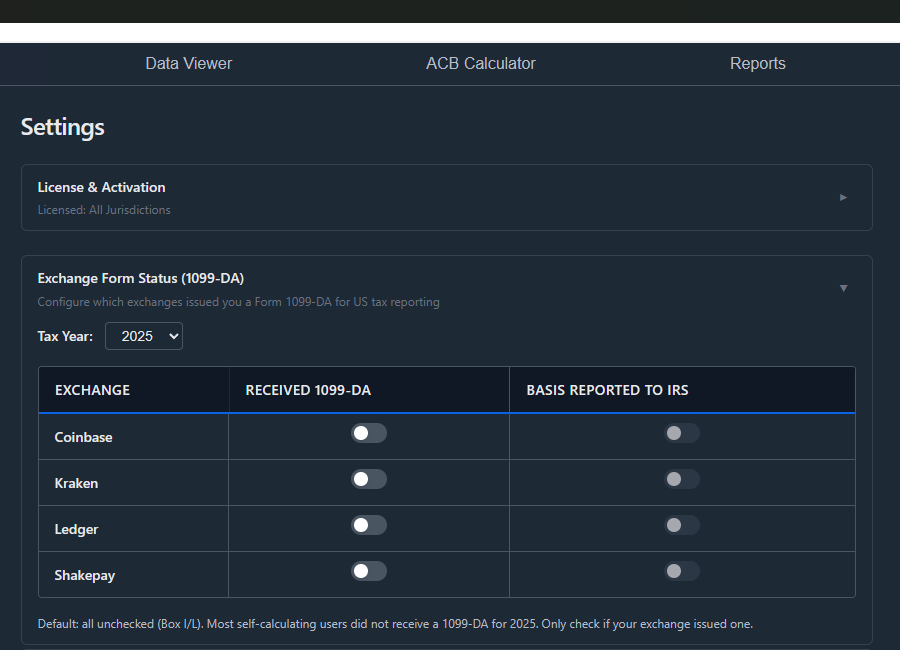
- You will see a table listing exchanges detected from your imported transaction data, with a Tax Year selector at the top
Step 2: Select the Tax Year
Section titled “Step 2: Select the Tax Year”Use the Tax Year dropdown at the top of the section to choose the year you are configuring. Exchange form status is stored per tax year — you can have different settings for 2025 vs 2026.
Note: For tax years 2024 and earlier, a message reminds you that 1099-DA boxes (G–L) apply to 2025+ only — pre-2025 calculations automatically use Box C/F regardless of these settings.
Step 3: Configure Each Exchange
Section titled “Step 3: Configure Each Exchange”The table has three columns:
| Column | What It Does |
|---|---|
| Exchange | The exchange name (detected from your imported data) |
| Received 1099-DA | Check this box if the exchange sent you a 1099-DA form |
| Basis Reported to IRS | Check this box if the 1099-DA includes your cost basis (only available when “Received 1099-DA” is checked) |
The two checkboxes combine to produce three effective states:
| Received 1099-DA | Basis Reported | Result | Form 8949 Boxes |
|---|---|---|---|
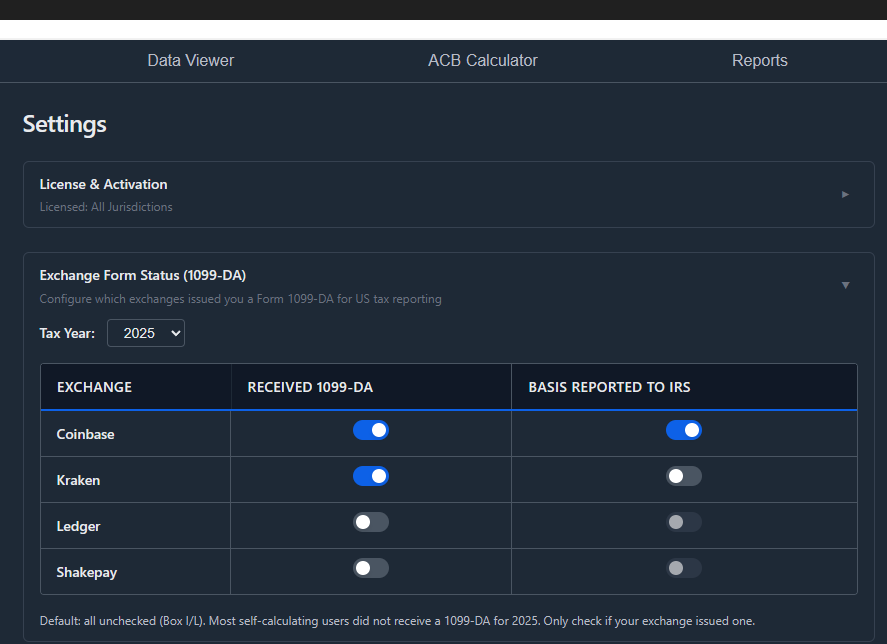
| ☐ | ☐ | Exchange did not issue a 1099-DA | Box I (short-term) / Box L (long-term) |
| ☑ | ☐ | Exchange issued 1099-DA without cost basis | Box H (short-term) / Box K (long-term) |
| ☑ | ☑ | Exchange issued 1099-DA with cost basis | Box G (short-term) / Box J (long-term) |
To configure an exchange:
- If the exchange sent you a 1099-DA, check the Received 1099-DA box
- If that 1099-DA also included your cost basis, check the Basis Reported to IRS box
- Changes save automatically and apply to your next calculation
Tip: Unchecking “Received 1099-DA” automatically unchecks “Basis Reported to IRS” — an exchange can’t report your basis without first issuing the form.
Step 4: Verify Configuration
Section titled “Step 4: Verify Configuration”After configuring your exchanges:
- Exchanges with both boxes checked will produce Box G/J transactions (1099-DA with basis)
- Exchanges with only “Received” checked will produce Box H/K transactions (1099-DA without basis)
- Unconfigured exchanges will produce Box I/L transactions (no 1099-DA)
Important notes:
- By default, all exchanges start with both boxes unchecked — transactions will be categorized in Box I (short-term) or Box L (long-term). A note at the bottom of the panel reminds you: “Most self-calculating users did not receive a 1099-DA for 2025. Only check if your exchange issued one.”
- Hardware wallets (Ledger, Trezor) and self-custody wallets should remain unconfigured (they never issue 1099-DA)
- You only need to configure exchanges for tax years 2025 and later
How Box Categories Appear in Reports
Section titled “How Box Categories Appear in Reports”Form 8949
Section titled “Form 8949”After running a calculation for 2025+, your Form 8949 report will organize transactions by box:
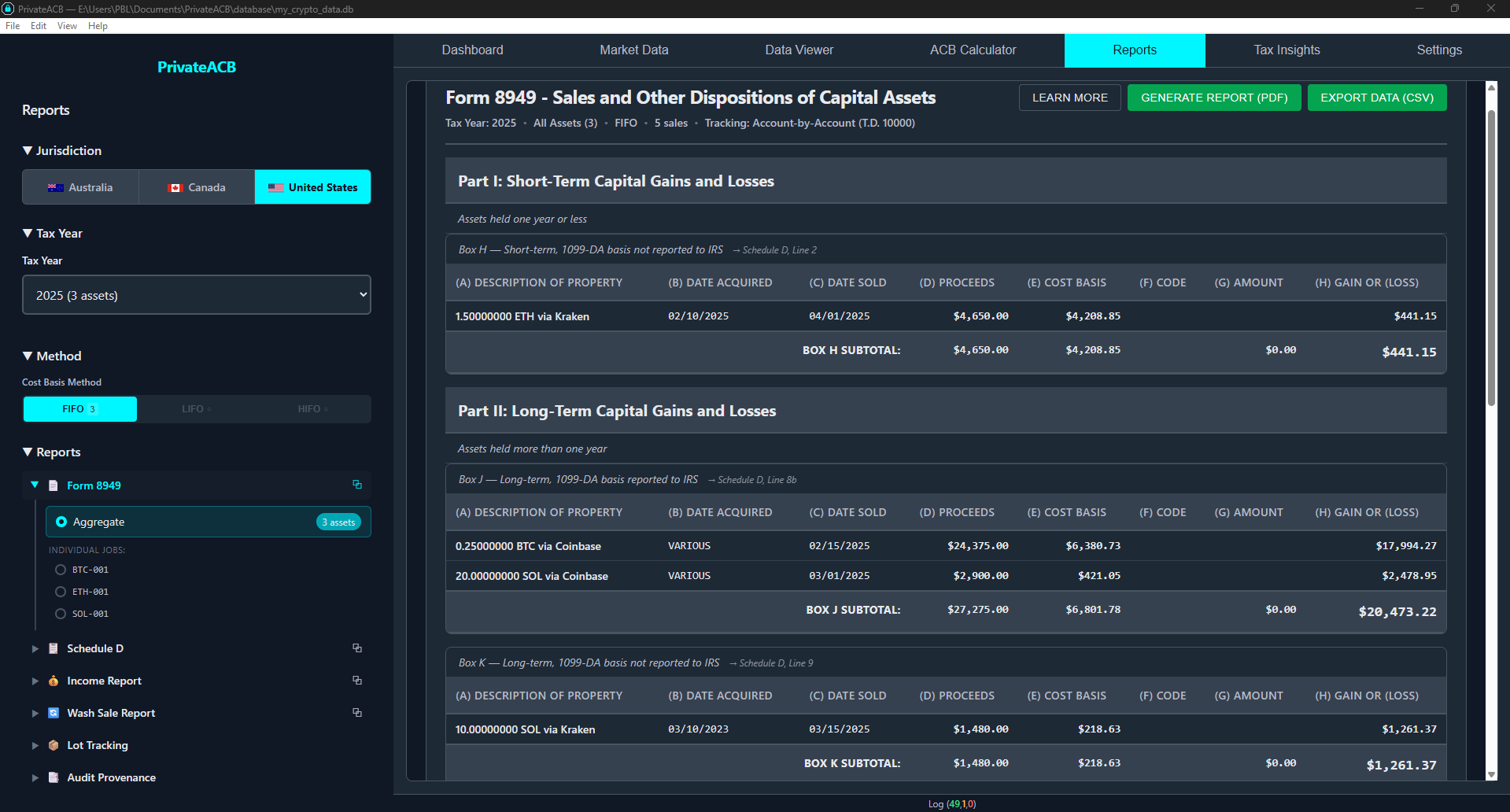
Each box section includes:
- Box letter and description (e.g., “Box G — Short-term, 1099-DA with cost basis reported”)
- Individual transactions with date acquired, date sold, proceeds, cost basis, and gain/loss
- Subtotals for each box
Tip: If you see transactions in Box I or L that should be in G/J or H/K, check your exchange 1099-DA configuration in Settings.
Schedule D
Section titled “Schedule D”Schedule D now shows line-level detail matching the Form 8949 boxes:
Part I — Short-Term Capital Gains and Losses:
| Line | Source | Corresponding Form 8949 Box |
|---|---|---|
| 1b | Transactions reported on 1099-DA with basis | Box G |
| 2 | Transactions reported on 1099-DA without basis | Box H |
| 3 | Transactions not reported on 1099-DA | Box I |
Part II — Long-Term Capital Gains and Losses:
| Line | Source | Corresponding Form 8949 Box |
|---|---|---|
| 8b | Transactions reported on 1099-DA with basis | Box J |
| 9 | Transactions reported on 1099-DA without basis | Box K |
| 10 | Transactions not reported on 1099-DA | Box L |
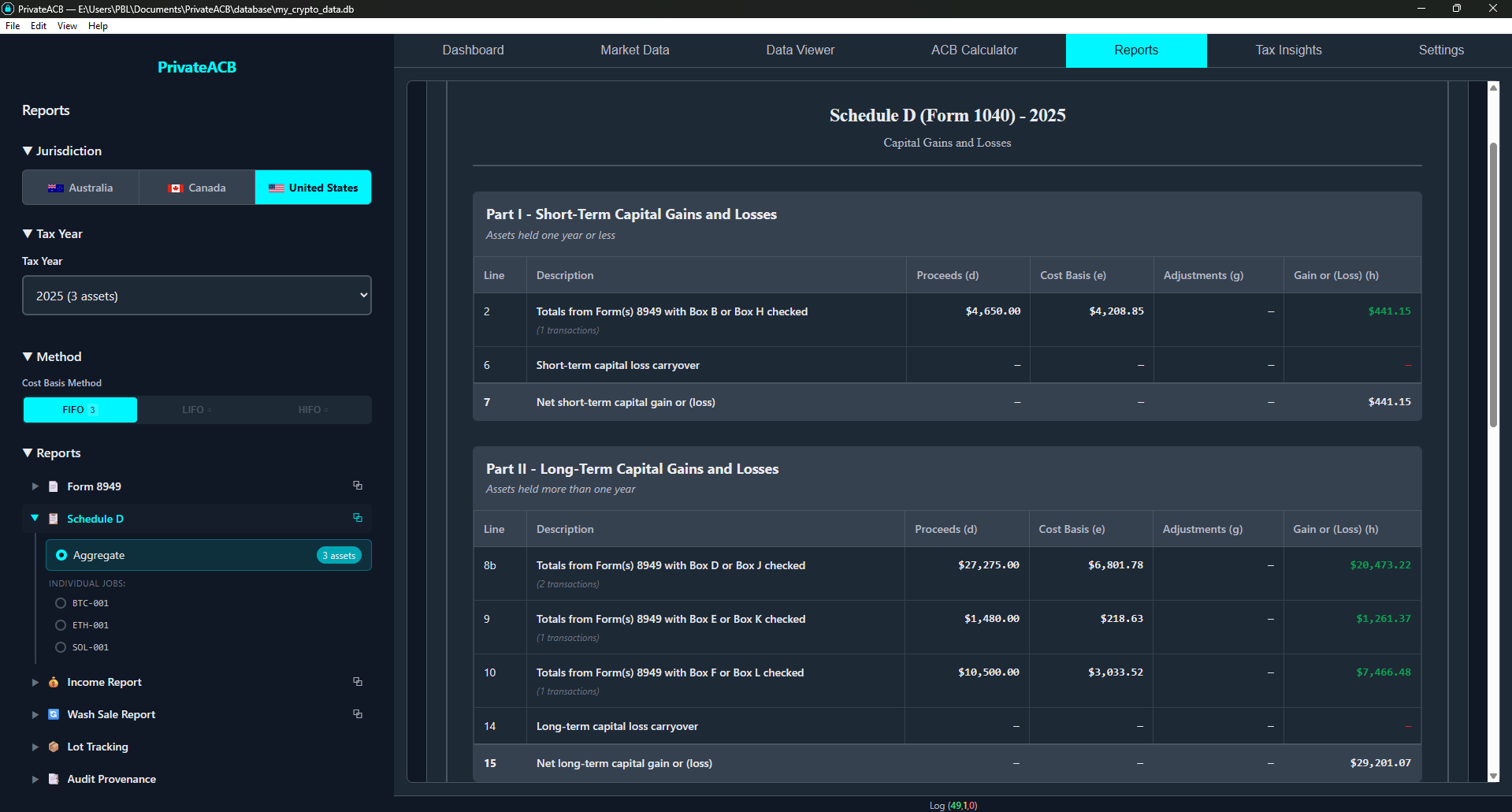
Key totals:
- Line 7 = Total short-term (sum of Lines 1b + 2 + 3)
- Line 15 = Total long-term (sum of Lines 8b + 9 + 10)
- Line 16 = Combined total (Line 7 + Line 15)
Part 2: Account-by-Account Cost Basis Tracking
Section titled “Part 2: Account-by-Account Cost Basis Tracking”What is Account-by-Account Cost Basis?
Section titled “What is Account-by-Account Cost Basis?”Traditionally, PrivateACB pools all your tax lots together when calculating cost basis. If you bought 1 BTC on Coinbase and 1 BTC on Kraken, both lots go into the same pool — when you sell on either exchange, FIFO (or your chosen method) picks from the combined pool.
Starting January 1, 2025, IRS Treasury Decision 10000 (Treas. Reg. §1.1012-1(j)) requires brokers to track cost basis on an account-by-account basis. This means:
- Lots purchased on Coinbase can only be used when selling on Coinbase
- Lots purchased on Kraken can only be used when selling on Kraken
- Each account/exchange maintains its own independent pool of tax lots
Why Did the IRS Change This?
Section titled “Why Did the IRS Change This?”T.D. 10000 aligns cryptocurrency reporting with how traditional securities have always worked — your Fidelity account tracks its own cost basis separately from your Schwab account. With the introduction of Form 1099-DA, exchanges need to report cost basis, and they can only report basis for lots they hold.
Tax Year Boundary
Section titled “Tax Year Boundary”PrivateACB handles the transition automatically within a single calculation:
| Transaction Date | Cost Basis Method |
|---|---|
| Before January 1, 2025 | Universal pool (all lots combined) |
| January 1, 2025 and later | Account-by-account pools (lots grouped by account/exchange) |
This means a single tax calculation can span both rules. For example, if you’re calculating 2024-2025:
- 2024 sales use the traditional universal FIFO
- 2025 sales use account-by-account FIFO
Transition Safe Harbor (Rev. Proc. 2024-28)
Section titled “Transition Safe Harbor (Rev. Proc. 2024-28)”The IRS provides a transition safe harbor under Revenue Procedure 2024-28. This allows taxpayers to allocate their existing lots (acquired before 2025) across accounts using a reasonable method. PrivateACB handles this by assigning each lot to the account where it currently resides based on your transaction history.
Enabling Account-by-Account Cost Basis
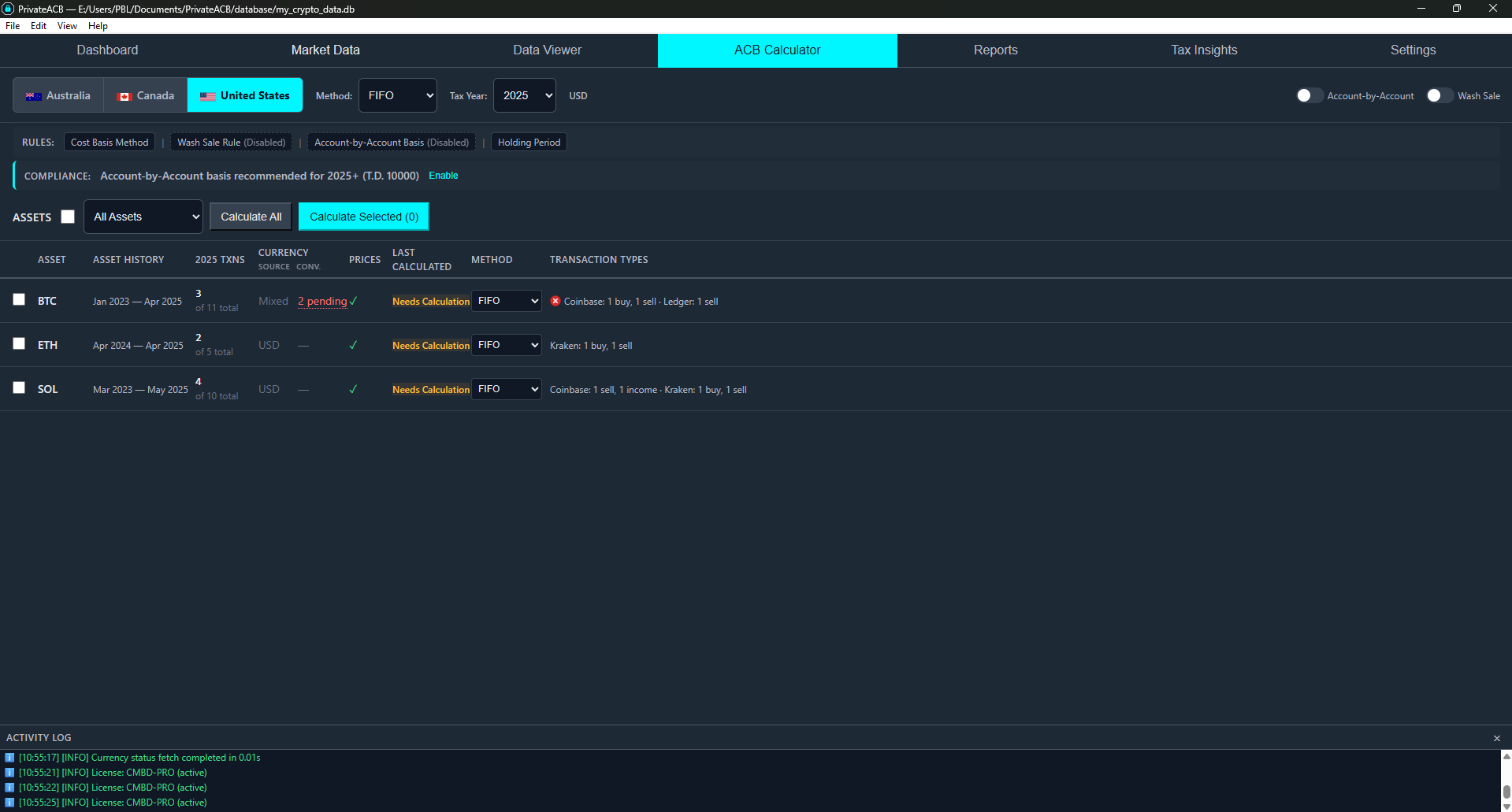
Section titled “Enabling Account-by-Account Cost Basis”Step 1: Open the ACB Calculator
Section titled “Step 1: Open the ACB Calculator”- Navigate to the ACB Calculator tab
- In the Configuration Bar at the top, select:
- Jurisdiction: United States
- Tax Year: 2025 (or later)
Step 2: Enable Account-by-Account Tracking
Section titled “Step 2: Enable Account-by-Account Tracking”- In the Configuration Bar, locate the “Account-by-Account” toggle (right side)
- Click to enable it — the toggle highlights to show the active state
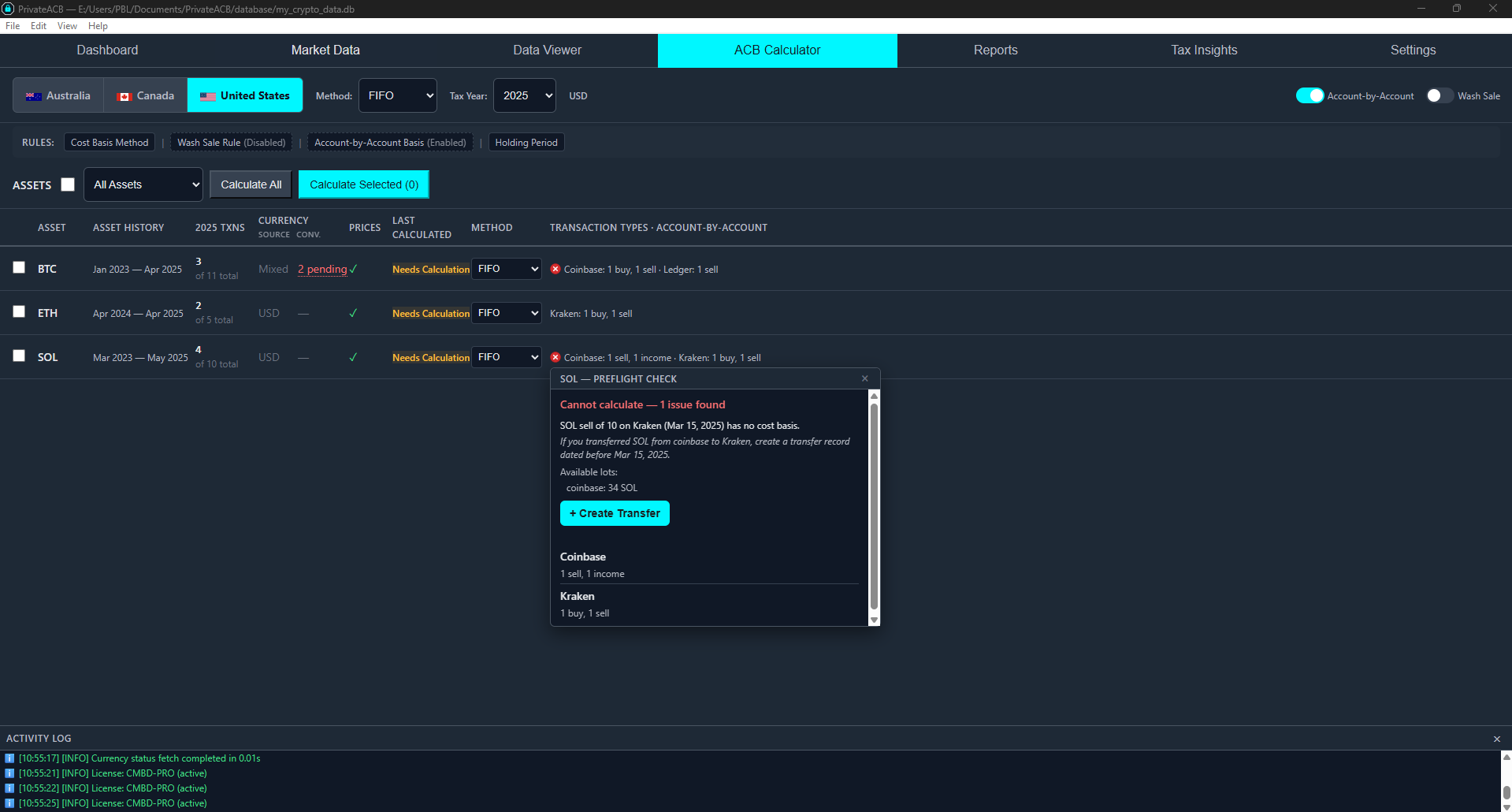
Note: The Account-by-Account toggle appears whenever the jurisdiction is set to United States, but it is disabled (grayed out) for tax years 2024 and earlier — hovering shows the tooltip “Account-by-Account Tracking requires tax year 2025+”. Select a 2025+ tax year to enable it.
Step 3: Review the Preflight Check
Section titled “Step 3: Review the Preflight Check”When you open the ACB Calculator with Account-by-Account enabled, PrivateACB automatically runs a preflight check — a validation-only pass of the calculation engine that detects problems before you commit to a full calculation. This catches issues like missing lots, transfer gaps, and other data problems that would cause a calculation to fail.
| Indicator | Meaning |
|---|---|
| No icon | Preflight passed — the asset is ready to calculate |
| Red X icon | Preflight detected one or more issues that will prevent a successful calculation |
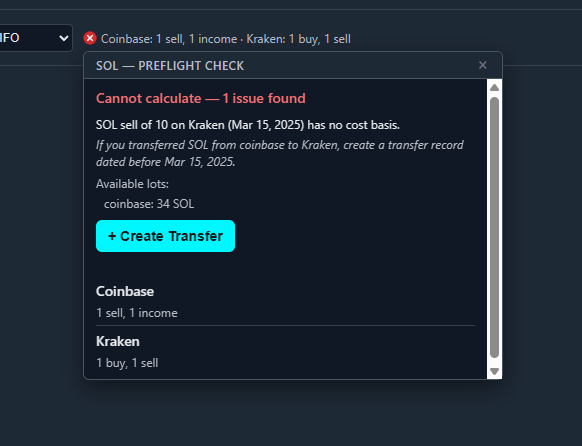
Click the red X icon to see a diagnostic popover with:
- Issue description — exactly what went wrong (e.g., “No lots found in Kraken”)
- Resolution guidance — what you can do to fix it
- Available accounts — which accounts currently hold lots for this asset
- Create Transfer button — if lots exist on another account, you can move them directly. See Using Create Transfer.
The preflight check runs the actual calculation engine in validation-only mode, so it catches the same errors you’d see during a real calculation — but without persisting any results or modifying your data.
Step 4: Run Your Calculation
Section titled “Step 4: Run Your Calculation”Select the assets you want to calculate and click “Calculate Selected”, or click “Calculate All” to process every asset with transactions. PrivateACB will:
- Process pre-2025 transactions using the universal lot pool
- Switch to account-by-account lot pools starting January 1, 2025
- Group tax lots by their current account/exchange
What to look for in results:
After calculation completes:
- The Calculation History panel at the bottom shows a “PW” column with a checkmark (✓) for each asset that was calculated with account-by-account tracking enabled
- All generated reports (Form 8949, Schedule D, Lot Tracking, Wash Sale) display “Tracking: Account-by-Account” in the header, confirming the calculation mode
Understanding Account-by-Account Lot Selection
Section titled “Understanding Account-by-Account Lot Selection”Example: Universal vs Account-by-Account FIFO
Section titled “Example: Universal vs Account-by-Account FIFO”Consider this scenario with BTC transactions:
Purchases:
| Date | Amount | Price | Exchange |
|---|---|---|---|
| Jan 15, 2023 | 1.0 BTC | $25,000 | Coinbase |
| Mar 10, 2023 | 0.5 BTC | $27,000 | Ledger |
| Jun 1, 2023 | 0.8 BTC | $30,000 | Kraken |
| Aug 15, 2024 | 0.5 BTC | $50,000 | Coinbase |
Sale on Coinbase — Feb 15, 2025: Sell 0.5 BTC at $60,000
Universal FIFO (pre-2025 rules): Uses the oldest lot across ALL accounts:
- Consumes from Lot 1 (Coinbase, Jan 2023, $25,000) — Long-term gain
- Cost basis: 0.5 x $25,000 = $12,500
- Gain: $30,000 - $12,500 = $17,500 long-term
Account-by-Account FIFO (2025 rules): Uses the oldest lot on Coinbase only:
- Consumes from Lot 1 (Coinbase, Jan 2023, $25,000) — same result here because the oldest Coinbase lot is the overall oldest
- Cost basis: 0.5 x $25,000 = $12,500
- Gain: $30,000 - $12,500 = $17,500 long-term
Sale on Kraken — Mar 1, 2025: Sell 0.3 BTC at $62,000
Universal FIFO: Would use the next oldest lot overall:
- Consumes from Lot 1 remainder (Coinbase, Jan 2023) — Long-term
- Cost basis: 0.3 x $25,000 = $7,500
Account-by-Account FIFO: Uses the oldest lot on Kraken only:
- Consumes from Lot 3 (Kraken, Jun 2023, $30,000) — Long-term
- Cost basis: 0.3 x $30,000 = $9,000
In this case, account-by-account gives a different cost basis ($9,000 vs $7,500) because the oldest Kraken lot has a different cost than the oldest universal lot.
Data Quality Check
Section titled “Data Quality Check”Before running an account-by-account calculation, PrivateACB checks that your data quality is sufficient for accurate account-by-account tracking.
What Gets Checked
Section titled “What Gets Checked”The data quality check examines:
- Account assignment coverage — What percentage of your transactions have account/exchange information?
- Missing account information — Transactions without an account cannot be properly assigned to a lot pool
Quality Threshold
Section titled “Quality Threshold”PrivateACB requires 95% or higher account coverage for a given tax year to enable account-by-account calculations without warnings. If your data falls below this threshold, you’ll see a warning before calculation proceeds.
How to Fix Low Coverage
Section titled “How to Fix Low Coverage”If your account coverage is below 95%:
- Go to the Data Viewer tab
- Look for transactions with missing or blank Exchange/Wallet columns
- Edit these transactions to add the correct exchange or account name
- Return to the ACB Calculator and re-run the calculation
Common causes of missing account information:
- Imported CSV files that don’t include an exchange column
- Manual entries where the exchange field was left blank
- Transfers between accounts where only one side was recorded
Account-by-Account and Transfers Between Exchanges
Section titled “Account-by-Account and Transfers Between Exchanges”The Transfer Scenario
Section titled “The Transfer Scenario”A common situation: you buy crypto on one exchange, transfer it to another, then sell. For example:
- Buy 5 ETH on Coinbase
- Transfer 5 ETH to Kraken (Send from Coinbase, Receive on Kraken)
- Sell 5 ETH on Kraken
With account-by-account tracking, Kraken has no purchase record for those ETH — the lots were created on Coinbase. For the Kraken sale to succeed, the lots must move from the Coinbase silo to the Kraken silo.
How PrivateACB Handles Transfers
Section titled “How PrivateACB Handles Transfers”PrivateACB automatically detects and matches transfer pairs in your imported data:
-
Transfer matching — Before calculation, PrivateACB scans for Send/Withdrawal transactions paired with Receive/Deposit transactions. A match requires the same asset, similar quantity (within 2% to account for network fees), and timestamps within 48 hours.
-
Lot movement — When a matched transfer is found, the tax lots are moved from the source account to the destination account using FIFO order (as required by §1.1012-1(j)(1)). If only part of your holdings are transferred, the lot is split accordingly.
-
Audit trail — Each lot retains its Origin (where it was originally purchased) even after being moved. The Lot Tracking report shows both the current Account and the Origin for each lot.
What Happens Without Transfer Records
Section titled “What Happens Without Transfer Records”If your imported data is missing the Send/Receive records for a transfer, PrivateACB cannot move the lots to the destination account. In this case, the calculation will fail with a clear error message telling you exactly what happened:
No lots found in “Kraken” — your lots are in: Coinbase. Account-by-Account tracking requires Send/Receive records in your imported data to move lots between accounts. Import the missing transfer transactions, or turn off Account-by-Account Tracking in the config bar.
This strict enforcement ensures your tax calculations comply with T.D. 10000 — silently pulling lots from other accounts would produce incorrect results.
How to Fix Transfer Errors
Section titled “How to Fix Transfer Errors”You have three options:
-
Use Create Transfer in the Dashboard — PrivateACB can detect when an account has sells but no cost basis source (no buys, no deposits). When this happens, a “Create Transfer” button appears in the Transaction Types column. This lets you create the missing transfer records directly from the Dashboard without editing CSV files. See Using Create Transfer below for step-by-step instructions.
-
Add the missing transfer records to your CSV — Include both the Send (from the source exchange) and Receive (on the destination exchange) transactions, then re-import and recalculate. Most exchanges provide these records in their transaction export.
-
Turn off Account-by-Account Tracking — If you don’t have transfer records available and don’t remember which account the assets came from, uncheck the Account-by-Account toggle in the Configuration Bar. This uses the traditional universal pool where all lots are combined regardless of account.
Using Create Transfer
Section titled “Using Create Transfer”When PrivateACB’s preflight check detects that an account has sell transactions but no cost basis source, the asset row shows a red X icon. Clicking it reveals a diagnostic popover with the issue details, and if lots exist on another account, a “Create Transfer” button appears.
Step 1: Click the red X icon on the affected asset row.
Step 2: In the diagnostic popover, review the issue and resolution guidance. If lots exist on another account, click “Create Transfer”.
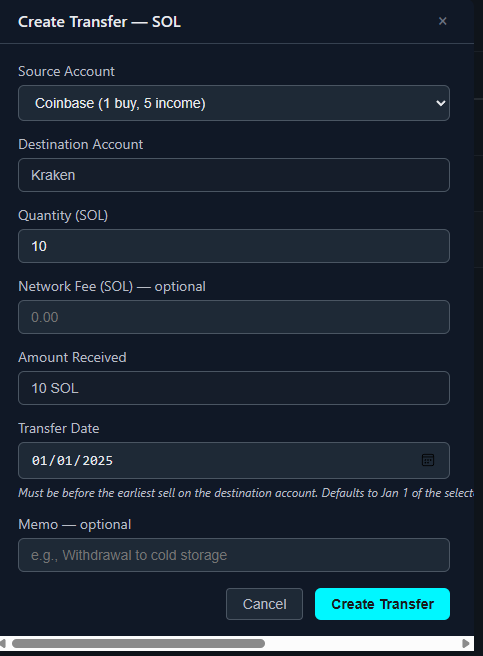
Step 3: Fill out the Create Transfer dialog:
| Field | Description |
|---|---|
| Source Account | The account where the lots currently reside (dropdown shows accounts with buys/income) |
| Destination Account | The account with sells but no lots (pre-filled, read-only) |
| Quantity | How much to transfer (pre-filled with the destination’s total sell quantity — adjust if needed) |
| Network Fee | Optional — the blockchain fee deducted during transfer. Receive amount adjusts automatically. |
| Transfer Date | When the transfer occurred. Defaults to January 1 of the tax year. Must be before the earliest sell on the destination account. |
| Memo | Optional note for your records |
Step 4: Click “Create Transfer”. PrivateACB creates a matching Send and Receive record pair in your database. The asset shows “Needs Calculation” (stale) in the Dashboard.
Step 5: Recalculate. PrivateACB’s transfer matching engine pairs the Send and Receive records, moves the lots from the source to the destination using FIFO order, and the subsequent sell now has lots available.
Important: Create Transfer records real transaction records in your database. Only create transfers that actually happened. If you make a mistake, you can delete the transfer from the Data tab → Delete Import — look for the entry named “Create Transfer: [asset] [source] → [destination]”.
Tip: If the lots are spread across multiple source accounts and no single account has enough, create separate transfers from each source. For example, transfer 0.5 ETH from Coinbase and 0.3 ETH from Ledger to cover a 0.8 ETH sell on Kraken.
Best Practices for Transfers
Section titled “Best Practices for Transfers”- Record both sides of transfers — When you transfer crypto between exchanges, make sure both the Send/Withdrawal (from Exchange A) and Receive/Deposit (to Exchange B) are in your imported data
- Use Create Transfer for missing records — If your exchange CSV doesn’t include transfer records, use the Create Transfer feature in the Dashboard instead of manually editing CSV files
- Verify account names are consistent — “Coinbase” and “coinbase” are treated as the same account, but “Coinbase Pro” would be separate
- Check for network fee differences — A Send of 1.0 BTC may result in a Receive of 0.9995 BTC (minus network fee). PrivateACB accounts for this with a 2% quantity tolerance when matching transfers
- Review the activity log — After calculation, check for transfer-related error messages to identify missing records
- Set the transfer date correctly — The transfer date must be before any sells on the destination account. If the source account’s first purchase is after January 1 of the tax year, set the transfer date after that purchase date.
Lot Tracking Report — Account and Origin Columns
Section titled “Lot Tracking Report — Account and Origin Columns”When Account-by-Account Tracking is enabled, the Lot Tracking report includes two account-related columns:
| Column | Meaning |
|---|---|
| Account | The account/exchange where the lot currently resides (updated by transfers) |
| Origin | The account/exchange where the lot was originally purchased (never changes) |
For example, if you bought BTC on Coinbase, transferred it to Kraken, then sold on Kraken:
- A lot’s Account would show “Kraken” (current location after the transfer)
- The same lot’s Origin would show “Coinbase” (where it was originally purchased)
When Account-by-Account Tracking is turned off, these columns are hidden since account assignment is not relevant.
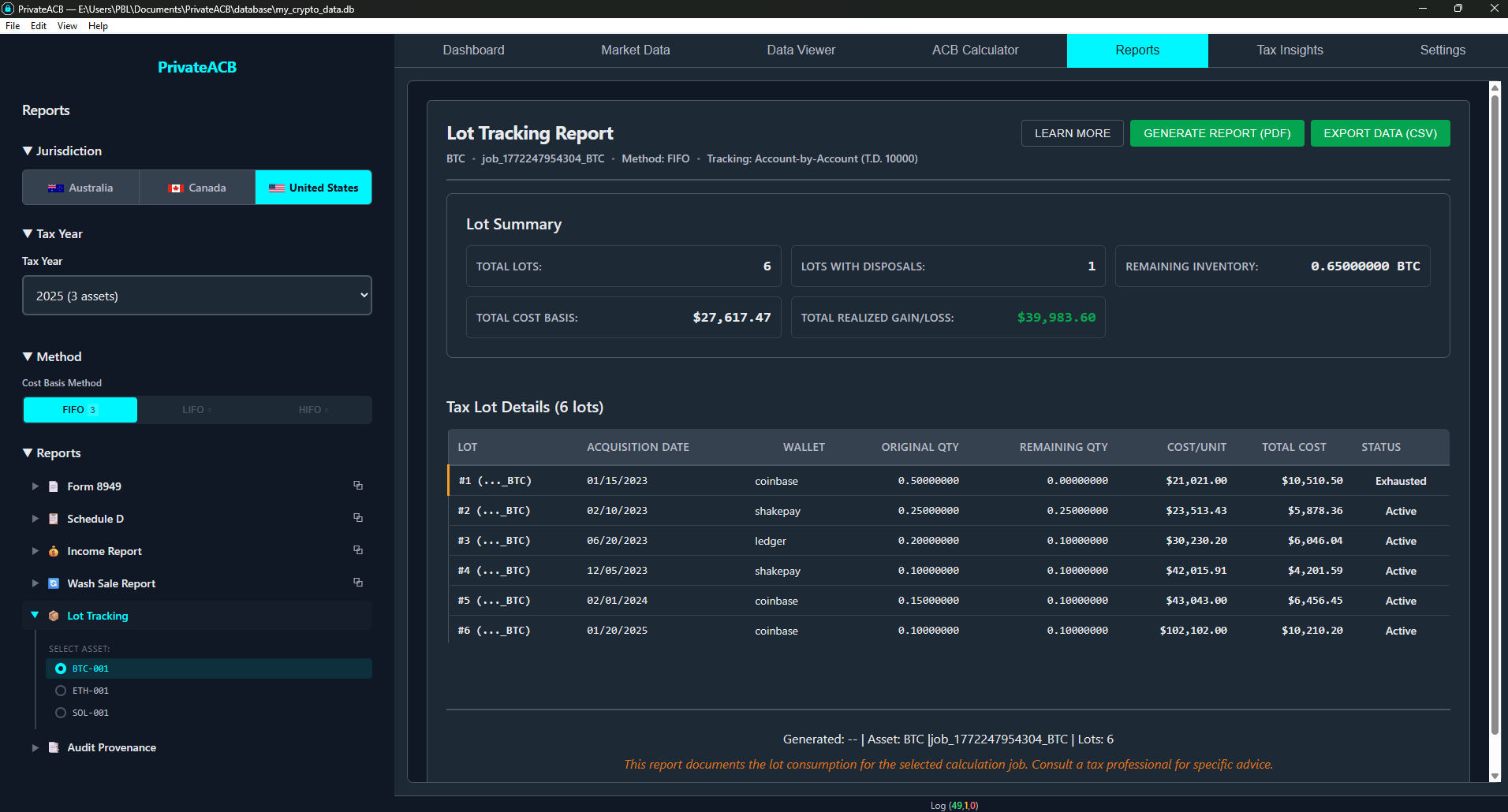
Use this report to verify:
- Lots are assigned to the correct account after transfers
- Origin information matches your purchase history
- Remaining quantities per account make sense
Tracking Mode Indicator
Section titled “Tracking Mode Indicator”All US reports (Form 8949, Schedule D, Lot Tracking, and Wash Sale) display a Tracking indicator in the report header:
- “Tracking: Account-by-Account” — Calculation used account-by-account lot pools (T.D. 10000 compliant)
- “Tracking: Universal” — Calculation used the traditional combined lot pool
This makes it easy to confirm which mode was active when the report was generated.
Part 3: How the Features Work Together
Section titled “Part 3: How the Features Work Together”The Complete 2025+ Workflow
Section titled “The Complete 2025+ Workflow”Here’s how 1099-DA box categorization and account-by-account cost basis work together in a typical tax filing workflow:
1. Configure Your Exchanges
Section titled “1. Configure Your Exchanges”Before calculating, set up your exchange information:
-
Settings tab → Exchange Form Status (1099-DA)
- Check Received 1099-DA for exchanges that issued the form (e.g., Coinbase, Kraken)
- Check Basis Reported to IRS if the form included your cost basis
- Leave hardware wallets and DEXs unconfigured
-
ACB Calculator → Account-by-Account toggle
- Enable for 2025+ tax years
2. Run Your Calculation
Section titled “2. Run Your Calculation”Select your assets and click “Calculate All” or “Calculate Selected”. PrivateACB will:
- Use account-by-account FIFO for lot selection (per T.D. 10000)
- Assign box categories based on which exchange handled each sale (per 1099-DA rules)
- Determine Schedule D line numbers based on holding period and exchange status
3. Review Your Reports
Section titled “3. Review Your Reports”Form 8949 — Check that:
- Transactions on 1099-DA exchanges appear in boxes G/H/J/K
- Transactions on non-1099-DA platforms appear in boxes I/L
- Holding periods (short-term vs long-term) are correct
Schedule D — Verify:
- Line 1b/2/3 totals match Form 8949 short-term boxes
- Line 8b/9/10 totals match Form 8949 long-term boxes
- Lines 7, 15, and 16 show correct combined totals
Lot Tracking — Confirm:
- Account (current account) and Origin (purchase account) assignments are correct
- Lots moved by transfers show the expected Account vs Origin
- Remaining lot quantities are reasonable
All reports — Verify the “Tracking: Account-by-Account” indicator appears in each report header, confirming account-by-account mode was active.
4. Export and File
Section titled “4. Export and File”- Export Form 8949 and Schedule D as PDF
- Attach to your tax return (or provide to your CPA)
- Keep Lot Tracking and Wash Sale reports for your records
Frequently Asked Questions
Section titled “Frequently Asked Questions”1099-DA Questions
Section titled “1099-DA Questions”Q: I don’t know if my exchange issues a 1099-DA. What should I do? A: Check your exchange’s tax documentation or settings page. Major US-based exchanges (Coinbase, Kraken, Gemini) are expected to issue 1099-DA forms starting in 2025. If unsure, leave both checkboxes unchecked — transactions will go to Box I/L (“not reported on 1099-DA”), which is always acceptable. You can always update the settings and re-calculate after confirming.
Q: What happens if I configure an exchange incorrectly? A: The calculation results (gains, losses, cost basis) are not affected — only the box categorization on Form 8949 and Schedule D line placement changes. You can update the exchange status and re-run the calculation at any time.
Q: Do I need to configure 1099-DA for 2024 tax year calculations? A: No. For 2024 and earlier, PrivateACB automatically uses the legacy box categories (C for short-term, F for long-term). The 1099-DA settings are ignored for pre-2025 calculations.
Q: What about decentralized exchanges (Uniswap, SushiSwap)? A: DEXs do not issue 1099-DA forms. Leave them unconfigured (both checkboxes unchecked). Transactions through DEXs will appear in Box I (short-term) or Box L (long-term).
Q: My exchange issued a 1099-DA but didn’t include cost basis. Which setting do I use? A: Check only the “Received 1099-DA” box and leave “Basis Reported to IRS” unchecked. This puts short-term transactions in Box H and long-term in Box K.
Account-by-Account Questions
Section titled “Account-by-Account Questions”Q: Can I run a 2025 calculation without account-by-account enabled? A: Yes. Account-by-account is a toggle you can turn on or off. Without it, calculations use the traditional universal lot pool. However, for IRS compliance, account-by-account is recommended for 2025+ to match how exchanges report your cost basis on 1099-DA.
Q: I transferred crypto between exchanges and the calculation failed with “No lots found.” What do I do? A: This means the destination account has no lots — likely because you transferred crypto from another exchange but the Send/Receive records are missing. You have three options: (1) Use the Create Transfer button in the Transaction Types column to create the missing transfer records directly (easiest), (2) add the missing transfer transactions to your CSV and re-import, or (3) turn off Account-by-Account Tracking to use the universal lot pool instead.
Q: What does Create Transfer do? A: Create Transfer adds a matching pair of Send and Receive records to your database, representing a transfer that actually happened between two accounts. This allows PrivateACB’s transfer matching engine to move tax lots from the source account to the destination account during calculation. It’s equivalent to importing transfer records from a CSV, but done through a dialog in the Dashboard.
Q: Can I undo a Create Transfer? A: Yes. Go to the Data tab → Delete Import panel. Find the entry named “Create Transfer: [asset] [source] → [destination]” and delete it. This removes both the Send and Receive records. You’ll need to recalculate after deletion.
Q: The Create Transfer button doesn’t appear for my asset. Why? A: The Create Transfer button only appears in the preflight diagnostic popover when lots exist on another account. If no other account has lots for this asset, Create Transfer cannot help — you need to find and import the original purchase records instead. The preflight diagnostic will tell you which accounts (if any) currently hold lots.
Q: How does PrivateACB know which Send and Receive transactions are the same transfer? A: PrivateACB automatically matches transfers by looking for the same asset, similar quantity (within 2% to account for network fees), and timestamps within 48 hours. You don’t need to manually link them — just make sure both sides of each transfer are in your imported data.
Q: Does account-by-account affect my wash sale calculations? A: No. Wash sale detection looks at all transactions regardless of account. If you sell BTC at a loss on Coinbase and repurchase on Kraken within 30 days, the wash sale rule still applies.
Q: What if I have lots from before 2025 — how are they handled? A: Under the IRS transition safe harbor (Rev. Proc. 2024-28), existing lots are assigned to the account where they currently reside based on your transaction history. When account-by-account kicks in on January 1, 2025, each account’s pool includes any pre-existing lots attributed to it.
Q: The account-by-account results are different from my previous universal FIFO calculation. Is something wrong? A: No, this is expected. Account-by-account FIFO selects lots from a smaller pool (single account), which often means different lots are consumed compared to universal FIFO. This can change holding periods (short-term vs long-term) and cost basis amounts. Both calculations are correct for their respective rules.
Q: I only use one exchange. Do I need account-by-account tracking? A: If all your transactions occur on a single exchange, account-by-account and universal FIFO will produce identical results (since there’s only one account pool). You can enable it for compliance, but it won’t change your numbers.
Combined Feature Questions
Section titled “Combined Feature Questions”Q: Do the box categories change when account-by-account is enabled? A: The box categorization itself doesn’t change — it’s based on the exchange’s 1099-DA status. However, account-by-account may change which lots are used for a sale, which can change the holding period (short-term vs long-term), and therefore change which box a transaction falls into.
Q: My Schedule D shows amounts on Line 1b but not Line 8b. Is that normal? A: Yes. If all your sales on 1099-DA exchanges with reported basis were short-term (held 1 year or less), there would be no long-term transactions for Line 8b. This is especially common in the first year of account-by-account tracking, when lots may be redistributed across accounts.
Troubleshooting
Section titled “Troubleshooting”Form 8949 shows only Box I and Box L
Section titled “Form 8949 shows only Box I and Box L”Cause: No exchanges are configured with 1099-DA status. Fix: Go to Settings → Exchange Form Status (1099-DA) and check the appropriate boxes for your exchanges.
Account-by-Account toggle is grayed out
Section titled “Account-by-Account toggle is grayed out”Cause: The tax year is set to 2024 or earlier. Account-by-account tracking is only available for 2025+. Fix: Change the tax year to 2025 or later in the Configuration Bar. If the toggle is not visible at all, ensure the jurisdiction is set to United States.
Data quality warning appears when calculating with account-by-account
Section titled “Data quality warning appears when calculating with account-by-account”Cause: Less than 95% of your transactions have account/exchange data for the selected tax year. Fix: Review your imported data in the Data Viewer tab and add missing exchange/account information.
Calculation failed with “No lots found in [exchange]”
Section titled “Calculation failed with “No lots found in [exchange]””Cause: You sold crypto on an exchange where PrivateACB has no lots — likely because you transferred the crypto from another exchange but your imported data is missing the Send/Receive transfer records. Fix: The easiest solution is to use Create Transfer — click the red X icon on the affected asset to open the preflight diagnostic. It shows which accounts currently hold your lots and offers a “Create Transfer” button to move them. Alternatively, add the missing Send and Receive transactions to your CSV and re-import. If you don’t have transfer records available, turn off Account-by-Account Tracking to use the universal lot pool.
Transfer created but calculation still fails
Section titled “Transfer created but calculation still fails”Cause: The transfer may have been created with an incorrect source account or transfer date. Fix: Check that (1) the source account actually has purchases of that asset, (2) the transfer date is after the earliest purchase on the source account and before the earliest sell on the destination account. If the transfer is wrong, delete it from Data tab → Delete Import and create a new one with the correct settings. PrivateACB validates that the source account has acquisitions before the transfer date — if not, it will show an error explaining the issue.
Schedule D lines don’t match Form 8949 boxes
Section titled “Schedule D lines don’t match Form 8949 boxes”Cause: This would indicate a bug. Each Form 8949 box maps to exactly one Schedule D line. Fix: Please contact support with your report exports for investigation.
Different results between 2024 and 2025 calculations for the same transactions
Section titled “Different results between 2024 and 2025 calculations for the same transactions”Cause: Expected behavior. 2024 uses universal FIFO with Box C/F categorization. 2025 uses account-by-account FIFO (if enabled) with Box G-L categorization. Different lot selection methods produce different cost basis and holding period results.
Best Practices
Section titled “Best Practices”Before Tax Season
Section titled “Before Tax Season”- Verify your exchange list — Make sure all exchanges you used during the year appear in your imported data
- Configure 1099-DA status — Check each exchange’s tax page to confirm their reporting status
- Clean up account data — Ensure transactions have exchange/account fields populated
- Record transfers — Add any missing cross-exchange transfers to your data. You can either include them in your CSV imports or use the Create Transfer feature in the Dashboard
During Calculation
Section titled “During Calculation”- Enable account-by-account for 2025+ — Required for IRS compliance
- Review the preflight check — Look for red X icons on asset rows that indicate problems detected by the preflight engine. Click to see diagnostics and use Create Transfer to resolve missing transfer records before calculating.
- Review the activity log — Check for transfer-related error messages after calculation
- Compare with 1099-DA forms — When you receive 1099-DA from exchanges, verify that PrivateACB’s totals match
After Filing
Section titled “After Filing”- Keep all reports — Save PDF exports of Form 8949, Schedule D, Lot Tracking, and Wash Sale reports
- Save your database — Your PrivateACB database is a complete audit trail
- Archive exchange 1099-DA forms — Keep the originals you receive from exchanges for reference
Glossary
Section titled “Glossary”| Term | Definition |
|---|---|
| 1099-DA | IRS form for reporting digital asset transactions from brokers (effective 2025) |
| Box G/H/I | Form 8949 short-term categories: G = 1099-DA with basis, H = 1099-DA without basis, I = no 1099-DA |
| Box J/K/L | Form 8949 long-term categories: J = 1099-DA with basis, K = 1099-DA without basis, L = no 1099-DA |
| Box C/F | Legacy Form 8949 categories (2024 and earlier): C = short-term, F = long-term |
| Cost Basis | The original purchase price of an asset, used to calculate gain or loss |
| Create Transfer | A Dashboard feature that creates synthetic Send/Receive records to move lots between accounts when original transfer records are missing |
| FIFO | First In, First Out — oldest lots are sold first |
| Holding Period | How long you held an asset. Over 1 year = long-term (lower tax rate) |
| Origin | The account/exchange where a tax lot was originally purchased (never changes, even after transfers) |
| Preflight Check | An automatic validation pass that runs the calculation engine without persisting results, detecting issues like missing lots or transfer gaps before you commit to a full calculation |
| Account-by-Account | Cost basis tracked separately for each exchange/account |
| Schedule D | IRS form summarizing total capital gains and losses |
| Transfer Matching | PrivateACB’s automatic pairing of Send/Receive transactions to move lots between accounts |
| T.D. 10000 | IRS Treasury Decision 10000 (Treas. Reg. §1.1012-1(j)) — requires account-by-account cost basis tracking for digital assets starting 2025 |
| Tax Lot | A record of a specific purchase — quantity, price, date, and account |
| Universal Pool | All tax lots combined regardless of account (pre-2025 behavior) |
| Wash Sale | A loss that is denied because you repurchased the same asset within 30 days |
Last updated: February 2026 Applies to PrivateACB v2.3.0