Market Data Guide
Overview
Section titled “Overview”PrivateACB’s Market Data tab helps you manage two types of price data essential for accurate tax calculations:
- Exchange Rates - Convert fiat currencies (e.g., USD to CAD, USD to AUD, USD to GBP)
- Cryptocurrency Prices - Get historical prices for crypto assets
Why market data matters:
- Tax authorities require reporting in your local currency (CAD for Canada, USD for US, AUD for Australia, GBP for UK)
- Many exchanges trade in USD, even for Canadian users
- Income transactions (staking, mining, airdrops) need crypto-to-fiat prices
- Missing market data will block ACB calculations
What this guide covers:
- Understanding when you need exchange rates vs. crypto prices
- How to fetch exchange rates from Bank of Canada and Federal Reserve
- How to fetch crypto prices from CoinGecko
- Manual import options (CSV for rates, manual entry for prices)
- Troubleshooting common issues
Understanding Market Data Requirements
Section titled “Understanding Market Data Requirements”When You Need Exchange Rates
Section titled “When You Need Exchange Rates”Exchange rates convert one fiat currency to another (e.g., USD → CAD).
You need exchange rates when:
- You traded on exchanges that use a different currency than your tax jurisdiction
- Canadian user on Coinbase (USD) → needs USD/CAD rates
- US user on Newton (CAD) → needs CAD/USD rates
- Australian user on Coinbase (USD) → needs USD/AUD rates
- UK user on Coinbase (USD) → needs USD/GBP rates
Example:
Canadian taxpayer buys BTC for $10,000 USD on Coinbase→ Needs USD/CAD exchange rate for that date→ CRA requires reporting in CADWhen You Need Cryptocurrency Prices
Section titled “When You Need Cryptocurrency Prices”Crypto prices provide the fair market value of a cryptocurrency on a specific date.
You need crypto prices when:
- Income transactions (staking rewards, mining, airdrops) - no purchase price exists
- Crypto-to-crypto trades - need fiat value for both sides
- Transactions without a recorded price in the import data
Example:
You received 10 SOL from staking on June 15, 2024→ Need SOL price in CAD, USD, or AUD for June 15, 2024→ This becomes your cost base for those tokensHow to Tell Which You Need
Section titled “How to Tell Which You Need”In the Market Data tab, you’ll see two tables:
| Table | Shows Assets That… | Data Needed |
|---|---|---|
| Exchange Rates | Have a price in a foreign currency | Fiat-to-fiat conversion rates |
| Cryptocurrency Prices | Are missing prices entirely | Crypto-to-fiat prices |
Key insight:
- Exchange Rates table - Assets with
quote_currency(e.g., BTC bought for USD) - Crypto Prices table - Assets without prices (e.g., SOL received from staking)
Quick Start Guide
Section titled “Quick Start Guide”For Canadian Users (CAD Reporting)
Section titled “For Canadian Users (CAD Reporting)”Step 1: Check Exchange Rates
- Navigate to Market Data tab
- Select 🍁 CA - Canada (CAD)
- Look at Exchange Rates table
- If assets appear, click Import → Bank of Canada → Fetch Rates
Step 2: Check Crypto Prices
- Scroll to Cryptocurrency Prices table
- If assets appear with missing prices:
- Configure CoinGecko API key (one-time, see Settings section)
- Click Fetch Prices for each asset
- Or use Manual Entry for unsupported assets
Done! Your ACB calculations can now proceed.
For US Users (USD Reporting)
Section titled “For US Users (USD Reporting)”Step 1: Configure API Keys (one-time)
- Go to Settings tab (Ctrl+7)
- Configure Federal Reserve (FRED) API key - Get free key
- Configure CoinGecko API key - Get free key
Step 2: Check Exchange Rates
- Navigate to Market Data tab
- Select 🇺🇸 US - United States (USD)
- Look at Exchange Rates table
- If assets appear, click Import → Federal Reserve → Fetch Rates
Step 3: Check Crypto Prices
- Scroll to Cryptocurrency Prices table
- Click Fetch Prices for each asset needing prices
Done! Your US tax calculations can now proceed.
For Australian Users (AUD Reporting)
Section titled “For Australian Users (AUD Reporting)”Step 1: Check Exchange Rates
- Navigate to Market Data tab
- Select 🇦🇺 AU - Australia (AUD)
- Look at Exchange Rates table
- If assets appear (e.g., USD-priced transactions), you will need USD/AUD rates
Step 2: Check Crypto Prices
- Scroll to Cryptocurrency Prices table
- CoinGecko natively supports AUD pricing (
vs_currency=aud), so most crypto prices are fetched directly in AUD — no FX conversion needed - Click Fetch Prices for each asset needing prices
Done! Your Australian CGT calculations can now proceed.
Market Data Tab: Dashboard Interface
Section titled “Market Data Tab: Dashboard Interface”Navigation
Section titled “Navigation”- Open your database in PrivateACB
- Click the Market Data tab in the top navigation (or press Ctrl+2)
Jurisdiction Selector
Section titled “Jurisdiction Selector”At the top of the Market Data tab:
🍁 CA - Canada (CAD) | 🇺🇸 US - United States (USD) | 🇦🇺 AU - Australia (AUD)
This determines:
- Which currency you’re reporting in
- Which API sources are available
- How prices are displayed
Synced with Calculation Dashboard: If you came from the Calculation Dashboard, jurisdiction is automatically synced.
Two-Table Layout
Section titled “Two-Table Layout”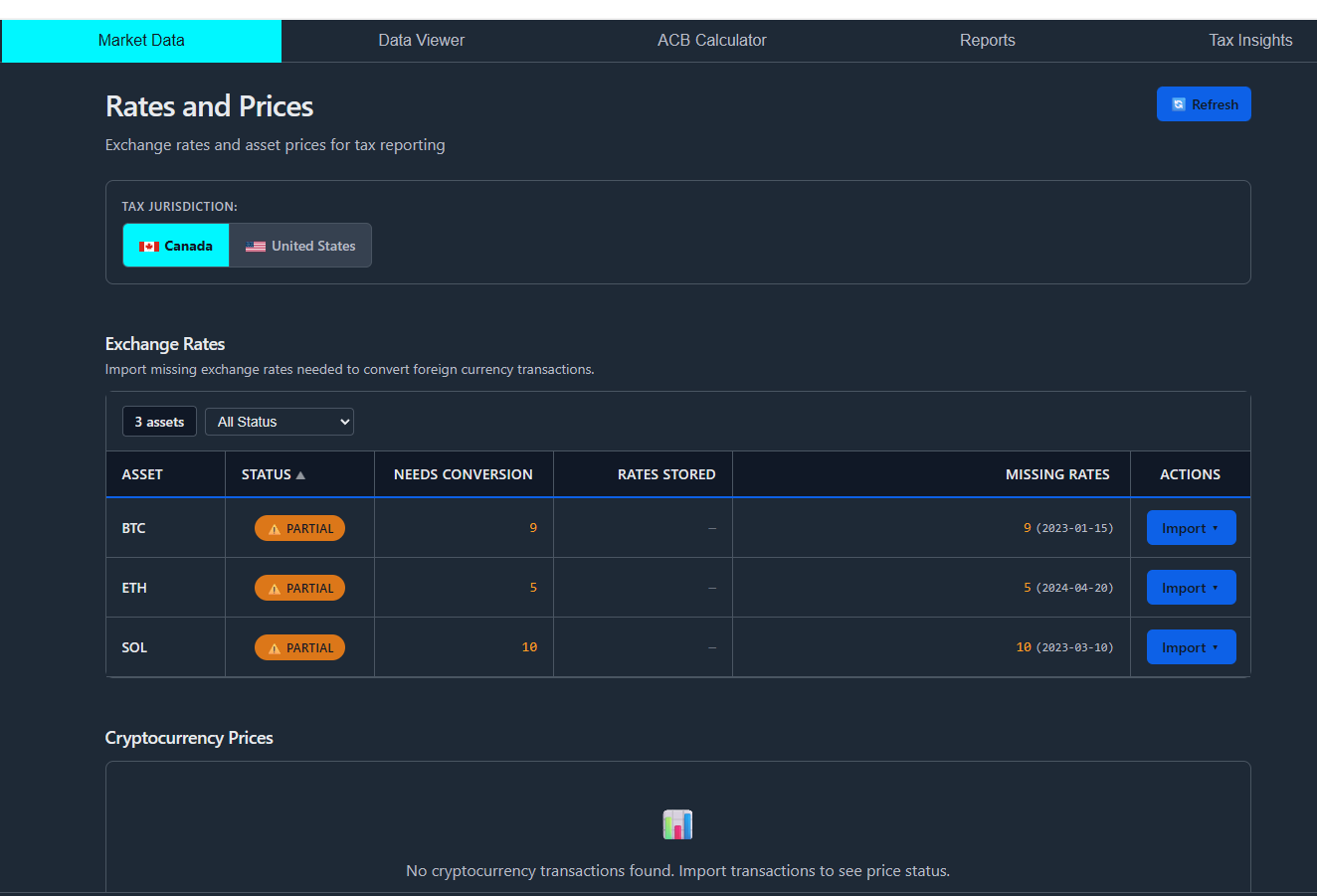
The Market Data tab displays two tables:
1. Exchange Rates Table (Top)
Section titled “1. Exchange Rates Table (Top)”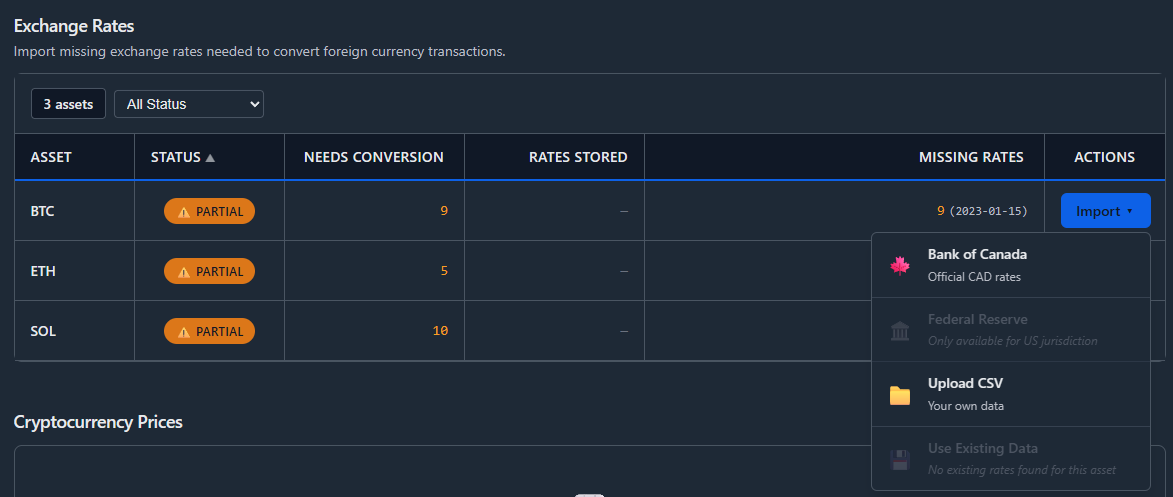
Shows assets that need fiat currency conversion (e.g., USD trades need CAD rates for Canadian users).
Columns:
| Column | Description |
|---|---|
| Asset | Cryptocurrency symbol (BTC, ETH, etc.) |
| Needs Rates | Number of transactions needing conversion |
| Date Range | Earliest to latest transaction date |
| Status | ✅ Complete, ⚠️ Partial, 🔴 Needs Rates |
| Actions | Import dropdown |
Only shows assets that need conversion - if all your trades are in your reporting currency, this table is empty.
2. Cryptocurrency Prices Table (Bottom)
Section titled “2. Cryptocurrency Prices Table (Bottom)”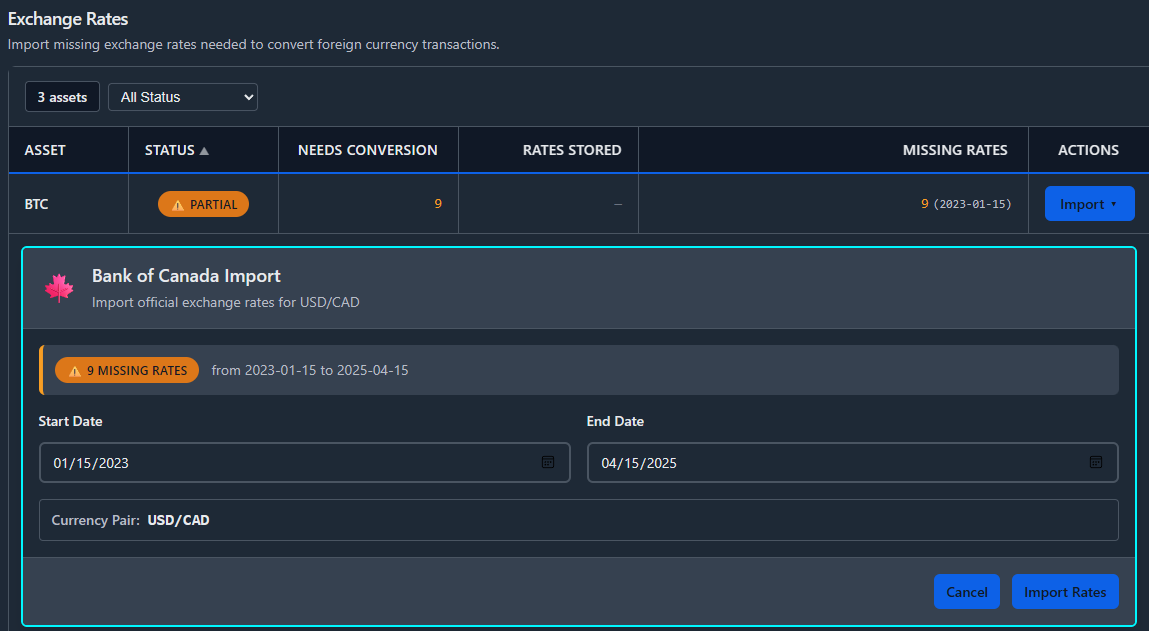
Shows assets that need historical crypto prices (e.g., staking rewards without recorded prices).
Columns:
| Column | Description |
|---|---|
| Asset | Cryptocurrency symbol |
| Needs Prices | Transactions missing price data |
| Prices Stored | Cached prices with currency label, e.g., “18 (CAD)“ |
| Missing | Dates still needing prices |
| Status | ✅ Complete, ⚠️ Partial, 🔴 None, ⚪ Unavailable |
| Actions | Fetch / Manual buttons |
Only shows assets with missing prices - assets with complete price data don’t appear.
Status Indicators
Section titled “Status Indicators”Both tables use consistent status indicators:
| Status | Icon | Meaning | Action |
|---|---|---|---|
| Complete | ✅ | All data available | None - ready for calculation |
| Partial | ⚠️ | Some data missing | Import/fetch more |
| None/Needs | 🔴 | No data available | Import/fetch immediately |
| Unavailable | ⚪ | Not supported (crypto only) | Manual entry required |
Recent Imports Section
Section titled “Recent Imports Section”At the bottom, you’ll see your import history:
Recent Imports🍁 USD → CAD | Bank of Canada | 365 rates | 2 hours ago🦎 BTC/CAD | CoinGecko | 180 prices | 1 day ago📁 Manual CSV | 45 rates | 3 days agoIcons:
- 🍁 Bank of Canada
- 🏛️ Federal Reserve
- 🦎 CoinGecko
- 📁 CSV Import
- ✏️ Manual Entry
Exchange Rates: Bank of Canada (Canada)
Section titled “Exchange Rates: Bank of Canada (Canada)”When to Use
Section titled “When to Use”Use Bank of Canada if:
- You’re filing Canadian taxes (reporting in CAD)
- You have transactions in USD
- You traded on US exchanges (Coinbase, Kraken, Binance.US)
Step-by-Step
Section titled “Step-by-Step”- Market Data tab → Select 🍁 CA - Canada
- Find your asset in the Exchange Rates table
- Click Import dropdown → Bank of Canada
- Review the date range (auto-detected from transactions)
- Click Fetch Rates from Bank of Canada
- Wait 2-10 seconds
- Success: ”✅ Imported 365 USD/CAD rates”
Notes:
- No API key required (free public service)
- Official rates used by CRA
- Rate limit: 10 requests/minute (handled automatically)
Exchange Rates: Federal Reserve (US)
Section titled “Exchange Rates: Federal Reserve (US)”When to Use
Section titled “When to Use”Use Federal Reserve if:
- You’re filing US taxes (reporting in USD)
- You have transactions in CAD
- You traded on Canadian exchanges (Newton, NDAX)
API Key Setup (One-Time)
Section titled “API Key Setup (One-Time)”Federal Reserve requires a free API key:
- Visit FRED API Registration
- Click Request API Key
- Create account and fill form
- Copy your API key (e.g.,
be6f7e03ad0b956492148e0d919774eb)
Configure in PrivateACB:
- Settings tab (Ctrl+7) → Data Sources → Currency API Configuration
- Find Federal Reserve row → Click Configure
- Paste API key → Save API Key
- Click Test to verify
Importing Rates
Section titled “Importing Rates”- Market Data tab → Select 🇺🇸 US - United States
- Find asset in Exchange Rates table
- Click Import → Federal Reserve
- Review date range → Click Fetch Rates
- Success: ”✅ Imported 365 CAD/USD rates”
Exchange Rates: Manual CSV Import
Section titled “Exchange Rates: Manual CSV Import”When to Use
Section titled “When to Use”- Custom exchange rates
- Unsupported currency pairs (EUR, GBP, etc.)
- Working offline
CSV Format
Section titled “CSV Format”date,from_currency,to_currency,rate2024-01-01,USD,CAD,1.35002024-01-02,USD,CAD,1.35252024-01-03,USD,CAD,1.3480Columns:
- date: YYYY-MM-DD format
- from_currency: 3-letter code (USD, CAD, EUR)
- to_currency: 3-letter code
- rate: Exchange rate as decimal
Importing
Section titled “Importing”- Market Data tab → Select jurisdiction
- Asset row → Import → Manual CSV Import
- Upload your CSV file
- Map columns if needed (usually auto-detected)
- Click Import Rates
Cryptocurrency Prices: CoinGecko
Section titled “Cryptocurrency Prices: CoinGecko”When to Use
Section titled “When to Use”Use CoinGecko when:
- You have income transactions (staking, mining, airdrops)
- Transactions are missing price data
- You need historical crypto prices in CAD or USD
API Key Setup (One-Time)
Section titled “API Key Setup (One-Time)”- Visit CoinGecko API
- Click Get Your API Key
- Create free account (Demo plan)
- Copy your API key (starts with
CG-)
Demo Plan Limits:
- 30 calls per minute
- 10,000 calls per month
- 365 days of historical data (important!)
Configure in PrivateACB:
- Settings tab (Ctrl+7) → Data Sources → Currency API Configuration
- Find CoinGecko row → Click Configure
- Paste API key → Save API Key
- Click Test to verify
Fetching Prices
Section titled “Fetching Prices”- Market Data tab → Select jurisdiction
- Scroll to Cryptocurrency Prices table
- Find asset needing prices
- Click Fetch Prices button
- Progress indicator shows fetching status
- Success: ”✅ Fetched 180 prices for SOL/CAD”
What happens:
- PrivateACB requests prices from CoinGecko
- Prices are cached in your database
- Status updates to show coverage
365-Day Limitation
Section titled “365-Day Limitation”Example:
Today: January 7, 2026API can provide: January 7, 2025 to todayPrices before January 7, 2025: NOT available via APIIf your transactions are older:
- PrivateACB automatically limits to 365 days
- Fetches the most recent 365 days available
- Older dates need manual entry
Options for older dates:
- Use manual price entry (look up on CoinGecko website)
- Upgrade to CoinGecko Pro API ($129+/month)
Supported Assets
Section titled “Supported Assets”PrivateACB includes mappings for 100+ cryptocurrencies including:
- Bitcoin (BTC), Ethereum (ETH), Solana (SOL)
- Cardano (ADA), Polygon (MATIC), Avalanche (AVAX)
- Chainlink (LINK), Uniswap (UNI), Aave (AAVE)
- Stablecoins: USDT, USDC, DAI
If your asset shows ⚪ Unavailable:
- Asset isn’t mapped to CoinGecko
- Use manual price entry instead
Cryptocurrency Prices: Manual Entry
Section titled “Cryptocurrency Prices: Manual Entry”When to Use
Section titled “When to Use”- Asset not supported by CoinGecko
- Transactions older than 365 days
- You have a specific price source
How to Enter
Section titled “How to Enter”- Market Data tab → Cryptocurrency Prices table
- Find asset → Click Manual button
- Fill in the form:
- Date: Transaction date
- Asset: Pre-filled
- Currency: CAD or USD
- Price: Price per unit
- Source: Optional note
- Click Save Price
- Repeat for each missing date
Finding Historical Prices
Section titled “Finding Historical Prices”CoinGecko Website:
- Go to coingecko.com
- Search for your asset
- Click Historical Data tab
- Find the date you need
- Note the price in your currency
Other sources:
- CoinMarketCap historical data
- Your exchange’s trade history
- Blockchain explorers
API Configuration Summary
Section titled “API Configuration Summary”Settings Tab (Ctrl+7) → Data Sources → Currency API Configuration
Section titled “Settings Tab (Ctrl+7) → Data Sources → Currency API Configuration”| API | Purpose | Key Required | Limit |
|---|---|---|---|
| Bank of Canada | USD/CAD rates | No | 10 req/min |
| Federal Reserve (FRED) | CAD/USD rates | Yes (free) | 120 req/min |
| CoinGecko | Crypto prices | Yes (free) | 30 req/min, 365 days |
Configuration Steps
Section titled “Configuration Steps”For each API requiring a key:
- Settings tab (Ctrl+7)
- Open Data Sources → Currency API Configuration
- Find the API row → Click Configure
- Enter API key → Save
- Click Test to verify connection
API keys are stored securely using Windows DPAPI encryption in the Registry — they are never saved in the database file.
Troubleshooting
Section titled “Troubleshooting”Exchange Rates Issues
Section titled “Exchange Rates Issues”“Missing conversion rates” in Calculation Dashboard
- Navigate to Market Data tab (Ctrl+2)
- Import rates using Bank of Canada or Federal Reserve
- Ensure date range covers all transactions
“Federal Reserve API key not configured”
- Get free key from FRED website
- Configure in Settings (Ctrl+7) → Data Sources → Currency API Configuration
“0 rates imported”
- Rates already exist for those dates
- This is normal - duplicates are skipped
Crypto Prices Issues
Section titled “Crypto Prices Issues”“No API key configured”
- Get free CoinGecko API key
- Configure in Settings (Ctrl+7) → Data Sources → Currency API Configuration
Asset shows “Unavailable”
- Asset not in CoinGecko’s supported list
- Use manual price entry instead
Only partial prices fetched
- Likely hit the 365-day limit
- Use manual entry for older dates
“Connection test failed”
- Check API key is correct (starts with
CG-) - Verify internet connection
- Wait 1 minute and retry (rate limit)
General Issues
Section titled “General Issues”“Asset still shows as Invalid after importing”
- Check you imported the correct currency (CAD vs USD)
- Verify date range covers all transactions
- Click refresh button
- Close and reopen database if needed
Import is very slow
- Large date ranges take longer
- API rate limits are handled automatically
- Wait patiently - import will complete
Best Practices
Section titled “Best Practices”1. Set Up API Keys First
Section titled “1. Set Up API Keys First”Before importing transactions, configure:
- CoinGecko (for crypto prices)
- FRED (for US users needing CAD/USD rates)
This ensures data can be fetched immediately after import.
2. Check Market Data After Each Import
Section titled “2. Check Market Data After Each Import”After importing new transactions:
- Go to Market Data tab
- Check both tables for new items
- Import/fetch any missing data
- Then run ACB calculations
3. Understand the Tables
Section titled “3. Understand the Tables”- Exchange Rates - Assets with foreign currency prices
- Crypto Prices - Assets without any prices
Both may need attention for complete coverage.
4. Handle Old Transactions Promptly
Section titled “4. Handle Old Transactions Promptly”For transactions older than 365 days:
- CoinGecko API won’t provide prices
- Look up prices manually on CoinGecko website
- Enter using Manual Entry feature
- Do this before calculating ACB
5. Monitor API Usage
Section titled “5. Monitor API Usage”CoinGecko Demo plan: 10,000 calls/month. If approaching the limit:
- Prioritize essential assets
- Consider upgrading to a CoinGecko Pro plan for heavy usage
Summary
Section titled “Summary”Key Takeaways:
-
Market Data tab manages two types of price data:
- Exchange Rates (fiat conversion)
- Cryptocurrency Prices (crypto-to-fiat)
-
Exchange Rates table - Use Bank of Canada (Canada) or Federal Reserve (US)
-
Crypto Prices table - Use CoinGecko API (free, 365-day limit)
-
API keys - FRED and CoinGecko require free API keys (one-time setup)
-
Manual options - CSV import for rates, Manual Entry for prices
-
Check both tables before running ACB calculations
Quick Reference:
| Need | Source | Location |
|---|---|---|
| USD → CAD rates | Bank of Canada | Market Data → Exchange Rates → Import |
| CAD → USD rates | Federal Reserve | Market Data → Exchange Rates → Import |
| Crypto prices | CoinGecko | Market Data → Crypto Prices → Fetch |
| Custom rates | CSV file | Market Data → Exchange Rates → Import → CSV |
| Manual prices | Website lookup | Market Data → Crypto Prices → Manual |
Last Updated: February 2026 PrivateACB Version: 2.0