Getting Started with PrivateACB
Welcome to PrivateACB
Section titled “Welcome to PrivateACB”PrivateACB is a privacy-first cryptocurrency tax calculator for Canadian, US, Australian, and UK taxpayers. It calculates Adjusted Cost Base (ACB), tracks capital gains, and generates tax forms—all on your computer with no cloud uploads.
What you’ll learn:
- How to set up your first database
- How to import transaction data
- The basic workflow: Import → Market Data → Calculate → Reports
- How to navigate the application
Time to get started: 5-10 minutes
First Launch: The Welcome Screen
Section titled “First Launch: The Welcome Screen”When you open PrivateACB for the first time, you’ll see the Welcome Screen with two main options:
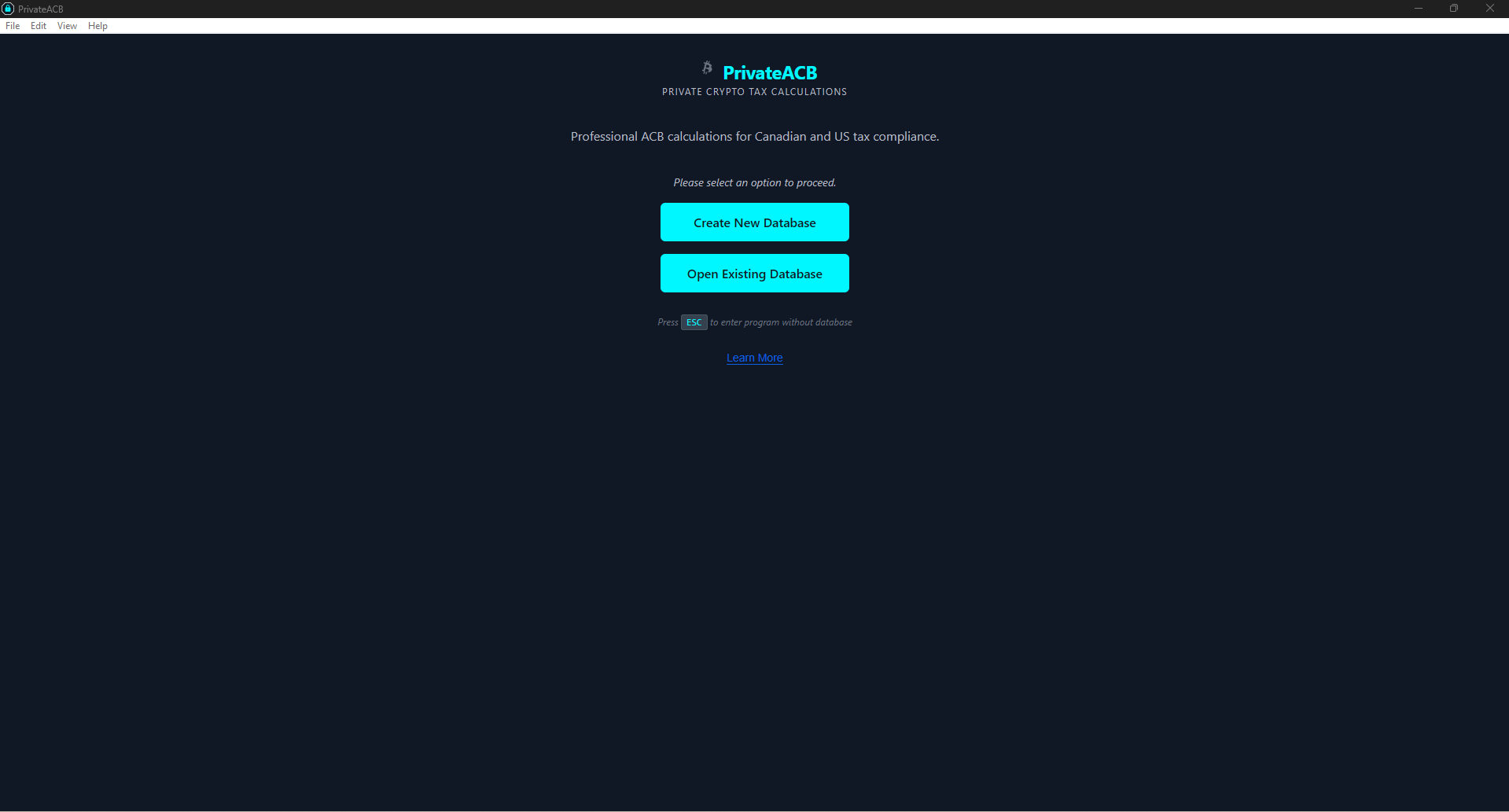
Create New Database
Section titled “Create New Database”Start fresh with a new encrypted database. Choose this if:
- This is your first time using PrivateACB
- You want to start a new tax year
- You want separate databases for different purposes
Open Existing Database
Section titled “Open Existing Database”Load a database you created previously. Choose this if:
- You’re returning to work on existing data
- You’re opening a database from a backup
First-time users: Click “Create New Database” to begin.
Quick Start: Create Your First Database
Section titled “Quick Start: Create Your First Database”-
Click “Create New Database”
A file save dialog appears. Choose:
- File Name — Give it a meaningful name (e.g., “Crypto_Tax_2024.db”)
- Save Location — Pick a folder you’ll remember (e.g.,
Documents/PrivateACB/)
-
Choose a Strong Password
After selecting the file location, a password dialog appears. Your password encrypts the entire database with AES-256 encryption.
Requirements:
- At least 8 characters
- Contains letters and numbers
- Maximum 256 characters
Best practices:
- Use a password manager (1Password, Bitwarden, LastPass)
- Use a passphrase: “MyDog$Ate3Pizzas!” (easy to remember, hard to crack)
- Don’t reuse passwords from other services
-
Create and Enter the App
Click “Create Database”. PrivateACB creates your encrypted database and opens the Dashboard.
Success! You’re now ready to import your transaction data.
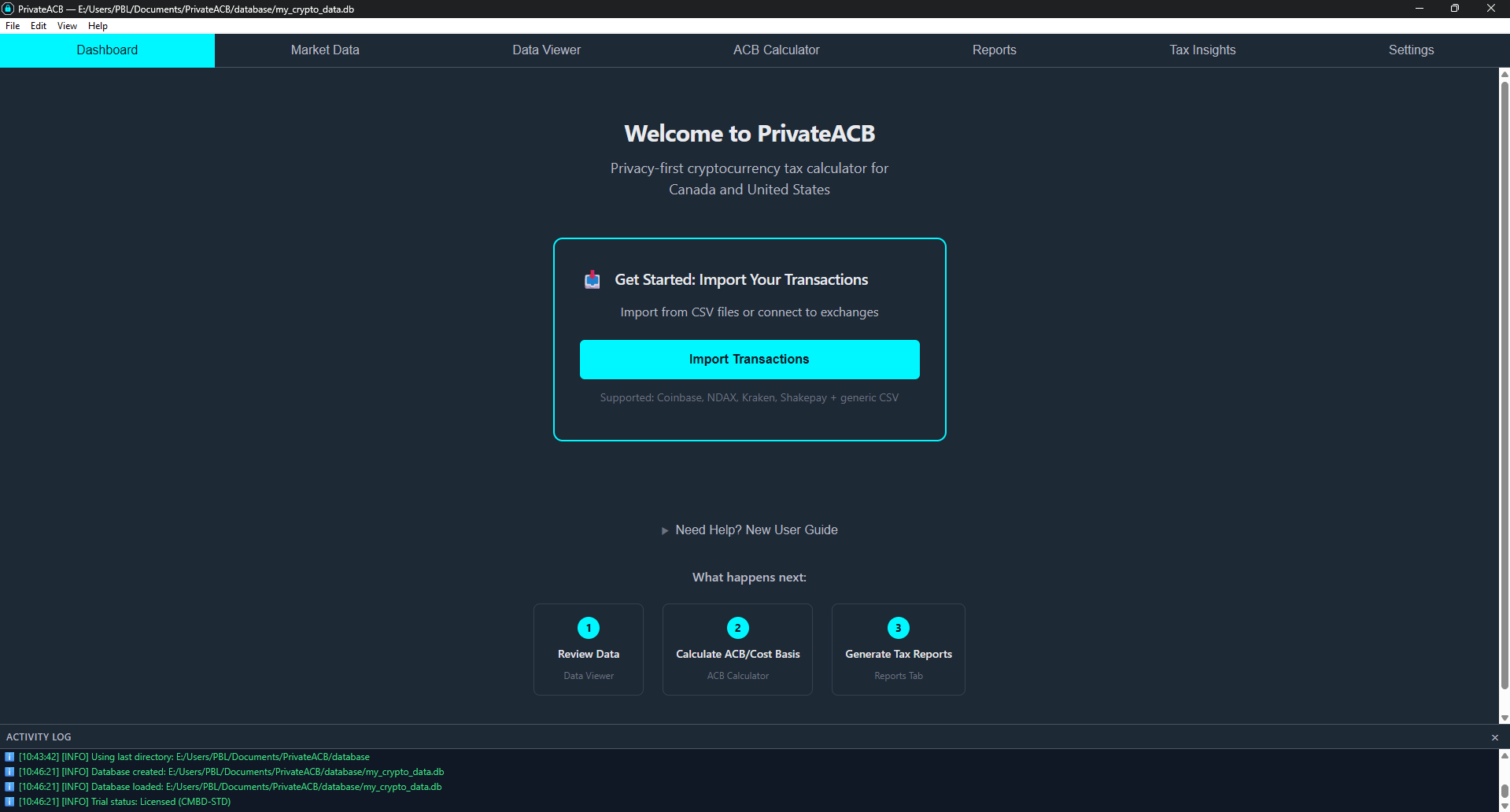
Your First Import: “I Just Got My Coinbase CSV…”
Section titled “Your First Import: “I Just Got My Coinbase CSV…””This is the most common starting point: you downloaded a CSV file from your exchange and want to calculate taxes.
-
Open the Import Wizard
From the Dashboard, click the “Import Data” button (or use Ctrl+I).
The Import Wizard opens as a 5-step process:
- Select File — Choose your CSV file
- Review & Configure — Verify auto-detected format, adjust settings
- Classification Review — Confirm transaction type classifications
- Preview & Validate — Review parsed transactions before importing
- Import — Execute the import
-
Select Your CSV File
Click to browse or drag-and-drop your CSV file. PrivateACB’s Column Oracle automatically:
- Identifies your exchange format (built-in profiles for Coinbase, Kraken, Binance, NDAX, Newton, Shakepay, Crypto.com, and more)
- Maps columns to the correct fields
- Detects the row shape (standard, pair-based, bidirectional, or ledger)
-
Review & Configure
Verify the auto-detected column mappings and configure import settings:
- Exchange name — Pre-filled when a profile matches
- Timezone — Select if your timestamps don’t include timezone info
- Fee settings — Check if your exchange charges fees in crypto
If the format is recognized: Mappings are automatic — just verify and click Next.
If not recognized: Expand “Edit column mappings” to adjust manually.
-
Review Classification
PrivateACB classifies each transaction type (Buy, Sell, Transfer, Income, etc.). Review and adjust any unrecognized types before importing.
-
Preview & Import
Review all parsed transactions in a preview table. Check for errors or warnings, then click “Start Import” to add the transactions to your database.
PrivateACB automatically:
- Detects and skips duplicate transactions (if you import the same file twice)
- Normalizes data formats
- Stores everything in your encrypted database
What’s next? You’ll see a success message. Your transactions are now in the database.
The Basic Workflow
Section titled “The Basic Workflow”PrivateACB follows a simple 4-step process for tax calculation:
1. IMPORT → 2. MARKET DATA → 3. CALCULATE → 4. REPORTS1. Import Transactions
Section titled “1. Import Transactions”What: Add your buy/sell/transfer transactions from exchanges.
How: Dashboard → “Import Data” (or Ctrl+I) → Select CSV → Review → Import
When: Do this first. You need transaction data before anything else.
Multiple imports? Yes! Import from as many exchanges as needed. PrivateACB combines them all.
2. Configure Market Data
Section titled “2. Configure Market Data”What: Exchange rates (USD/CAD) and crypto prices for converting transaction values.
How: Market Data tab → Import rates from Bank of Canada, Federal Reserve, or CoinGecko APIs
When: After importing transactions, before calculating ACB.
Why needed: PrivateACB converts all transactions to your reporting currency (CAD for Canada, USD for US, AUD for Australia, GBP for UK) using official exchange rates. Crypto prices are fetched from CoinGecko.
Quick tip: The Market Data tab shows which assets are missing rate or price data. Import data for those dates.
3. Calculate ACB
Section titled “3. Calculate ACB”What: Calculate Adjusted Cost Base (Canada) or Cost Basis (US) for each cryptocurrency.
How: ACB Calculator tab → Set jurisdiction + tax year → Select assets → Calculate
When: After importing transactions and market data.
Why needed: ACB determines your capital gains when you sell crypto. Required for tax reporting.
4. Generate Reports
Section titled “4. Generate Reports”What: Create tax forms for filing (Schedule 3, T1135, Form 8949, Schedule D, CGT Summary, SA108).
How: Reports tab → Select jurisdiction (Canada/US/Australia/UK) → Choose report type → Generate
When: After calculating ACB for all assets.
What you get:
- PDF reports for tax filing
- CSV exports for detailed analysis
- Audit reports showing line-by-line calculations
Navigation: Understanding the Tabs
Section titled “Navigation: Understanding the Tabs”PrivateACB has 7 main tabs accessible from the top bar:

Dashboard
Section titled “Dashboard”Your starting point — Quick access to all major functions and a visual summary of your tax position.
What you’ll see:
- Net Capital Gain/Loss and Crypto Income cards
- Portfolio cost base treemap (visual breakdown by asset)
- Pipeline status (which assets are ready for calculation)
- Insights and warnings (actionable guidance)
- Collapsible tables for power users (import history, calculation status, market data status)
Keyboard shortcut: Ctrl+1
Market Data
Section titled “Market Data”Exchange rate and price management — Import and manage USD/CAD exchange rates and crypto price data.
Use it for:
- Checking which assets are missing exchange rates or crypto prices
- Importing rates from Bank of Canada (CAD) or Federal Reserve (USD)
- Fetching crypto prices from CoinGecko
- Uploading custom rate data via CSV
When to use: After importing transactions, before calculating ACB.
Keyboard shortcut: Ctrl+2
Data Viewer
Section titled “Data Viewer”Browse your raw data — Inspect all database tables in a searchable, sortable grid.
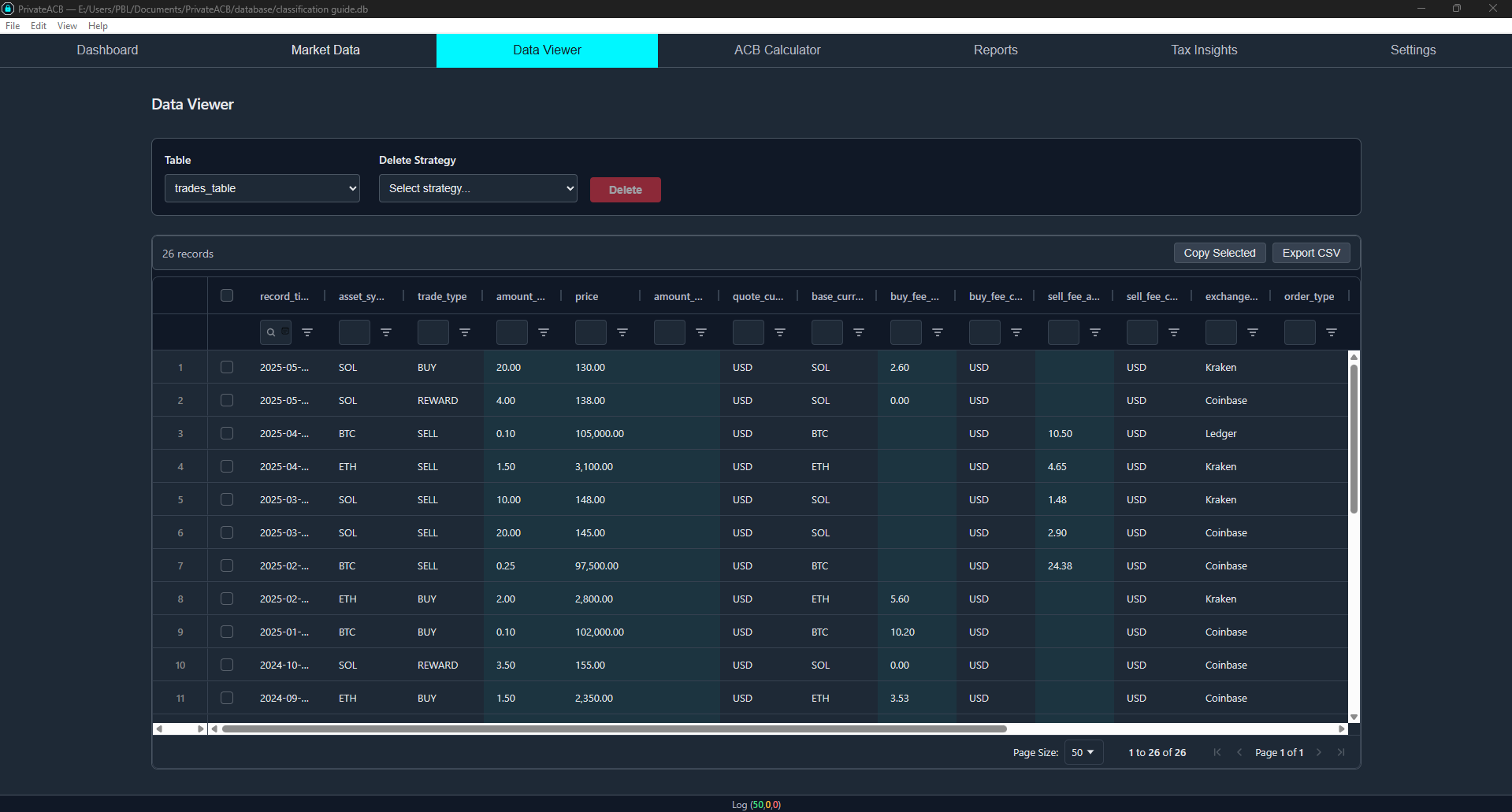
Use it for:
- Verifying imports completed correctly
- Searching for specific transactions
- Inspecting market rates, asset conversions, and other data
- Deleting bad imports or unwanted data
Keyboard shortcut: Ctrl+3 | Full guide: Data Viewer Guide
ACB Calculator
Section titled “ACB Calculator”The Calculation Dashboard — Run ACB or cost basis calculations for tax reporting. This is a four-zone layout:
| Zone | Name | Purpose |
|---|---|---|
| A | Config Bar | Set jurisdiction, method, tax year, and rule toggles |
| B | Rules Banner | Shows which tax rules are active |
| C | Asset Table | Browse assets, check readiness, select which to calculate |
| D | Calculation History | Track progress and review financial results |
Process:
- Set jurisdiction (Canada/US/Australia/UK) and tax year
- Choose calculation method (US/AU: FIFO, LIFO, HIFO; Canada/UK: ACB only)
- Review asset readiness (currency rates, prices)
- Select assets and click “Calculate”
- View financial results in the Calculation History panel
Keyboard shortcut: Ctrl+4
Reports
Section titled “Reports”Generate tax forms — Create official tax documents for filing.
Canadian reports:
- Schedule 3 (Capital Gains and Losses)
- T1135 (Foreign Income Verification)
- ACB Summary (detailed calculations)
- Superficial Loss Report
- Income Report
- Audit Provenance
US reports:
- Form 8949 (Sales and Other Dispositions)
- Schedule D (Capital Gains and Losses)
- Income Report
- Lot Tracking Report
- Wash Sale Report
- Audit Provenance
Australian reports:
- CGT Summary (ATO Question 18 net capital gain)
- CGT Worksheet (per-disposal detail with discount eligibility)
- Income Report
- Lot Tracking Report
- Audit Provenance
UK reports:
- SA108 Summary (HMRC boxes 13.1–13.8)
- Capital Gains Detail (per-disposal with match type)
- Pool History (Section 104 running balance)
- Income Report
- Audit Provenance
Export options: PDF (for filing) or CSV (for analysis)
Keyboard shortcut: Ctrl+5
Tax Insights
Section titled “Tax Insights”Visual analysis — Charts and comparisons showing method impacts and lot-level detail.
Use it for:
- Comparing calculation methods side-by-side (FIFO vs LIFO vs HIFO)
- Analyzing lot selection impact
- Drilling into lot-level detail
Keyboard shortcut: Ctrl+6
Settings
Section titled “Settings”Configure the app — License, data sources, database security, and logging.
Key sections:
- License (activation, trial status)
- Data Sources (exchange API connections, currency API keys)
- Database Security (change encryption password)
- Database Backup (export/backup your database)
- Logging Settings (system message configuration)
Keyboard shortcut: Ctrl+7 | Full guide: Settings Guide
Key Concepts (Quick Reference)
Section titled “Key Concepts (Quick Reference)”Adjusted Cost Base (ACB)
Section titled “Adjusted Cost Base (ACB)”Canadian tax concept. The average cost of all your holdings of a cryptocurrency. When you sell, your capital gain = Sale Price - ACB.
Example:
- You buy 1 BTC at $30,000 (ACB = $30,000)
- You buy 1 more BTC at $40,000 (ACB = $35,000 average)
- You sell 1 BTC at $50,000 (Capital gain = $50,000 - $35,000 = $15,000)
Cost Basis (US)
Section titled “Cost Basis (US)”US tax concept. The original cost of each specific crypto unit you purchased. US tax lets you choose which units to sell (FIFO, LIFO, HIFO).
Methods:
- FIFO (First In, First Out): Sell the oldest crypto first
- LIFO (Last In, First Out): Sell the newest crypto first
- HIFO (Highest In, First Out): Sell the highest-cost crypto first (minimizes gains)
Capital Gains
Section titled “Capital Gains”What you owe tax on. The profit from selling crypto.
Calculation: Sale Price - ACB (or Cost Basis) = Capital Gain
Canadian tax: 50% of capital gains are taxable (included in income) US tax: Short-term (<1 year) or long-term (>1 year) rates apply Australian tax: 50% CGT discount if held >12 months; remainder taxed at marginal rate UK tax: Annual Exempt Amount deducted first (£3,000 for 2024/25+); remainder taxed at CGT rate (18%/24%)
Superficial Loss (Canada)
Section titled “Superficial Loss (Canada)”Canadian tax rule. If you sell crypto at a loss and buy it back within 30 days (before or after), the loss is denied and added to the ACB of the new purchase.
PrivateACB handles this automatically — the superficial loss rule is always enabled for Canadian calculations.
Wash Sale (US)
Section titled “Wash Sale (US)”US tax rule (similar to superficial loss). If you sell crypto at a loss and buy substantially identical property within 30 days, the loss is denied and added to the cost basis of the replacement lot.
PrivateACB handles this automatically when you enable wash sale detection in the ACB Calculator’s Config Bar.
Transaction Types
Section titled “Transaction Types”PrivateACB recognizes 30+ transaction types. The most common:
- BUY: Purchase crypto with fiat currency
- SELL: Sell crypto for fiat currency
- TRADE: Exchange one crypto for another (triggers capital gain/loss)
- TRANSFER_IN: Receive crypto from external wallet (not taxable)
- TRANSFER_OUT: Send crypto to external wallet (not taxable)
- FEE: Transaction fee paid in crypto (taxable disposition)
- INCOME: Crypto received as income (staking, interest, mining)
Recommended Order of Operations
Section titled “Recommended Order of Operations”First-Time Setup
Section titled “First-Time Setup”- Create database with strong password
- Import all transaction data (all exchanges, all years)
- Import market data (exchange rates and crypto prices)
- Calculate ACB for each cryptocurrency
- Generate tax reports
- Review and export reports
Ongoing Use (New Tax Year)
Section titled “Ongoing Use (New Tax Year)”- Import new transactions since last time
- Import market data for new dates
- Recalculate ACB (if new transactions exist)
- Regenerate tax reports with updated data
If You Make a Mistake
Section titled “If You Make a Mistake”- Go to Data Viewer tab
- Use deletion controls to remove bad data:
- Delete a specific import job (if file was wrong)
- Delete an ACB calculation (if settings were wrong)
- Re-import corrected data
- Recalculate ACB
- Regenerate reports
Common Workflows
Section titled “Common Workflows”Workflow 1: “I just got my Coinbase CSV”
Section titled “Workflow 1: “I just got my Coinbase CSV””- Dashboard → “Import Data” (or Ctrl+I)
- Select Coinbase from the exchange list
- Upload
coinbase_transactions.csv - Verify auto-detected format → Review classifications → Click “Import”
- Go to Market Data tab → Import USD/CAD rates and crypto prices
- Go to ACB Calculator → Set jurisdiction and year → Select BTC → Calculate
- Go to Reports → Generate Schedule 3 or Form 8949
Workflow 2: “I have multiple exchanges”
Section titled “Workflow 2: “I have multiple exchanges””- Import each exchange CSV separately (Coinbase, NDAX, Newton, etc.)
- PrivateACB combines all imports into one unified dataset
- Import market data for all transaction dates
- Calculate ACB once per cryptocurrency (combines transactions from all exchanges)
- Generate reports (includes all exchanges automatically)
Workflow 3: “I need to fix a mistake”
Section titled “Workflow 3: “I need to fix a mistake””- Go to Data Viewer tab
- Use deletion controls:
- Delete Import Job if you imported the wrong file
- Delete ACB Job if you used wrong settings
- Re-import or recalculate with correct data/settings
- Regenerate reports
Workflow 4: “I want to try different tax scenarios” (US)
Section titled “Workflow 4: “I want to try different tax scenarios” (US)”- Calculate with Method A (e.g., FIFO)
- Go to Reports → Generate Form 8949 → Note the capital gains total
- Go to Data Viewer → Delete the ACB Job (NOT the import!)
- Go to ACB Calculator → Change method to HIFO → Recalculate
- Go to Reports → Generate Form 8949 again → Compare results
Use case: See which lot selection method minimizes your tax bill.
What to Do First When Opening PrivateACB
Section titled “What to Do First When Opening PrivateACB”Brand New User?
Section titled “Brand New User?”- Create a database (Welcome screen → “Create New Database”)
- Write down your password (seriously, do this now)
- Import your first CSV (Dashboard → “Import Data” or Ctrl+I)
- Check market data (Market Data tab → Look for missing rates/prices)
- Calculate ACB for one asset (ACB Calculator → Select BTC → Calculate)
- Generate a report (Reports → Schedule 3 or Form 8949)
Returning User?
Section titled “Returning User?”- Open your database (Welcome screen → “Open Existing Database”)
- Go to Dashboard (see your tax position at a glance)
- Import new transactions (if you have new trades)
- Recalculate ACB (if new transactions were imported)
- Update reports (if ACB changed)
After a Long Break?
Section titled “After a Long Break?”- Open database (Enter password)
- Go to Data Viewer (verify data looks correct)
- Check for missing market data (Market Data tab)
- Review ACB calculations (ACB Calculator → Check Calculation History dates)
- Regenerate reports if needed (Reports tab)
Getting Help
Section titled “Getting Help”System Messages
Section titled “System Messages”Watch the message banner at the top of the screen:
- Info: Routine updates (“Import complete”)
- Warning: Needs attention (“Missing currency rates”)
- Error: Something failed (“Invalid CSV format”)
Click the banner to see message history and details.
Understanding Errors
Section titled “Understanding Errors”“Missing currency rates” → Go to Market Data tab, import exchange rates for the flagged dates
“Validation failed: Invalid date format” → Check your CSV file date column format (should be YYYY-MM-DD or MM/DD/YYYY)
“Database is locked” → Close any other PrivateACB instances accessing this database
“Incorrect password” → Double-check your password (case-sensitive). No recovery if forgotten.
Where to Find Detailed Guides
Section titled “Where to Find Detailed Guides”- Import Flow Guide — Detailed CSV format requirements and API setup
- Market Data Guide — Exchange rates and crypto price fetching
- Canadian Reports Guide — Schedule 3, T1135, and other Canadian tax forms
- US Reports Guide — Form 8949, Schedule D, and other US tax forms
- Australian Reports Guide — CGT Summary, CGT Worksheet, and other Australian tax reports
- UK Reports Guide — SA108 Summary, Capital Gains Detail, Pool History, and other UK reports
- Deletion Guide — How to safely remove data
- Database Management Guide — How encryption, passwords, and backups work
Privacy & Security Notes
Section titled “Privacy & Security Notes”Your Data Stays Local
Section titled “Your Data Stays Local”- All processing happens on your computer
- No cloud uploads, no external servers
- No analytics, no tracking, no telemetry
- Your data never leaves your machine
Encryption
Section titled “Encryption”- AES-256 encryption (industry standard)
- SQLCipher database encryption
- Password required every time you open the database
- No backdoors, no master keys
- API keys stored securely via Windows DPAPI encryption
Best Practices
Section titled “Best Practices”- Use a strong password (12+ characters, mix of types)
- Back up your database file (Settings → Database Backup)
- Store backups securely (encrypted USB drive or password-protected cloud storage)
- Never share your password (not even with support—there is no support that needs it)
- Update backups regularly (after major imports or calculations)
Quick Reference: The 30-Second Workflow
Section titled “Quick Reference: The 30-Second Workflow”1. Create database (with strong password) ↓2. Import CSV files (all exchanges) ↓3. Import market data (Market Data tab) ↓4. Calculate ACB (for each crypto) ↓5. Generate reports (Schedule 3 / Form 8949) ↓6. Export PDFs (for tax filing)That’s it! You now have professional-grade cryptocurrency tax reports.
Next Steps
Section titled “Next Steps”Now that you understand the basics:
- Import your real data — Start with one exchange to learn the process
- Experiment safely — Delete test data using the Data Viewer deletion controls
- Read detailed guides — Database Management, Import, Reports guides cover advanced topics
- Configure settings — Settings tab has license, API connections, and database security options
- Back up regularly — Settings → Database Backup to save your work
Troubleshooting Quick Fixes
Section titled “Troubleshooting Quick Fixes”| Problem | Solution |
|---|---|
| ”I forgot my password” | No recovery possible. Restore from backup or create new database. |
| ”Import failed” | Check CSV format. Try generic format. Check system messages for details. |
| ”Missing currency rates” | Go to Market Data tab, import rates for flagged dates. |
| ”Missing crypto prices” | Go to Market Data tab, fetch prices from CoinGecko. |
| ”ACB calculation shows errors” | Verify market data exists for all transaction dates. |
| ”Can’t generate report” | Calculate ACB first. Reports need ACB calculations to exist. |
| ”Database won’t open” | Check password (case-sensitive). Verify file isn’t corrupted. |
| ”Import shows duplicates” | PrivateACB auto-detects duplicates. Check “Skipped” count in import results. |
Welcome to PrivateACB! You’re now ready to calculate cryptocurrency taxes like a pro—privately, securely, and accurately.
Last Updated: February 2026 PrivateACB Version: 2.0