Deletion Guide
Overview
Section titled “Overview”PrivateACB provides powerful deletion tools to help you manage your transaction data. This guide explains how to safely delete data from your database using the deletion controls in the Data Viewer tab.
Accessing Deletion Controls
Section titled “Accessing Deletion Controls”- Open your database in PrivateACB
- Navigate to the Data Viewer tab
- The deletion controls are at the top of the viewer interface
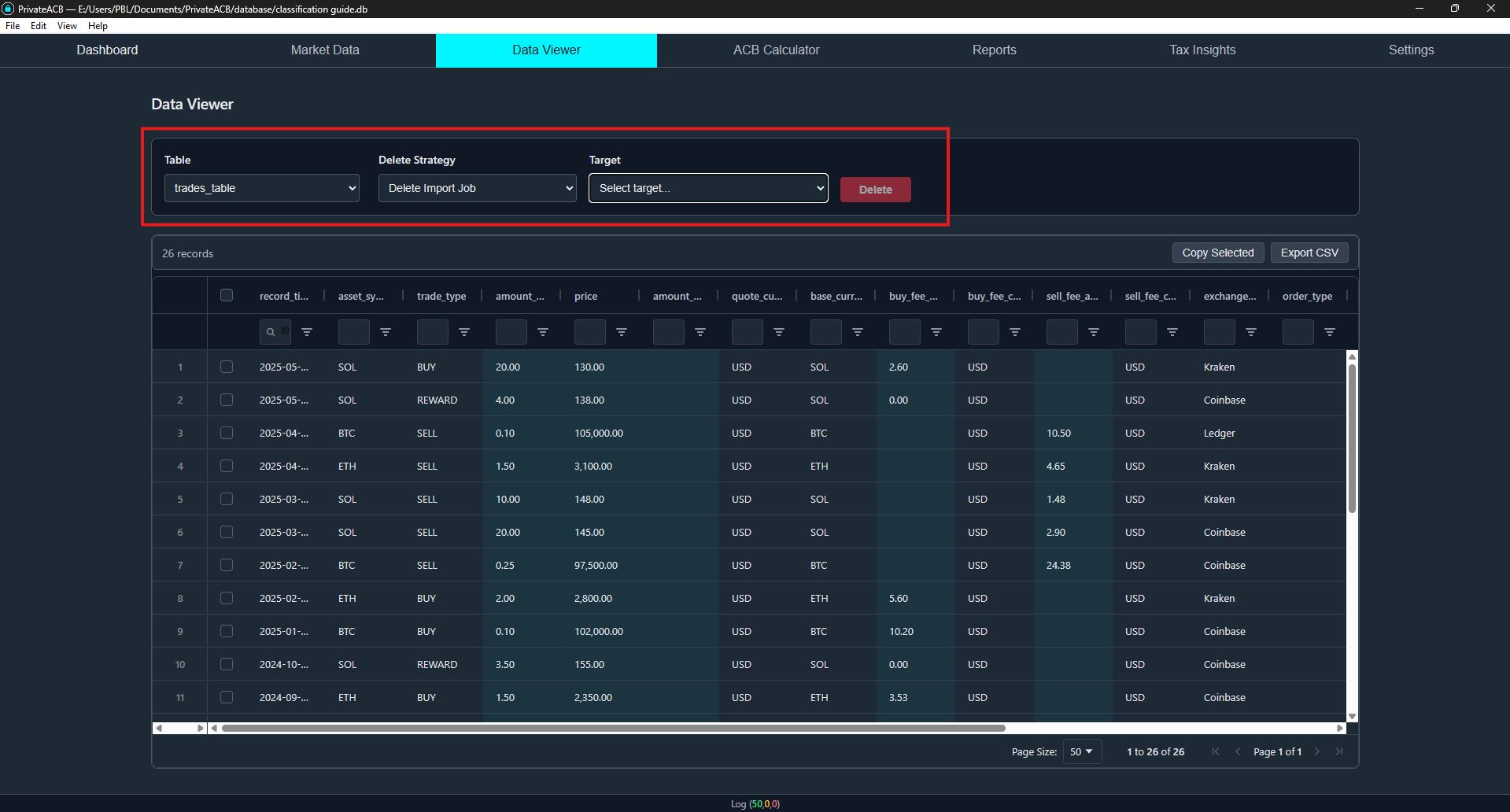
The deletion panel contains:
- Delete Strategy dropdown — Choose what type of deletion you want to perform
- Target selector — Select the specific item to delete (varies by strategy)
- Delete button — Execute the deletion after making your selections
Deletion Strategies
Section titled “Deletion Strategies”PrivateACB offers 7 deletion strategies, each designed for different use cases:
1. Delete Import Job
Section titled “1. Delete Import Job”What it does: Removes all transaction records from a specific import operation.
Use this when:
- You imported a file by mistake
- You want to re-import data after fixing errors in the source file
- You need to remove duplicate imports
What gets deleted:
- All transaction records from the selected import job
- Trade details associated with those records
- Any ACB calculations that used those transactions
- Any capital gains/losses derived from those transactions
- The import job metadata itself
Step-by-step:
- Select “Delete Import Job” from the Delete Strategy dropdown
- Select the import job you want to remove from the Target dropdown
- Each import is labeled with filename, date, and record count
- Click “Delete”
- Review the impact analysis showing how many records will be deleted
- Click “Confirm Delete” to proceed, or “Cancel” to abort
Impact on other data:
- If the deleted transactions were used in ACB calculations, those calculations will be removed
- Other assets and imports are not affected
2. Delete Asset
Section titled “2. Delete Asset”What it does: Removes ALL transaction records for a specific cryptocurrency or asset, across all imports.
Use this when:
- You want to remove all data for an asset you imported incorrectly
- You need to re-import all transactions for an asset from scratch
What gets deleted:
- All transaction records involving the selected asset (across ALL imports)
- All trade details for that asset
- All ACB calculation jobs for that asset
- All ACB records, tax lots, capital gains, and superficial losses/wash sales for that asset
Step-by-step:
- Select “Delete Asset” from the Delete Strategy dropdown
- Select the asset symbol from the Target dropdown (e.g., BTC)
- Click “Delete”
- Review the impact analysis showing record counts and affected calculations
- Click “Confirm Delete” to proceed, or “Cancel” to abort
3. Delete ACB Calculation Job
Section titled “3. Delete ACB Calculation Job”What it does: Removes the results of a specific ACB calculation job, without deleting the underlying transaction data.
Use this when:
- You want to recalculate ACB (you must delete the old calculation first)
- An ACB calculation produced incorrect results
- You’re cleaning up old calculation history
What gets deleted:
- ACB calculation metadata for the selected job
- ACB transaction records (the line-by-line calculation results)
- Capital gains/losses calculated by that job
- Superficial losses or wash sales identified by that job
- Tax lots (for US calculations)
What is NOT deleted:
- Your original transaction records (imports)
- Trade details
- Other ACB calculation jobs
Step-by-step:
- Select “Delete ACB Job” from the Delete Strategy dropdown
- Select the ACB job you want to remove from the Target dropdown
- Click “Delete”
- Review the impact analysis
- Click “Confirm Delete” to proceed, or “Cancel” to abort
After deletion, you can immediately run a new ACB calculation with the same or different settings.
4. Delete Date Range
Section titled “4. Delete Date Range”What it does: Removes all transaction records that fall within a specified date range.
Use this when:
- You need to remove transactions from a specific time period
- You imported overlapping data and need to clean up a date range
- You want to remove a specific quarter or month of data
Step-by-step:
- Select “Delete Date Range” from the Delete Strategy dropdown
- Enter the start date and end date for the range to delete
- The end date is inclusive (includes records at end of that day)
- Click “Delete”
- Review the impact analysis showing how many records fall in that range
- Click “Confirm Delete” to proceed, or “Cancel” to abort
Impact: All associated ACB calculations for affected records are also deleted. You will need to recalculate any affected assets.
5. Delete Market Data
Section titled “5. Delete Market Data”What it does: Removes currency exchange rates, cryptocurrency prices, or economic data from your database.
Use this when:
- You imported incorrect exchange rates
- You want to re-fetch cryptocurrency prices
- You need to clear stale market data
What gets deleted:
- Exchange rates (Bank of Canada, Federal Reserve)
- Cryptocurrency prices (CoinGecko)
- You can delete from a specific source or all market data
Step-by-step:
- Select “Delete Market Data” from the Delete Strategy dropdown
- Select which market data source to delete (or “all”)
- Click “Delete”
- Confirm the deletion
Impact on other data:
- Market data is reference data — deleting it does not delete your transactions
- However, ACB calculations that require price/FX lookups will need the rates re-imported before recalculating
- Existing calculation results remain but may become stale
6. Delete Currency Conversions
Section titled “6. Delete Currency Conversions”What it does: Removes pre-calculated currency conversion records from the asset conversions table.
Use this when:
- Currency conversion results appear incorrect
- You’ve updated exchange rates and need to regenerate conversions
- You want to re-run the conversion pipeline for specific assets
What gets deleted:
- Pre-calculated conversion records (the results of converting non-CAD/USD prices to your reporting currency)
- You can delete conversions for a specific asset or all conversions
Step-by-step:
- Select “Delete Currency Conversions” from the Delete Strategy dropdown
- Select the asset symbol or “all conversions”
- Click “Delete”
- Confirm the deletion
After deletion: Re-run the currency conversion pipeline from the Market Data tab to regenerate the conversion records.
7. Delete Entire Dataset (NUCLEAR)
Section titled “7. Delete Entire Dataset (NUCLEAR)”What it does: Deletes EVERYTHING in your current database except the database structure itself.
Use this when:
- You want to start completely fresh
- You’re clearing test data before importing real data
What gets deleted:
- ALL transaction records (from all imports)
- ALL import jobs
- ALL ACB calculation jobs and results
- ALL capital gains data
- ALL superficial loss / wash sale data
- ALL market data and currency conversions
- ALL audit logs and events
- Essentially everything except the empty database structure
What is NOT deleted:
- The database file itself
- The database schema/structure
Step-by-step:
- Consider carefully: Do you really want to delete everything?
- Back up your database file if there’s any chance you’ll need the data later
- Select “Delete Entire Dataset (NUCLEAR)” from the Delete Strategy dropdown
- Click “Delete”
- Confirm the warning dialog
- All data will be deleted
Impact Analysis
Section titled “Impact Analysis”For most deletion strategies, PrivateACB shows an Impact Analysis before proceeding. This preview shows you exactly what will be affected:
- Primary records: How many transaction records will be deleted
- Calculated records: How many ACB calculation entries will be affected
- Capital gains entries: How many capital gains/loss records will be deleted
- Superficial loss / wash sale entries: How many rule records will be deleted
- ACB calculation jobs: How many calculation jobs will be removed
- Assets affected: Which cryptocurrencies will be impacted
- Warnings: Any special notes (e.g., “Affected assets will need ACB recalculation”)
What to look for:
- Higher than expected record counts may indicate you selected the wrong target
- Check the “Assets affected” list to make sure only intended assets are listed
- Pay attention to warnings about invalidating ACB calculations
If anything looks wrong, click Cancel and verify your selection.
Disk Space
Section titled “Disk Space”After every deletion, PrivateACB automatically reclaims disk space by running SQLite’s VACUUM operation. This means the database file shrinks after deletions — you don’t need to do anything extra.
Common Scenarios
Section titled “Common Scenarios”Fixing a Bad Import
Section titled “Fixing a Bad Import”Problem: You imported a CSV but the data was wrong.
Solution:
- Select “Delete Import Job”
- Choose the bad import from the Target dropdown
- Review impact analysis and confirm
- Fix the CSV file
- Re-import the corrected file
- Recalculate ACB for affected assets
Recalculating ACB
Section titled “Recalculating ACB”Problem: You want to recalculate ACB for an asset (new data imported, or testing different settings).
Solution:
- Select “Delete ACB Job”
- Choose the calculation job to remove
- Confirm deletion (your transaction data remains intact)
- Go to the ACB Calculator tab
- Run a new calculation
Removing a Specific Time Period
Section titled “Removing a Specific Time Period”Problem: You imported overlapping data and have duplicates in a specific date range.
Solution:
- Select “Delete Date Range”
- Enter the start and end dates of the overlapping period
- Review the impact analysis to verify the right records are targeted
- Confirm deletion
- Re-import correct data for that period if needed
Refreshing Market Data
Section titled “Refreshing Market Data”Problem: Exchange rates or crypto prices seem incorrect and you want to re-fetch them.
Solution:
- Select “Delete Market Data”
- Choose the specific source (e.g., Bank of Canada, CoinGecko) or “all”
- Confirm deletion
- Go to the Market Data tab to re-import rates
Starting Fresh
Section titled “Starting Fresh”Problem: You want to clear all data and start over.
Solution:
- Back up your database file first
- Select “Delete Entire Dataset (NUCLEAR)”
- Confirm the warning
- Import your data fresh
Safety Tips
Section titled “Safety Tips”Before Deleting
Section titled “Before Deleting”- Back up your database file — Copy your
.dbfile to a safe location - Review impact analysis carefully — Verify you’ve selected the correct target
- Use the most specific strategy — Delete ACB Job instead of Delete Asset when you only need to recalculate
After Deleting
Section titled “After Deleting”- Verify the deletion — Check the Data Viewer to confirm the correct records were removed
- Recalculate if needed — Deleted ACB jobs need to be recalculated
- Regenerate reports — Tax reports reflect the current database state
Troubleshooting
Section titled “Troubleshooting”Delete button is disabled
Section titled “Delete button is disabled”Cause: You haven’t completed your selection.
Solution: Make sure you’ve selected both a deletion strategy AND a target. For date range deletions, both start and end dates must be filled in.
Deletion seems slow
Section titled “Deletion seems slow”Cause: Large deletions can take time, especially with thousands of records.
Solution: Wait for the operation to complete. Check the system messages at the bottom of the screen for progress updates. Large databases may take 30+ seconds.
”Failed to delete” error
Section titled “”Failed to delete” error”Cause: A database error occurred during deletion.
Solution:
- Check the system message for error details
- Try closing and reopening the database
- If the problem persists, check the application logs
Frequently Asked Questions
Section titled “Frequently Asked Questions”Can I undo a deletion?
Section titled “Can I undo a deletion?”No. All deletions are permanent. Restore from a backup if you deleted something by mistake.
Will deleting transactions affect my tax reports?
Section titled “Will deleting transactions affect my tax reports?”Yes. Tax reports are generated from your current database. If you delete transactions or calculations, you’ll need to recalculate and regenerate reports.
What’s the difference between deleting an import job and deleting an asset?
Section titled “What’s the difference between deleting an import job and deleting an asset?”- Delete Import Job: Removes transactions from ONE specific import (e.g., one CSV file)
- Delete Asset: Removes ALL transactions for an asset across ALL imports (e.g., all Bitcoin data from every CSV)
Can I delete individual transactions?
Section titled “Can I delete individual transactions?”Not through the deletion panel. The deletion tools are designed for bulk operations. You can edit individual transactions in the Data Viewer tab.
Can I delete transactions from a specific date range?
Section titled “Can I delete transactions from a specific date range?”Yes. Use the “Delete Date Range” strategy. Enter your start and end dates, and all transactions in that range will be removed.
Does deletion free up disk space?
Section titled “Does deletion free up disk space?”Yes. PrivateACB automatically runs SQLite VACUUM after every deletion to reclaim disk space.
Technical Details
Section titled “Technical Details”Transaction Safety
Section titled “Transaction Safety”All deletions are performed within database transactions:
- If any part of the deletion fails, the entire operation is rolled back
- Your database will never be left in a partially-deleted state
- Either all records are deleted successfully, or none are
Cascade Behavior
Section titled “Cascade Behavior”PrivateACB uses foreign key CASCADE DELETE rules to maintain data consistency:
| Strategy | Cascades To |
|---|---|
| Delete Import Job | records, trades, asset conversions, ACB results, capital gains, losses |
| Delete Asset | All ACB jobs for that asset, then all trade records |
| Delete ACB Job | ACB records, capital gains, tax lots, loss adjustments |
| Delete Date Range | All associated calculations for records in range |
| Delete Market Data | Exchange rates and/or crypto prices |
| Delete Conversions | Pre-calculated currency conversion records |
| Delete Dataset | Everything |
Batch Optimization
Section titled “Batch Optimization”Large deletions use chunked batch operations (400 records per batch) to stay within SQLite’s parameter limits and maintain responsiveness during deletion of thousands of records.
Related Guides
Section titled “Related Guides”- Data Viewer Guide — Browsing, filtering, editing, and exporting data
- Database Management Guide — Creating, opening, and backing up databases
- Import Flow Guide — Importing transaction data
- Canadian ACB Calculation Guide — Running ACB calculations
Last Updated: February 2026 PrivateACB Version: 2.0