Database Management
Overview
Section titled “Overview”PrivateACB stores all your cryptocurrency transaction data in an encrypted database file on your local computer. This guide explains how to create, open, secure, and manage your database.
Key Points:
- Your database is encrypted with AES-256 encryption (SQLCipher)
- Your data never leaves your computer — everything stays private and local
- You control the database password — there is NO password recovery if you forget it
- Each database file is independent and portable — you can back it up or move it anywhere
The Welcome Screen
Section titled “The Welcome Screen”First Launch
Section titled “First Launch”When you first launch PrivateACB (or when no database is open), you’ll see the Welcome Screen. This is your starting point for database management.
The Welcome Screen provides two main options:
- Create New Database — Start fresh with a new encrypted database
- Open Existing Database — Load a database you’ve previously created
What you’ll see on the Welcome Screen:
- PrivateACB logo and tagline
- Two clearly labeled action buttons
- System message banner at the top (shows status messages)
Creating a New Database
Section titled “Creating a New Database”When to Create a New Database
Section titled “When to Create a New Database”Create a new database when:
- You’re launching PrivateACB for the first time
- You want to separate data for different purposes (e.g., personal vs. business)
- You’re starting a new tax year and want a fresh start
- You want to test settings without affecting your main database
Step-by-Step: Creating Your First Database
Section titled “Step-by-Step: Creating Your First Database”1. Click “Create New Database”
- You’ll see a file save dialog
- The default name is
PrivateACB.db - You can choose any name you want (the
.dbextension is recommended)
2. Choose a Location
- Recommended: Save in a dedicated folder like
Documents\PrivateACB\ - Important: Remember this location — you’ll need it to open the database later
- Tip: Keep it somewhere that’s backed up regularly (e.g., OneDrive, Dropbox folder)
3. Enter Your Encryption Password
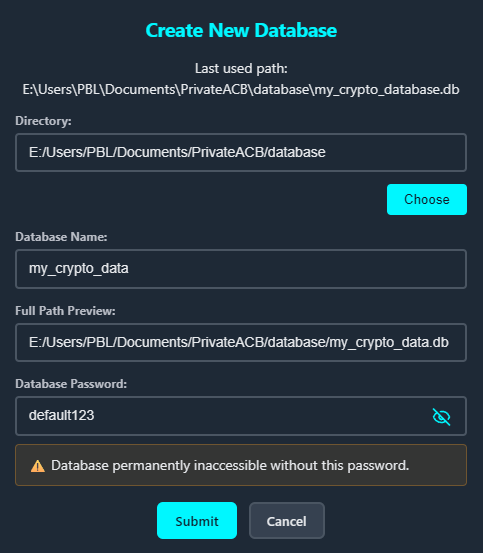
- You’ll see a password dialog after selecting the file location
- This password encrypts your entire database
- Requirements:
- Minimum: 8 characters
- Maximum: 256 characters
- Must contain: At least one letter AND one number
- Recommended: Use 12+ characters with a mix of letters, numbers, and symbols
4. Confirm Your Password
- Enter the same password again to confirm
- Make sure there are no typos — passwords are case-sensitive
5. Database Initialization
- PrivateACB creates the database file
- The database structure is initialized (40+ tables for tracking your data)
- Your password is securely stored using Windows DPAPI encryption (stored in the Windows Registry under
HKCU\Software\PrivateACB) - You’ll see a success message when complete
What happens after creation:
- The database opens automatically
- The Welcome Screen closes
- You’ll see the main PrivateACB interface with the Dashboard
- The database path appears in the window title bar
- You can now import transactions and use all features
Database File Details
Section titled “Database File Details”File Name: PrivateACB.db (or whatever you chose)
File Size:
- Starts around 200-500 KB (empty database)
- Grows as you add transactions
- Typical size: 5-20 MB (for thousands of transactions)
- Large databases: 50-100 MB+ (for tens of thousands of transactions)
File Format: SQLite database with SQLCipher encryption
What’s Inside:
- Transaction records
- Import job history
- ACB calculation results and job history
- Tax reports data
- Market data (exchange rates and crypto prices)
- Your configuration settings
Opening an Existing Database
Section titled “Opening an Existing Database”When to Open a Database
Section titled “When to Open a Database”Open an existing database when:
- You closed PrivateACB and want to continue working
- You moved your database file to a new location
- You’re opening a backup copy
- You want to switch between different databases
Step-by-Step: Opening Your Database
Section titled “Step-by-Step: Opening Your Database”1. Click “Open Existing Database”
- You’ll see a file open dialog
- Navigate to where your database file is saved
- Select the
.dbfile - Click “Open”
2. Enter Your Password
- A password dialog appears
- Enter the encryption password you set when creating the database
- Passwords are case-sensitive — make sure Caps Lock is off
3. Database Opens
- PrivateACB verifies your password
- The database is decrypted and opened
- You’ll see a success message
- The main interface loads with your data
4. You’re Ready to Work
- All your transaction data is available
- Continue where you left off
- Import new transactions, run calculations, or generate reports
Troubleshooting Opening Issues
Section titled “Troubleshooting Opening Issues”“Incorrect password” error:
- Double-check your password for typos
- Ensure Caps Lock is off
- Try typing slowly and carefully
- If you used a password manager, copy and paste from there
“File not found” error:
- Check that the database file exists at the location you selected
- The file may have been moved or renamed
- Search your computer for
.dbfiles
“Database is corrupt” error:
- The file may have been damaged
- Try opening a backup copy if you have one
- This is rare but can happen if the file was transferred incorrectly
“Database is locked” error:
- Another instance of PrivateACB might be using the database
- Close all PrivateACB windows and try again
- Restart your computer if the problem persists
Database Encryption
Section titled “Database Encryption”Why Encryption Matters
Section titled “Why Encryption Matters”Your cryptocurrency transaction data is sensitive financial information. PrivateACB uses strong encryption to protect your privacy:
AES-256 Encryption:
- Industry standard for top-secret government data
- Would take billions of years to crack using current technology
- The same encryption used by banks and military organizations
SQLCipher Implementation:
- Open-source encryption layer for SQLite databases
- Encrypts the entire database file, not just parts of it
- Your data is encrypted at rest (when stored on disk)
- Data is only decrypted in memory when you enter your password
What Gets Encrypted
Section titled “What Gets Encrypted”Everything in your database:
- All transaction records
- Import history
- ACB calculation results
- Tax reports
- Market data (exchange rates, crypto prices)
- Your settings and preferences
Even if someone accesses your computer:
- They cannot access your database without the password
- The file looks like random data to anyone without the password
- There are no “backdoors” or recovery mechanisms
Encryption Password Security
Section titled “Encryption Password Security”Your password is:
- Never stored in plain text — only a secure hash is kept
- Protected by Windows DPAPI — your database credentials are stored in the Windows Registry, encrypted with your Windows user account
- Required every time you open the database — there’s no “remember me” option for security
If you lose your password:
- Your database cannot be recovered
- PrivateACB cannot help you — we don’t have a master key
- Even a computer expert cannot decrypt it — the encryption is that strong
- Backups won’t help — they’re encrypted too
- Only solution: You must remember your password
Changing Your Database Password
Section titled “Changing Your Database Password”When to Change Your Password
Section titled “When to Change Your Password”Change your database password when:
- You think your password may have been compromised
- You want a stronger password
- You’re sharing a computer and want to update security
- You set a weak password initially and want to improve it
- Regular security maintenance (e.g., every 6-12 months)
Step-by-Step: Changing Your Password
Section titled “Step-by-Step: Changing Your Password”1. Open Your Database
- You must have the database open to change its password
- Enter your current password to open it
2. Navigate to Settings
- Click the Settings tab in the top bar (or press Ctrl+7)
- Find the Database Security section
- Click to expand the panel (if collapsed)
3. Enter Current Password
- In the “Current Password” field, type your existing password
- This verifies you’re authorized to make changes
4. Enter New Password
- Type your new password in the “New Password” field
- Password requirements:
- 8-256 characters
- Must contain at least one letter
- Must contain at least one number
- Cannot be the same as your current password
- Password strength indicator shows:
- Weak (red) — Add more characters
- Fair (orange) — Acceptable but could be better
- Good (yellow) — Solid password
- Strong (green) — Excellent security
- Very Strong (blue) — Maximum security
5. Confirm New Password
- Type the new password again in the “Confirm New Password” field
- The interface shows a checkmark when they match
- Make sure there are no typos
6. Click “Change Password”
- A confirmation dialog appears with important warnings
- Read carefully: This operation:
- Re-encrypts your entire database (may take a few minutes for large databases)
- Updates all stored password references
- Requires the new password for all future access
- Cannot be undone
7. Wait for Re-encryption
- PrivateACB displays “Changing password and re-encrypting database…”
- For small databases (<1 MB): Usually completes in seconds
- For medium databases (1-10 MB): May take 10-30 seconds
- For large databases (>10 MB): May take 1-3 minutes
- Do not close PrivateACB during this process
8. Success Confirmation
- You’ll see “Password changed successfully!”
- Your database has been re-encrypted with the new password
- The old password no longer works
- Consider updating your password manager
Important Warnings
Section titled “Important Warnings”Write Down Your New Password
- Before changing, make sure you can remember or have securely stored the new password
- Consider using a password manager (1Password, LastPass, Bitwarden, etc.)
- There is no password recovery — if you forget it, your database is permanently locked
This Operation is Permanent
- Once the password is changed, you cannot revert to the old password
- The old password becomes completely invalid
- Make absolutely sure you know the new password before proceeding
Re-encryption Takes Time
- Larger databases take longer to re-encrypt
- Don’t interrupt the process or close PrivateACB
- The operation is atomic — if it fails, your old password still works
Password Best Practices
Section titled “Password Best Practices”Strong Password Tips:
- Use a passphrase: “MyDog$Ate3Pizzas!” is stronger than “P@ssw0rd”
- Make it memorable: You’ll need to type this password frequently
- Mix it up: Combine uppercase, lowercase, numbers, and symbols
- Length matters: Longer passwords are exponentially stronger
What NOT to Do:
- Don’t use personal information (birthdate, pet names, addresses)
- Don’t reuse passwords from other accounts
- Don’t share your password with anyone who doesn’t need it
- Don’t write it on a sticky note next to your computer
- Don’t use simple patterns like “12345678” or “password1”
Password Manager Recommendation:
- Use a reputable password manager to store your database password
- Password managers encrypt your passwords with a master password
- Popular options: 1Password, LastPass, Bitwarden, Dashlane
Database Location and File Management
Section titled “Database Location and File Management”Where Is My Database?
Section titled “Where Is My Database?”Default Location: You choose the location when creating the database
Common location:
C:\Users\YourName\Documents\PrivateACB\(Windows)
Finding Your Database:
- Look at the window title bar when PrivateACB is open — it shows the full path
- Search your computer for
*.dbfiles
Moving Your Database
Section titled “Moving Your Database”You can move your database file anywhere:
- To a different folder on your computer
- To an external hard drive
- To a cloud storage folder (OneDrive, Dropbox, Google Drive)
- To a USB flash drive (for portable access)
How to move your database:
- Close the database in PrivateACB
- Close PrivateACB completely
- Copy or move the
.dbfile using File Explorer - Reopen PrivateACB
- Use “Open Existing Database” and navigate to the new location
Renaming Your Database
Section titled “Renaming Your Database”You can rename the database file:
- Close PrivateACB completely
- Find the database file in File Explorer
- Rename it (keep the
.dbextension) - Reopen PrivateACB and open the renamed file
Example:
- Original:
PrivateACB.db - Renamed:
PrivateACB_2024_Taxes.dborCrypto_Personal.db
Copying Your Database
Section titled “Copying Your Database”Create a copy for testing or backup:
- Close PrivateACB
- Copy the
.dbfile - Paste it anywhere (creates an exact duplicate)
- The copy is fully functional and uses the same password
Use cases for copies:
- Testing deletions before doing them on your real database
- Creating yearly archives
- Trying different calculation settings
- Keeping separate personal and business databases
Backing Up Your Database
Section titled “Backing Up Your Database”Why Backups Matter
Section titled “Why Backups Matter”Your database contains irreplaceable data:
- Years of transaction history
- ACB calculation results
- Custom import configurations
- Tax reports
What could go wrong:
- Hard drive failure
- Computer stolen or lost
- Accidental deletion
- Database corruption (rare but possible)
- Ransomware attack
Manual Backup Methods
Section titled “Manual Backup Methods”Method 1: Simple File Copy (Recommended for beginners)
- Close PrivateACB
- Find your database file
- Copy it to a safe location:
- External hard drive
- USB flash drive
- Cloud storage (OneDrive, Dropbox, Google Drive)
- Network drive
- Rename the copy with a date:
- Example:
PrivateACB_Backup_2024-01-15.db
- Example:
Frequency: After every major import or calculation
Method 2: Using PrivateACB’s Export Feature
PrivateACB has a built-in export that creates an optimized, compact copy of your database (10-30% smaller). See the Export Database Guide for step-by-step instructions.
Frequency: Weekly or monthly
Method 3: Automated Cloud Backup (Recommended for advanced users)
- Save your database in a cloud-synced folder:
C:\Users\YourName\OneDrive\PrivateACB\C:\Users\YourName\Dropbox\PrivateACB\
- Cloud service automatically backs up changes
- Built-in version history for recovery
Backup Best Practices
Section titled “Backup Best Practices”Follow the 3-2-1 Rule:
- 3 copies of your data (original + 2 backups)
- 2 different storage types (e.g., computer + external drive)
- 1 off-site backup (e.g., cloud storage or drive at another location)
What to backup:
- Your database file (
*.db) - Your export files (CSV and PDF reports)
- You don’t need to backup PrivateACB itself (can be re-downloaded)
When to backup:
- Before major deletions
- After importing large datasets
- After completing ACB calculations
- Before changing settings
- At the end of each tax year
- Before upgrading PrivateACB
Testing your backups:
- Periodically test that you can open backup files
- Verify the password works
- Check that data is intact
What If You Forget Your Password?
Section titled “What If You Forget Your Password?”The Hard Truth
Section titled “The Hard Truth”There is no password recovery. If you forget your database password:
PrivateACB cannot help you
- We don’t have a master key or backdoor
- The encryption is designed to be unbreakable
- This is a security feature, not a bug
Technical experts cannot help
- No password cracking software will work
- AES-256 encryption is mathematically unbreakable with current technology
Your database is permanently lost
- All transaction data
- All calculation results
- All reports
- Everything is inaccessible
Prevention is Everything
Section titled “Prevention is Everything”How to Never Forget Your Password:
-
Use a Password Manager
- 1Password, LastPass, Bitwarden, Dashlane
- Securely stores your password
- Auto-fills when needed
- This is the #1 recommendation
-
Write It Down Securely
- If you must write it down:
- Keep it in a fireproof safe
- Don’t store it with your computer
- Don’t write “PrivateACB Password:” next to it
- Use a hint instead of the full password
- If you must write it down:
-
Use a Memorable Passphrase
- Easier to remember than random characters
- Example: “MyDog$Ate3PizzasIn2024!”
- Mix words with numbers and symbols
- Create a story or image in your mind
-
Share with a Trusted Person
- Give your password to your spouse/partner, accountant, or estate executor
- Store it in a sealed envelope in a safe deposit box
-
Practice Typing It
- Type your password regularly to reinforce muscle memory
- Don’t rely solely on auto-fill features
Emergency Access
Section titled “Emergency Access”Planning for the unexpected:
If something happens to you, will your family or accountant be able to access your crypto tax records?
Create an emergency access plan:
- Document your database location
- Document your password (stored securely)
- Include instructions for opening PrivateACB
- Store this information in your will, safe deposit box, or with your accountant
Example emergency document:
Cryptocurrency Tax Database - Emergency Access
Application: PrivateACBDatabase Location: C:\Users\John\Documents\PrivateACB\PrivateACB_2024.dbPassword: [Stored in password manager or sealed envelope]
Instructions:1. Download PrivateACB from www.privateacb.com2. Open the application3. Click "Open Existing Database" and select the file above4. Enter the password5. All transaction data and tax reports are available
Last Updated: January 2026
Closing Your Database
Section titled “Closing Your Database”When to Close Your Database
Section titled “When to Close Your Database”Close your database when:
- You’re done working and want to secure your data
- You want to switch to a different database
- You’re moving or backing up the database file
- You’re stepping away from your computer (for privacy)
How to Close Your Database
Section titled “How to Close Your Database”Method 1: Using Keyboard Shortcut
- Press Ctrl+W to close the database
- You return to the Welcome Screen
- Your data is securely locked (encrypted on disk)
Method 2: Closing PrivateACB
- Click the X button to close the application window
- PrivateACB automatically closes the database
- The application quits completely
What happens when you close:
- All data is saved automatically (PrivateACB saves as you work)
- The database file is locked
- Memory is cleared
- You return to the Welcome Screen
- Your password is no longer in memory
Switching Between Databases
Section titled “Switching Between Databases”To switch from one database to another:
- Close current database (Ctrl+W)
- Return to Welcome Screen
- Click “Open Existing Database”
- Select the other database file
- Enter its password
Database Security Best Practices
Section titled “Database Security Best Practices”Physical Security
Section titled “Physical Security”Protect your computer:
- Use a strong login password for your Windows account
- Enable BitLocker full-disk encryption
- Lock your screen when stepping away (Win+L)
- Don’t leave your laptop unattended in public places
- Keep physical backups in a safe place
Digital Security
Section titled “Digital Security”Protect your database file:
- Use a strong, unique password for your database
- Never share your database password via email or text message
- Don’t store the password in an unencrypted text file
- Be cautious of screen-sharing — close sensitive data first
- Use anti-virus software to prevent malware
Backup Security
Section titled “Backup Security”Secure your backups:
- Backups are encrypted with the same password
- Store backups in different physical locations
- Use encrypted cloud storage (OneDrive, Dropbox, Google Drive)
- Test backups periodically to ensure they work
- Delete old backups securely (don’t just move to Recycle Bin)
Privacy Considerations
Section titled “Privacy Considerations”Your database contains sensitive information:
- Transaction amounts
- Cryptocurrency holdings
- Wallet addresses
- Exchange account details
- Profit and loss amounts
Protect your privacy:
- Keep your database password secret
- Don’t share screenshots containing transaction details
- Be careful when getting technical support (don’t share passwords)
- Remember that backups in cloud storage are encrypted
- Consider the tax implications of sharing data
Common Database Issues and Solutions
Section titled “Common Database Issues and Solutions””Database is locked” Error
Section titled “”Database is locked” Error”Cause: Another process is using the database
Solutions:
- Close all PrivateACB windows and reopen
- Check Task Manager for PrivateACB processes
- Restart your computer
- Make sure the database isn’t in a cloud-synced folder that’s actively syncing
”Incorrect password” Error
Section titled “”Incorrect password” Error”Cause: The password you entered doesn’t match the database encryption
Solutions:
- Check for typos (passwords are case-sensitive)
- Turn off Caps Lock
- Try typing slowly and carefully
- Copy password from password manager
- If nothing works: The password is lost and the database cannot be opened
”File is corrupt” Error
Section titled “”File is corrupt” Error”Cause: The database file is damaged
Solutions:
- Try opening a backup copy
- Check if the file size is correct (not 0 bytes)
- Make sure the file transfer completed properly if you moved it
- Run a disk check on your hard drive
- If backups don’t work: Data may be lost
Database Opening Slowly
Section titled “Database Opening Slowly”Cause: Large database or slow storage
Solutions:
- Be patient — large databases take time to decrypt
- Move database to faster storage (SSD instead of HDD)
- Consider archiving old years to separate databases
- Run database optimization (export creates optimized copy)
Can’t Find Database File
Section titled “Can’t Find Database File”Cause: File was moved or deleted
Solutions:
- Check the window title bar (shows last known path)
- Search your computer for
*.dbfiles - Check Recycle Bin
- Check cloud storage folders
- Look for backup copies
- Check external drives
Database Maintenance
Section titled “Database Maintenance”When to Optimize Your Database
Section titled “When to Optimize Your Database”Optimize your database if:
- It’s grown large (>50 MB)
- You’ve deleted a lot of data
- Performance is slow
- You want to reclaim disk space
How to optimize:
- Go to Settings → Database Backup
- Click “Export Database” (or Ctrl+E)
- The exported copy is optimized (10-30% smaller)
- You can replace your original with the optimized copy
Benefits:
- Faster database operations
- Smaller file size
- Removes empty space
- Clean, defragmented database
Quick Reference
Section titled “Quick Reference”Keyboard Shortcuts
Section titled “Keyboard Shortcuts”| Shortcut | Action |
|---|---|
| Ctrl+N | Create New Database |
| Ctrl+O | Open Existing Database |
| Ctrl+W | Close Database |
| Ctrl+E | Export (Backup) Database |
Database File Extensions
Section titled “Database File Extensions”.db— Standard database file (recommended).sqlite— Also supported.sqlite3— Also supported
All extensions work the same — they’re all SQLCipher encrypted SQLite databases.
Password Requirements Summary
Section titled “Password Requirements Summary”Minimum Requirements:
- 8 characters
- At least one letter
- At least one number
Maximum: 256 characters
Recommended:
- 12+ characters
- Mix of uppercase and lowercase
- Numbers and special symbols
- Use a memorable passphrase
Getting Help
Section titled “Getting Help”If you encounter database issues not covered in this guide:
- Review error messages carefully — they often explain the problem
- Try with a test database to isolate the issue
- Contact support at support@privateacb.com with:
- Description of the problem
- Steps to reproduce
- Error messages (screenshot if possible)
- Never share your database password
Remember:
- Your database is your responsibility — back it up regularly
- Your password is unrecoverable — store it securely
- Your data never leaves your computer — PrivateACB is 100% local
- Security is a feature — the lack of password recovery protects you
Last Updated: February 2026 PrivateACB Version: 2.0