Classification Review Guide
Overview
Section titled “Overview”The Classification Review step (Step 4 of the import wizard) appears during CSV import when PrivateACB detects transaction types that need your attention. This step lets you review how each transaction type will be classified for tax purposes and save your preferences for future imports.
What you’ll learn:
- How to review and adjust transaction classifications
- Understanding the five classification categories
- Saving your preferences for future imports
Time to read: 3 minutes
When This Step Appears
Section titled “When This Step Appears”After uploading and mapping your CSV file, PrivateACB scans for all unique transaction types. Step 3b appears automatically when:
- Your CSV contains transaction types PrivateACB doesn’t recognize
- You have previously saved custom classification preferences
If all transaction types are recognized, this step may be skipped automatically.
The Classification Table
Section titled “The Classification Table”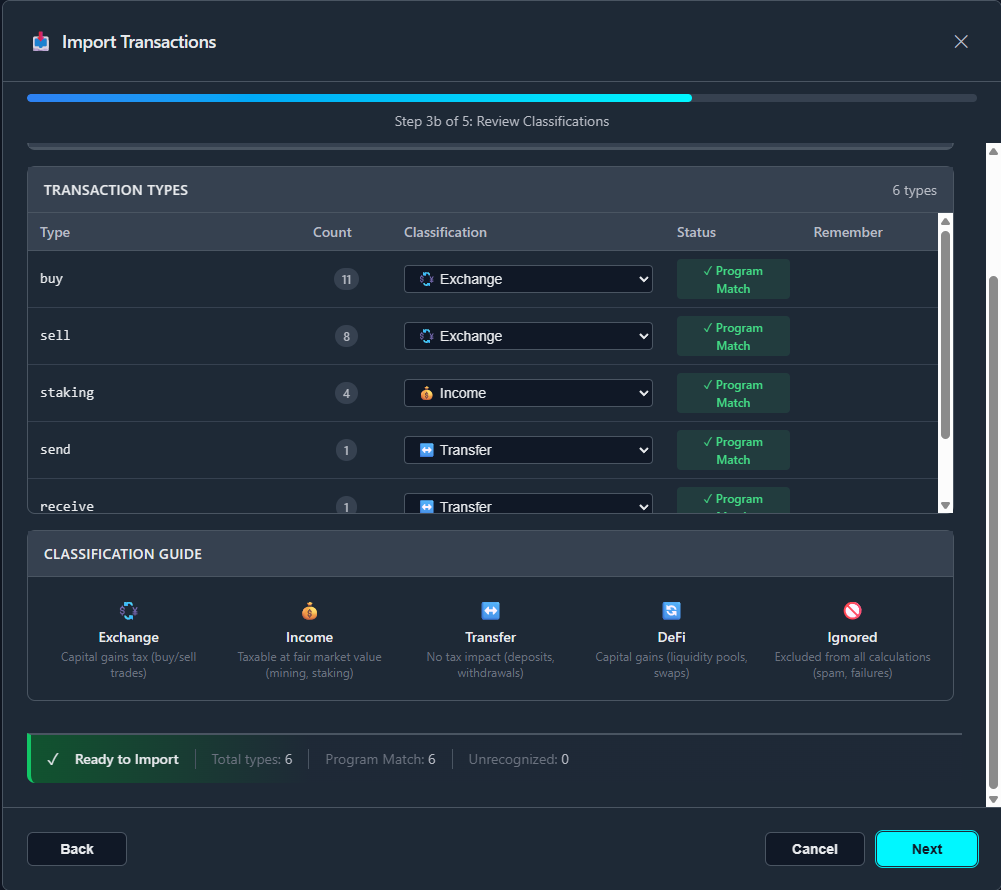
The main table shows every unique transaction type found in your CSV:
| Column | Description |
|---|---|
| Type | The transaction type string from your CSV (e.g., “REFERRAL_BONUS”) |
| Count | How many transactions have this type |
| Classification | Tax category dropdown (Exchange, Income, Transfer, DeFi, Ignored) |
| Status | Whether PrivateACB recognized this type |
| Remember | Save this classification for future imports |
The Five Classifications
Section titled “The Five Classifications”Every transaction type must be assigned to one of five tax classifications:
Exchange
Section titled “Exchange”Tax treatment: Capital gains tax (buy/sell trades)
Use for: Purchases, sales, and trades that create acquisitions or dispositions.
Examples: BUY, SELL, TRADE, LIMIT_BUY, MARKET_SELL
Tax impact: Creates cost basis (buys) or triggers capital gains/losses (sells).
Income
Section titled “Income”Tax treatment: Taxable at fair market value (mining, staking)
Use for: Rewards, earnings, and free crypto received.
Examples: STAKING, MINING, AIRDROP, INTEREST, REFERRAL_BONUS, CASHBACK
Tax impact: Taxable as income at fair market value on the date received.
Transfer
Section titled “Transfer”Tax treatment: No tax impact (deposits, withdrawals)
Use for: Moving crypto between your own wallets or accounts.
Examples: DEPOSIT, WITHDRAWAL, TRANSFER_IN, TRANSFER_OUT, SEND, RECEIVE
Tax impact: None. Tracks holdings without triggering tax events.
Tax treatment: Capital gains (liquidity pools, swaps)
Use for: Decentralized finance operations.
Examples: SWAP, LIQUIDITY_ADD, LIQUIDITY_REMOVE, LENDING, BORROWING
Tax impact: Treated as exchanges for capital gains purposes.
Ignored
Section titled “Ignored”Tax treatment: Excluded from all calculations (spam, failures)
Use for: Transactions you want to exclude entirely.
Examples: Spam airdrops, failed transactions, dust conversions, test transactions
Tax impact: Completely excluded from ACB calculations and tax reports.
Transaction Status
Section titled “Transaction Status”The Status column shows how PrivateACB recognized each type:
| Status | Meaning |
|---|---|
| Program Match | PrivateACB’s built-in registry recognized this type |
| Unrecognized | Type not in the built-in registry (needs your review) |
| Saved | You previously saved a classification for this type |
Unrecognized types are highlighted with an amber background and appear at the top of the list for easy review.
Filter Buttons
Section titled “Filter Buttons”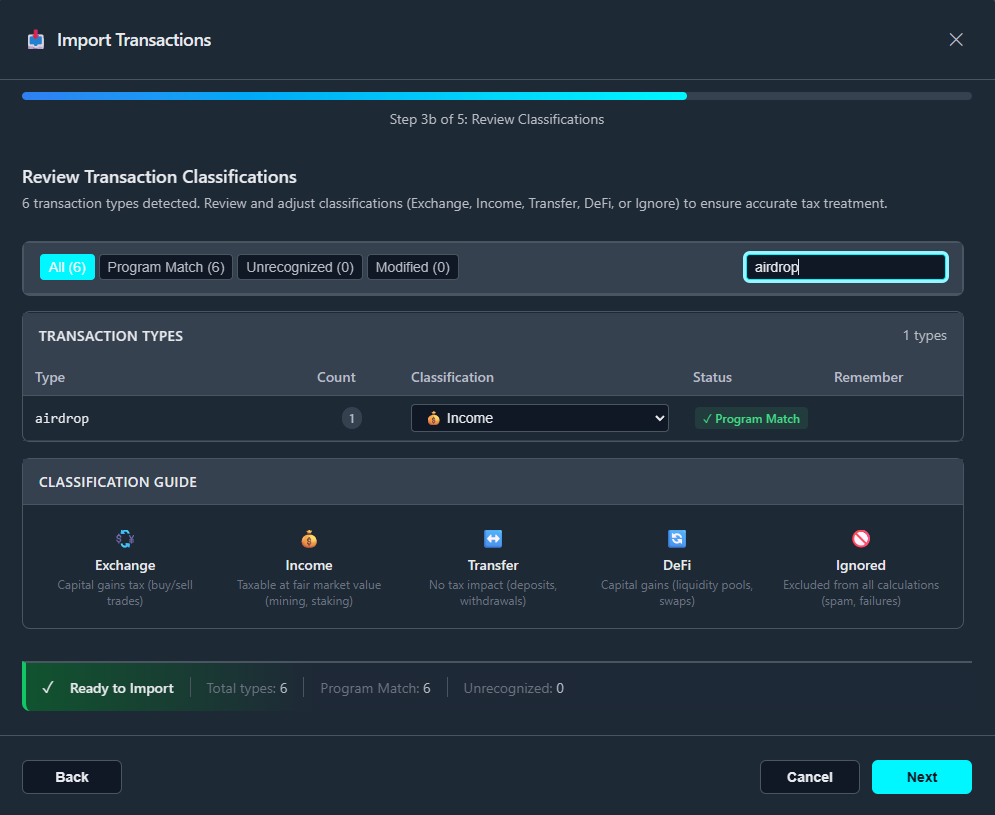
Use the filter buttons to focus on specific transaction types:
| Filter | Shows |
|---|---|
| All | Every transaction type |
| Program Match | Types recognized by PrivateACB |
| Unrecognized | Types needing your review |
| Modified | Types where you changed the classification |
Use the Search box to find specific types by name.
The Remember Checkbox
Section titled “The Remember Checkbox”The Remember checkbox appears for:
- Unrecognized types — Always shown (checked by default)
- Modified types — Shown when you change a Program Match classification
When checked, your classification choice is saved to the database for future imports. The next time you import a CSV with the same transaction type, PrivateACB will automatically apply your saved classification.
Note: The checkbox does not appear for unmodified Program Match types because those are already handled by PrivateACB’s built-in registry.
How Saved Patterns Work
Section titled “How Saved Patterns Work”When you complete an import with “Remember” checked:
- Your classification choices are saved to the database
- Future imports check your saved preferences first
- If a match is found, your saved classification is applied automatically
- The Status column shows “Saved” instead of “Unrecognized”
Example workflow:
- First import: CSV contains “LEARN_REWARD” (unrecognized)
- Your action: Classify as “Income”, leave Remember checked
- Pattern saved: “learn_reward” maps to Income
- Second import: Same CSV or another with “LEARN_REWARD”
- Result: Automatically classified as Income, Status shows “Saved”
Best Practices
Section titled “Best Practices”Review Unrecognized Types Carefully
Section titled “Review Unrecognized Types Carefully”Don’t accept the default Exchange classification blindly. Consider:
- Is this a reward? → Income
- Is this moving between my wallets? → Transfer
- Is this spam or a failed transaction? → Ignored
Use Ignored for Spam
Section titled “Use Ignored for Spam”Cryptocurrency addresses often receive spam airdrops. Classify these as Ignored to:
- Exclude them from ACB calculations
- Keep them out of tax reports
- Avoid phantom income
Be Consistent
Section titled “Be Consistent”If you classify “REFERRAL_BONUS” as Income, classify similar types (BONUS, CASHBACK, REWARD) the same way for consistency.
Let Remember Do the Work
Section titled “Let Remember Do the Work”Keep the Remember checkbox checked for unrecognized types. This saves time on future imports and ensures consistent classification across your transaction history.
Frequently Asked Questions
Section titled “Frequently Asked Questions”Can I change a Program Match classification?
Section titled “Can I change a Program Match classification?”Yes. Use the dropdown to select a different classification. When you change it, the Remember checkbox appears so you can save your override.
What if I make a mistake?
Section titled “What if I make a mistake?”Classifications only affect the current import. You can:
- Go back and change classifications before completing import
- Delete the imported transactions and re-import with correct classifications
- Edit individual transactions in the Data Viewer tab (Ctrl+3) after import
Do saved patterns apply to all databases?
Section titled “Do saved patterns apply to all databases?”No. Patterns are saved per database. Each database has its own saved preferences.
Why did my type show as Unrecognized?
Section titled “Why did my type show as Unrecognized?”PrivateACB’s built-in registry covers common exchange transaction types. Custom or platform-specific types (LEARN_REWARD, DUST_CONVERSION, PROMOTIONAL) may not be recognized until you classify them.
Related Guides
Section titled “Related Guides”- Import Flow Guide — Complete import workflow
- Transaction Types Guide — The 60+ built-in types
- Deletion Guide — Removing imported data
Last Updated: February 2026 PrivateACB Version: 2.0