Canadian Tax Reports
Overview
Section titled “Overview”After completing your ACB calculations, PrivateACB generates comprehensive tax reports that help you file your Canadian income taxes accurately. This guide explains how to access, view, and export the tax reports you need for CRA compliance.
What you’ll learn:
- How to access your calculated tax reports
- What each report shows and why it matters
- How to export reports to PDF or CSV
- How to use these reports for your tax filing
Prerequisites: You must have completed an ACB calculation first (see Canadian ACB Calculation Guide)
Available Canadian Reports
Section titled “Available Canadian Reports”PrivateACB provides 6 report types for Canadian tax filers:
| Report Name | Purpose | CRA Form | Required? |
|---|---|---|---|
| Schedule 3 | Capital gains and losses | Schedule 3 | Yes (if you sold crypto) |
| T1135 | Foreign property holdings | T1135 | Yes (if holdings > $100k CAD) |
| Income Report | Income from mining/staking | T2125/Line 13000 | Yes (if you have crypto income) |
| ACB Summary | Transaction-by-transaction ACB ledger | N/A | No (for your records) |
| Superficial Loss | Denied loss details | N/A | No (supporting documentation) |
| Audit Provenance | Comprehensive audit provenance | N/A | No (audit defense) |
Accessing Tax Reports
Section titled “Accessing Tax Reports”Step 1: Navigate to the Reports Tab
Section titled “Step 1: Navigate to the Reports Tab”- Open your PrivateACB database
- Click the Reports tab in the top navigation bar
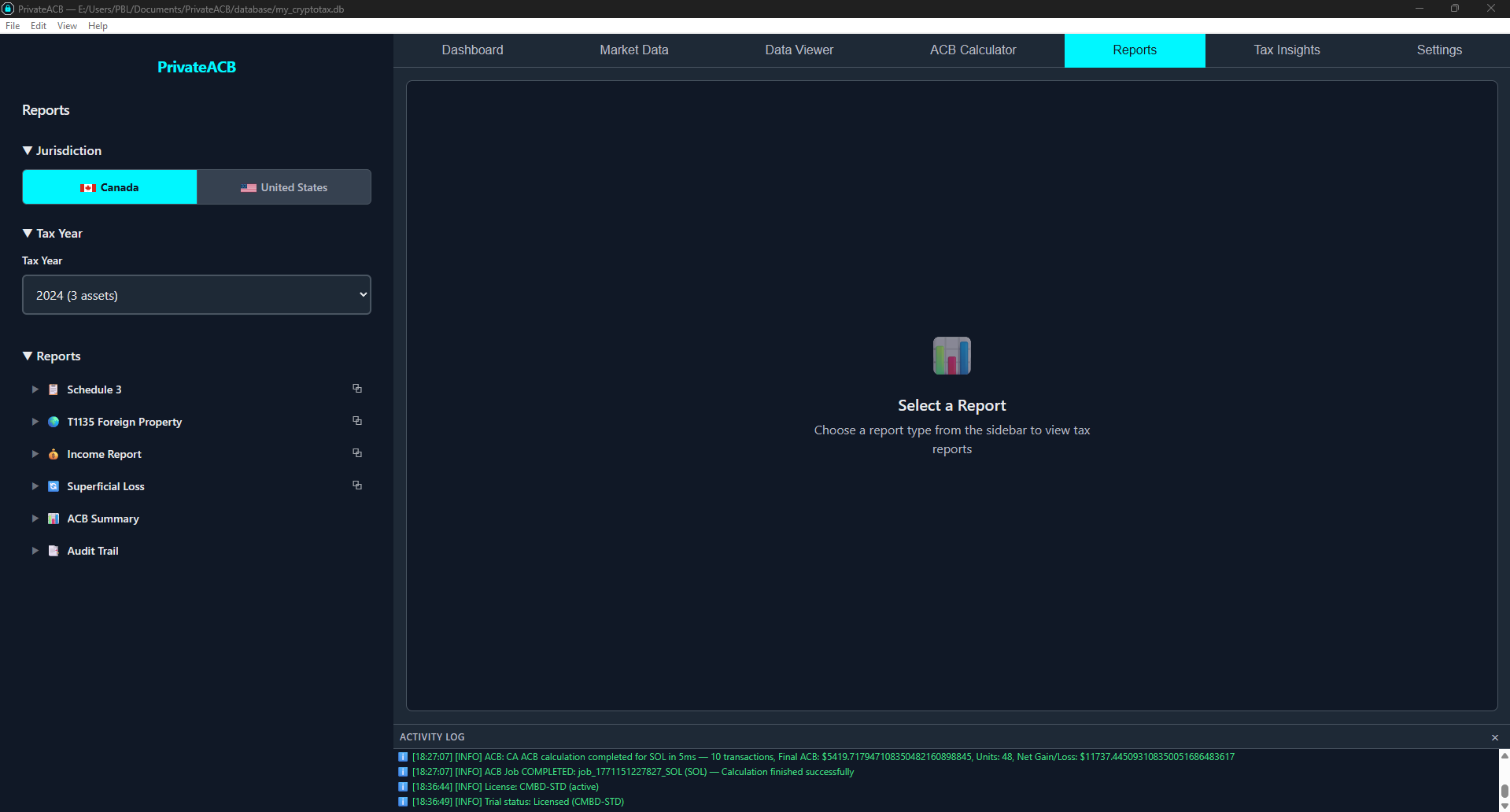
- The Reports interface opens with a sidebar on the left and a report viewer on the right
Step 2: Select Jurisdiction
Section titled “Step 2: Select Jurisdiction”In the sidebar, click Canada in the jurisdiction toggle at the top. The report list below will update to show Canadian reports.
Step 3: Select a Tax Year
Section titled “Step 3: Select a Tax Year”Below the jurisdiction toggle, use the Tax Year dropdown to select the year you’re filing for (e.g., 2024).
The dropdown shows each available year along with an asset count (e.g., “2024 (3 assets)”) so you can see which years have calculation data.
Default: The most recent complete tax year (current year minus 1).
Step 4: Select a Report Type
Section titled “Step 4: Select a Report Type”In the Reports section of the sidebar, click any report name to expand it. When expanded, you’ll see two selection options (for reports that support it):
Aggregate mode — Combines data from all calculated assets into one report. Shows an asset count, e.g., “Aggregate (3 assets)”. This is what you typically want for tax filing.
Individual job mode — Shows data for a single asset’s calculation. Each job is listed with the asset symbol, calculation method, and completion time. Use this for per-asset analysis.
Which mode to use:
- For Schedule 3, T1135, Income Report, Superficial Loss: Start with Aggregate for your tax filing. Use Individual for per-asset analysis.
- For ACB Summary, Audit Provenance: These always require selecting an individual job (a specific asset’s calculation).
Click your selection, and the report loads in the viewer panel on the right.
Understanding Each Report
Section titled “Understanding Each Report”Schedule 3 — Capital Gains and Losses
Section titled “Schedule 3 — Capital Gains and Losses”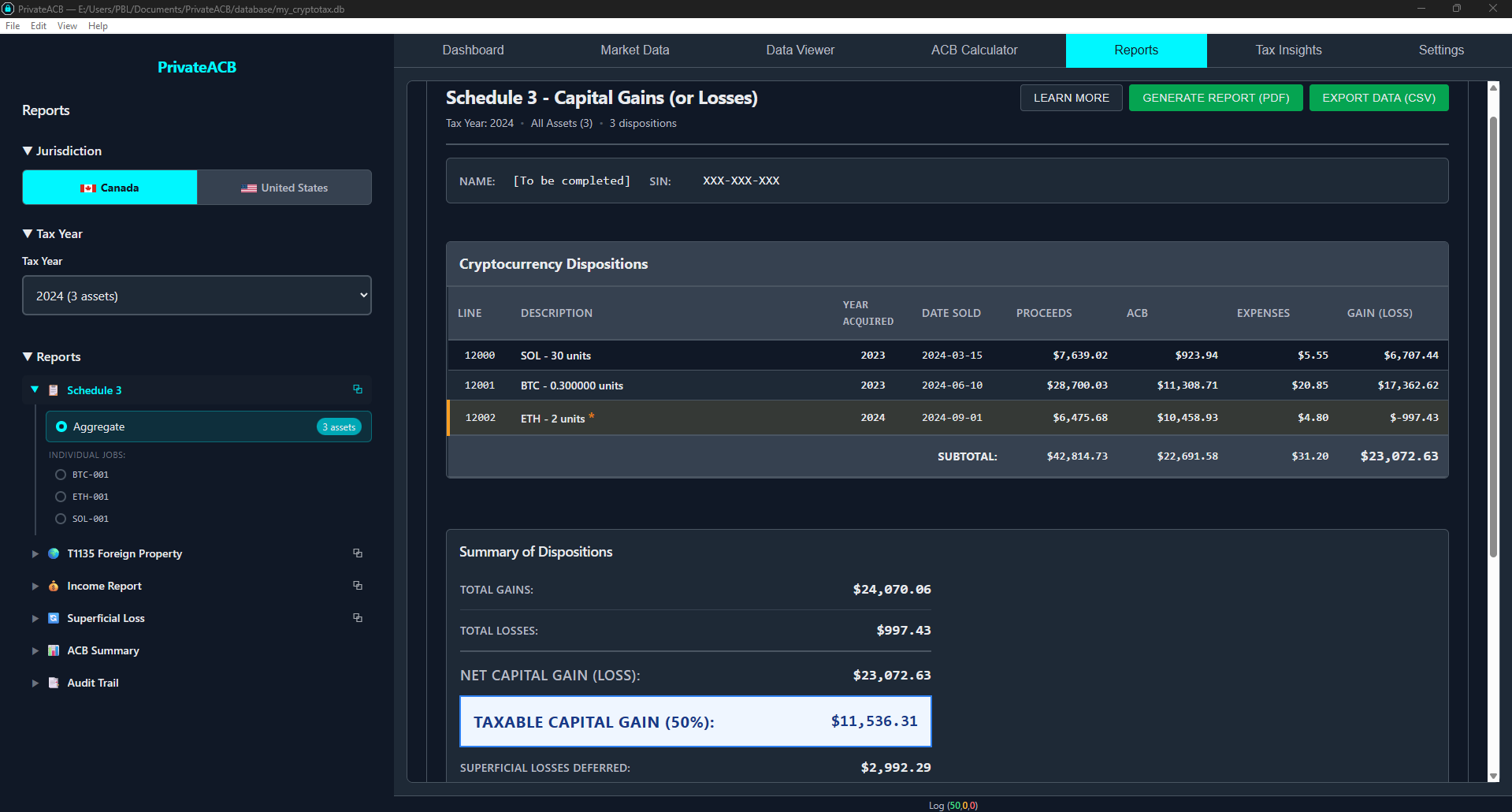
Purpose: Report all cryptocurrency disposals (sales, trades) to the CRA CRA Form: Schedule 3 — Capital Gains (or Losses) Required: Yes, if you sold or traded cryptocurrency in the tax year
What it shows:
- Every disposal transaction (each sale or trade)
- Proceeds of disposition
- Adjusted Cost Base (ACB)
- Outlays and expenses (fees)
- Capital gain or loss per disposal
- Superficial loss adjustments (if any losses were denied)
Report sections: The report is organized into sections matching the CRA Schedule 3 form layout, with cryptocurrency disposals grouped together. Each row represents one disposal:
| Column | Description |
|---|---|
| Description | Quantity and asset (e.g., “0.5000 BTC”) |
| Year Acquired | When you first bought this crypto |
| Date of Disposition | When you sold/traded it |
| Proceeds | Sale amount |
| ACB | Your cost basis |
| Expenses | Fees |
| Gain/Loss | Profit or loss |
Summary totals at the bottom show:
- Total Capital Gains
- Total Capital Losses
- Net Capital Gain/Loss
- Taxable Capital Gain (50% of net gain — this goes on Line 12700 of your T1 return)
How to use it:
- Review the dispositions to verify accuracy
- Check that all your sales/trades are included
- Note the Taxable Capital Gain amount
- Transfer this amount to Line 12700 of your T1 return
- Export to PDF and keep for your records
T1135 — Foreign Income Verification Statement
Section titled “T1135 — Foreign Income Verification Statement”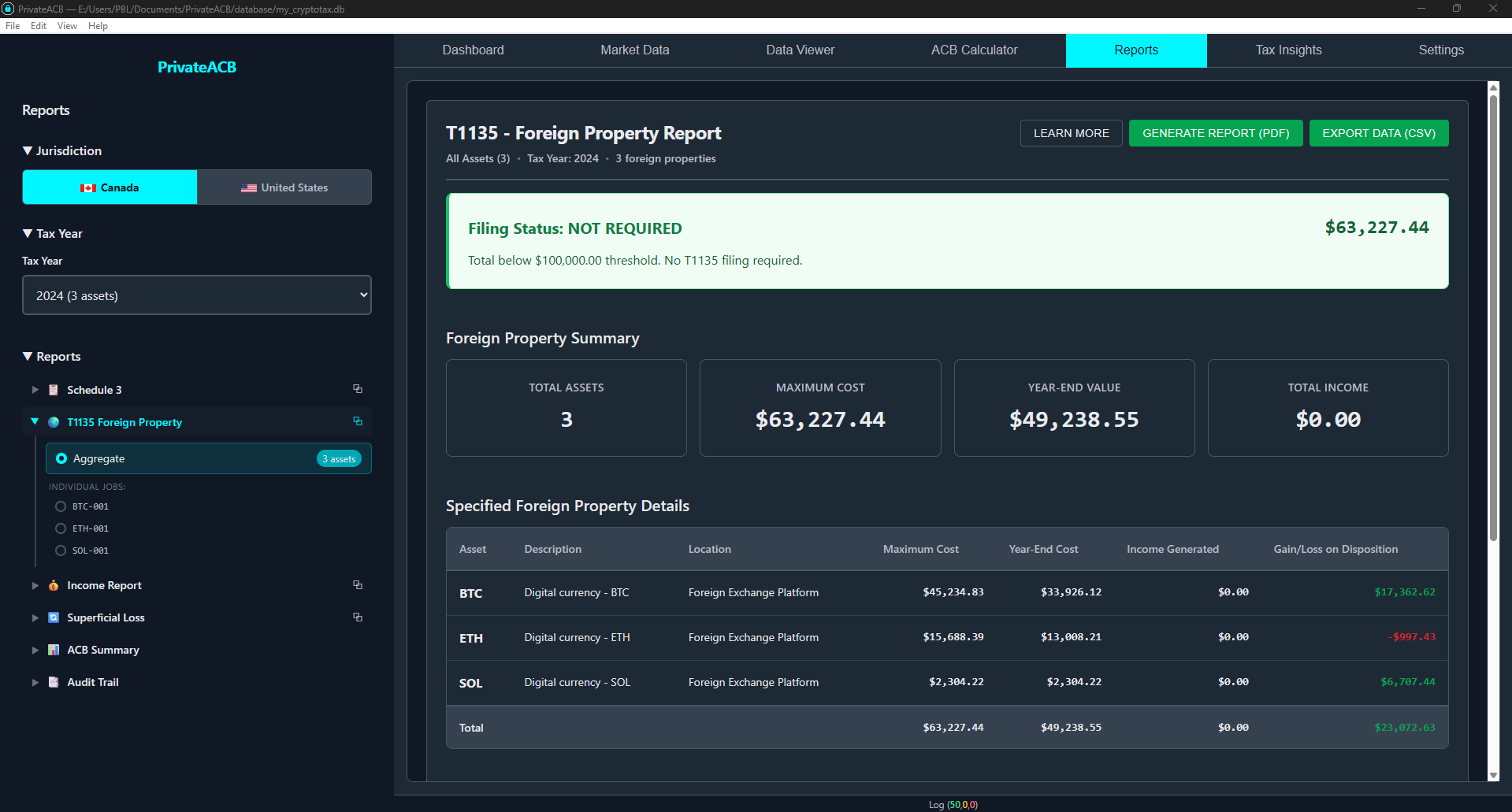
Purpose: Report foreign property holdings over $100,000 CAD CRA Form: T1135 Foreign Income Verification Statement Required: Yes, if your cryptocurrency holdings exceeded $100,000 CAD at any time during the year
What it shows:
- Maximum ACB during the year (highest total value at any point)
- Year-end ACB (value of holdings on December 31)
- Each cryptocurrency listed separately
- Income from property (gains/losses realized during the year)
For each cryptocurrency:
- Property description (e.g., “Bitcoin (BTC)”)
- Country: Multiple (crypto exchanges are global)
- Maximum cost during year
- Year-end cost
- Gain/loss on disposition
- Income from property
How to use it:
- Check if you need to file: Did your maximum holdings exceed $100,000 CAD?
- If yes: Review each cryptocurrency listing, export to PDF, and attach to your tax return
- If no: You don’t need this form
Why T1135 and ACB Summary may show different values: T1135 shows the maximum cost during the year, not just the year-end value. If you bought heavily in January and sold most by December, the maximum could be much higher than the year-end amount. This is correct — CRA requires reporting the peak value.
Income Report — Mining, Staking, and Airdrops
Section titled “Income Report — Mining, Staking, and Airdrops”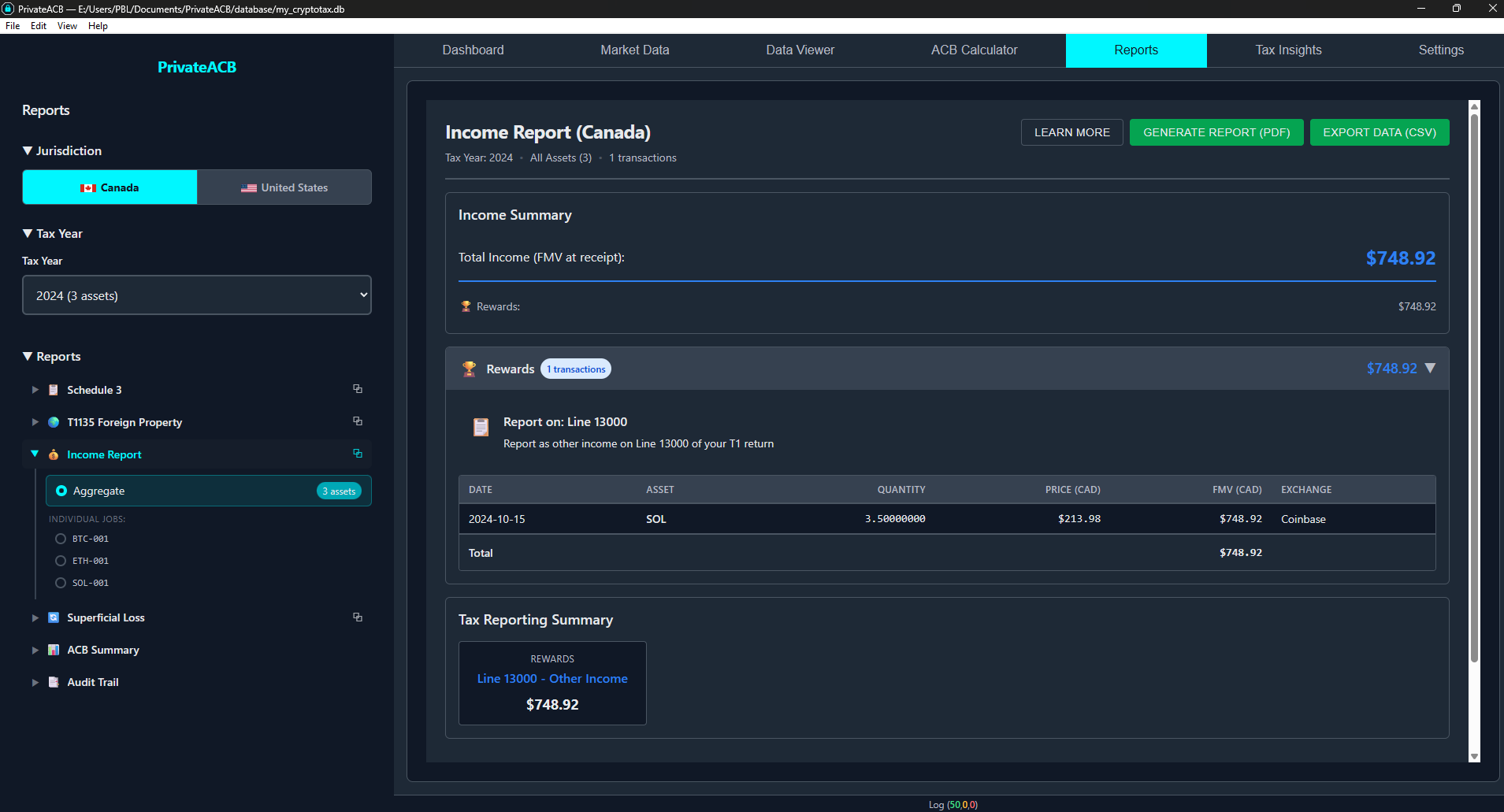
Purpose: Report cryptocurrency income (not capital gains) CRA Forms: T2125 (Statement of Business Activities) or Line 13000 (Other Income) Required: Yes, if you earned cryptocurrency from mining, staking, rewards, or airdrops
What it shows:
- Every income transaction (mining, staking, airdrops, rewards, dividends, cashback, bonuses, referrals, forks, realized PnL)
- Date received
- Quantity of crypto received
- Fair market value in CAD on the date received
- Income category
Summary totals by category:
- Total Mining Income
- Total Staking Income
- Total Airdrop Income
- Total for each other income category
- Grand Total Income
How to use it:
- Review all income transactions for accuracy
- Note the Grand Total Income amount
- Determine how to report:
- Mining as a business: Report on T2125 (self-employment)
- Casual/hobby income: Report on Line 13000 (other income)
- Staking: Usually Line 13000
- Export to PDF for your records
Important CRA rules:
- Income is valued on the date received, not when you sell
- The FMV becomes your ACB for that crypto (important for future capital gains calculations)
- Mining income may qualify as business income (can deduct expenses)
- Staking income is usually “other income” (no expense deductions)
ACB Summary — Transaction-by-Transaction Ledger
Section titled “ACB Summary — Transaction-by-Transaction Ledger”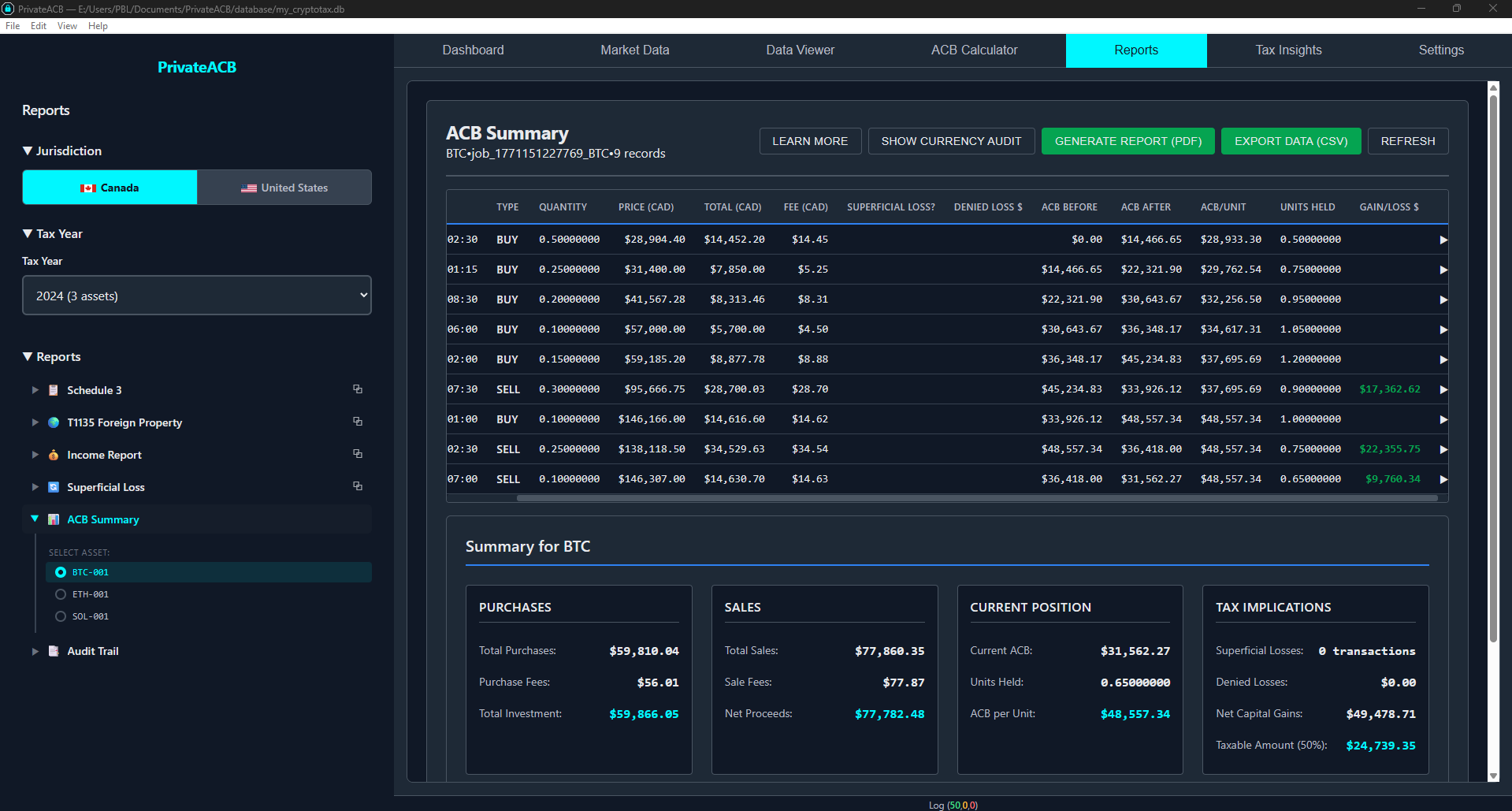
Purpose: Running ACB ledger showing how each transaction affected your cost basis CRA Form: None (for your own records and accountant) Required: No (optional reference document) Selection: Requires selecting an individual job (specific asset)
What it shows: For a single asset, every transaction in chronological order with:
- Date
- Transaction type (Buy, Sell, Trade, Reward, etc.)
- Quantity
- Price per unit
- Cost basis total
- Running ACB after each transaction
This is your most detailed view — it shows exactly how PrivateACB arrived at your final ACB value, transaction by transaction.
How to use it:
- Select a specific asset’s calculation job from the sidebar
- Review the running ACB values after each transaction
- Verify against your exchange records
- Share with your accountant for detailed review
- Keep for audit defense
Superficial Loss Report
Section titled “Superficial Loss Report”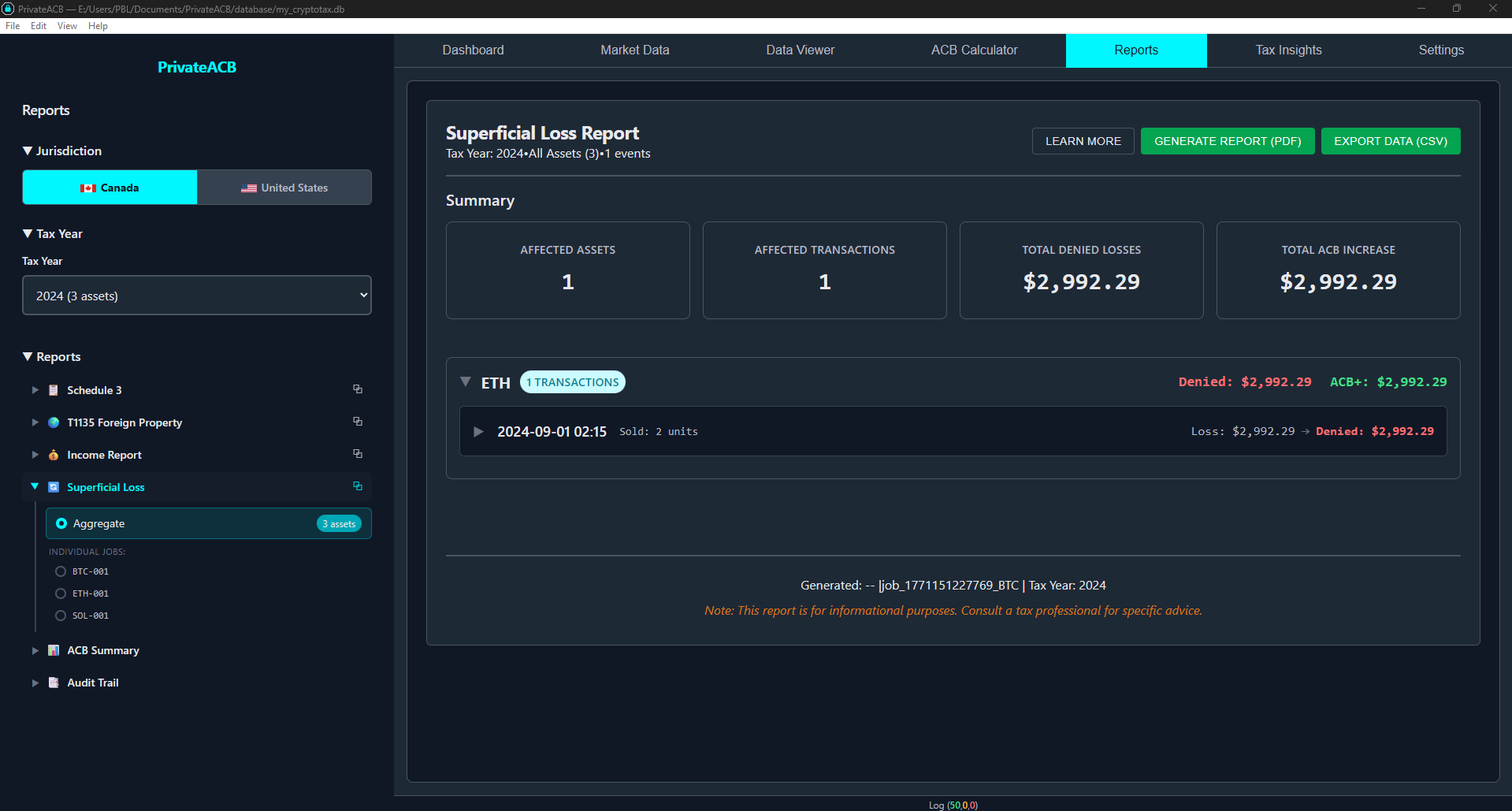
Purpose: Detailed breakdown of denied capital losses CRA Form: None (supporting documentation) Required: No (but essential if you have superficial losses)
What it shows:
- Each superficial loss transaction
- Original loss amount
- Denied loss amount
- Allowed loss amount
- Repurchase transactions that triggered the rule
- ACB adjustment (how denied loss was added back to ACB)
- Proration details (when only a partial repurchase occurred)
Summary:
- Total Original Losses
- Total Denied Losses
- Total Allowed Losses
How to use it:
- Review to understand why some losses were denied
- Verify the repurchase transactions are correct
- Note that denied losses aren’t lost — they increase your ACB for future sales
- Export for your records in case of CRA audit
- Use to plan future trading (wait 31+ days before repurchasing after a loss sale)
Audit Provenance — Comprehensive Audit Provenance
Section titled “Audit Provenance — Comprehensive Audit Provenance”Purpose: Complete audit documentation showing data lineage and calculation methodology CRA Form: None (for audit defense) Required: No (recommended to keep for 7 years) Selection: Requires selecting an individual job (specific asset)
What it shows: The Audit Provenance report has 6 collapsible sections:
| Section | Content |
|---|---|
| Data Sources | Which imports and exchanges contributed to this calculation |
| Import Trail | Details of each import job — file names, row counts, validation results |
| Calculation Metadata | Parameters used — jurisdiction, method, tax year, account-by-account settings |
| Reconciliation | Data integrity checks — transaction counts match, no orphaned records |
| Rule Applications | Which tax rules were applied and decisions made (e.g., superficial loss triggers) |
| System Events | Timestamped log of all operations performed during calculation |
How to use it:
- Keep for your records — proves data lineage and methodology
- If CRA questions your calculations, this shows every step from raw import to final result
- Demonstrates you used CRA-approved methodology
- Shows all transactions were included and validated
This is your audit defense document. It proves:
- Where your data came from (Data Sources)
- How it was imported and validated (Import Trail)
- What rules were applied (Rule Applications)
- That calculations are mathematically correct (Reconciliation)
- A complete log of all operations (System Events)
Exporting Reports
Section titled “Exporting Reports”Export Formats
Section titled “Export Formats”PrivateACB supports two export formats:
- PDF — Professional documents suitable for printing or electronic filing. Generated using PrivateACB’s built-in PDF engine with formatted tables, headers, footers, and metadata.
- CSV — Spreadsheet-compatible format for further analysis in Excel or Google Sheets.
How to Export
Section titled “How to Export”- Select and view the report you want to export
- Locate the export buttons inside the report viewer (top area)
- Click “Generate Report (PDF)” or “Export Data (CSV)”
- A save dialog appears with an auto-generated filename (e.g.,
Schedule3_CA_BTC_2024_2026-02-15.pdf) - Choose your save location and click Save
- A success message confirms the export
Trial vs. Licensed Export Access
Section titled “Trial vs. Licensed Export Access”| Feature | During Trial | Trial Expired | Licensed |
|---|---|---|---|
| View reports | Yes | Yes (after acknowledging expiration) | Yes |
| Export PDF/CSV | No (locked) | No (locked) | Yes |
| Copy report data | No (protected) | No (protected) | Yes |
During trial: Export buttons show a lock icon and are disabled. You can view all reports on screen but cannot export.
After trial expires: A message appears asking you to purchase a license. You can acknowledge the expiration and continue viewing reports for the session, but export remains locked.
With a valid license: All export buttons are enabled for your licensed jurisdiction(s). A Canada license unlocks Canadian report exports. A Combined license unlocks both Canadian and US exports.
Common Scenarios
Section titled “Common Scenarios”Scenario 1: Filing Taxes for the First Time with Crypto
Section titled “Scenario 1: Filing Taxes for the First Time with Crypto”Situation: You sold some Bitcoin in 2024 and need to file.
Steps:
- Go to Reports tab, select Canada, tax year 2024
- Click Schedule 3 → Select Aggregate
- Review all dispositions
- Note the Taxable Capital Gain amount
- Export to PDF
- Click T1135 → Check maximum cost during year
- If > $100,000 CAD: Export and file with CRA
- If < $100,000 CAD: Skip
- Click Income Report → Check for mining/staking income
- If income exists: Export to PDF
- If none: Skip
- Click Audit Provenance → Select each asset’s job → Export for your records (keep 7 years)
What you file with CRA:
- Schedule 3 (definitely — you sold crypto)
- T1135 (only if holdings exceeded $100k)
- Income Report values on T2125 or Line 13000 (only if crypto income)
Scenario 2: Viewing Per-Asset Reports
Section titled “Scenario 2: Viewing Per-Asset Reports”Situation: You own BTC, ETH, and ADA. You want to see each asset’s ACB details separately.
Steps:
- Click ACB Summary in the sidebar
- Expand the report — you’ll see individual jobs listed (BTC, ETH, ADA)
- Click the BTC job to view Bitcoin’s transaction-by-transaction ACB ledger
- Click the ETH job to switch to Ethereum’s ledger
- For your combined Schedule 3 (what you file), click Schedule 3 → Aggregate
Scenario 3: You Triggered Superficial Losses
Section titled “Scenario 3: You Triggered Superficial Losses”Situation: You sold BTC at a loss and repurchased within 30 days. You want to understand the impact.
Steps:
- Click Schedule 3 → Note that some losses appear reduced
- Click Superficial Loss Report → See exactly which sales triggered the rule:
- Original Loss amount
- Denied Loss amount (cannot claim this year)
- Allowed Loss amount (can claim this year)
- ACB Adjustment (denied loss added to your cost basis)
- Understand: Denied losses aren’t lost — they increase your ACB, reducing future gains
To avoid this in future: Wait 31+ days before repurchasing a crypto you sold at a loss.
Scenario 4: CRA Audit Request
Section titled “Scenario 4: CRA Audit Request”Situation: CRA sent a letter asking you to explain your cryptocurrency capital gains.
Steps:
- Open your PrivateACB database
- Go to Reports tab, select the relevant tax year
- Export these three reports:
- Schedule 3 — Shows all disposals and gains/losses
- ACB Summary (for each questioned asset) — Shows transaction-by-transaction methodology
- Audit Provenance (for each questioned asset) — Shows data sources, validation, and calculation methodology
- Send all reports to CRA with a cover letter explaining:
- You used PrivateACB software with CRA-approved ACB methodology
- Superficial loss rule was applied where applicable
- The Audit Provenance report proves complete documentation of every transaction and calculation
Scenario 5: Comparing Tax Years
Section titled “Scenario 5: Comparing Tax Years”Situation: You want to compare your 2023 vs 2024 crypto taxes.
Steps:
- Set tax year to 2023, click Schedule 3 → Aggregate, export to CSV
- Set tax year to 2024, click Schedule 3 → Aggregate, export to CSV
- Open both CSVs in Excel and compare:
- Total gains/losses
- Number of disposals
- Which assets were most profitable
- Use insights for tax planning:
- If gains increased: Consider tax-loss harvesting
- If losses increased: Plan when to realize losses (avoid superficial loss rule)
Troubleshooting
Section titled “Troubleshooting””No data” or empty report
Section titled “”No data” or empty report”Cause: No calculations exist for the selected jurisdiction/tax year combination.
Solution:
- Go to the ACB Calculator tab
- Set the same jurisdiction (Canada) and tax year
- Calculate the assets you need reports for
- Return to Reports tab — the data should now appear
Export buttons are locked (show lock icon)
Section titled “Export buttons are locked (show lock icon)”Cause: You’re in trial mode or your trial has expired.
Solution: Purchase a PrivateACB license to unlock exports. You can still view all reports on screen during the trial.
Report shows fewer transactions than expected
Section titled “Report shows fewer transactions than expected”Cause: The tax year filter is limiting results to one year.
Solution:
- For Schedule 3, Income Report, Superficial Loss: These are correctly scoped to the selected tax year (only that year’s transactions)
- For ACB Summary: This shows all-time data (not filtered by tax year)
- If you have transactions in a different year, change the tax year selector
Schedule 3 totals don’t match manual calculations
Section titled “Schedule 3 totals don’t match manual calculations”Common reasons:
- Superficial loss rule applied — Check the Superficial Loss Report for denied amounts
- Fees included in calculations — PrivateACB deducts fees from gains
- Currency conversion — USD trades converted to CAD at Bank of Canada rates
How to verify: Generate an ACB Summary for the asset in question and review the transaction-by-transaction breakdown.
T1135 values differ from ACB Summary
Section titled “T1135 values differ from ACB Summary”This is expected. T1135 shows the maximum cost at any point during the year, while ACB Summary shows the running balance. If you bought heavily early in the year and sold later, the T1135 maximum will be higher than the year-end value.
Best Practices
Section titled “Best Practices”1. Generate Reports Annually
Section titled “1. Generate Reports Annually”After each tax year ends, run your ACB calculations and generate all required reports. This ensures you have documents ready when tax season arrives and identifies any data issues early.
2. Keep Reports for 7 Years
Section titled “2. Keep Reports for 7 Years”CRA can audit you up to 7 years after filing. Export all reports to PDF and store them in a structured folder:
Crypto Tax Records/ 2023/ Schedule3_CA_2023.pdf T1135_CA_2023.pdf AuditProvenance_CA_BTC_2023.pdf PrivateACB_backup_2023.db 2024/ ...3. Review Before Filing
Section titled “3. Review Before Filing”Cross-check your reports against exchange statements. Verify transaction counts, dates, and amounts. Consider having a crypto-savvy accountant review the reports, especially if you have superficial losses.
4. Export in Both Formats
Section titled “4. Export in Both Formats”Export PDF for official filing and printing. Export CSV for analysis in Excel or Google Sheets, or for importing into tax software.
5. Use Aggregate for Filing, Individual for Analysis
Section titled “5. Use Aggregate for Filing, Individual for Analysis”File the Aggregate Schedule 3 with CRA (combined view of all assets). Use individual ACB Summary reports to verify specific assets or share with your accountant.
Related Guides
Section titled “Related Guides”- Canadian ACB Calculation Guide — How to run calculations
- Canadian ACB Formulas (Technical) — Mathematical details
- Market Data Guide — Setting up Bank of Canada exchange rates
- Import Flow Guide — Importing transaction data
Jurisdiction: Canada Tax Authority: Canada Revenue Agency (CRA) Last Updated: February 2026 PrivateACB Version: 2.0