Canadian ACB Calculation
Overview
Section titled “Overview”PrivateACB calculates your Adjusted Cost Base (ACB) for cryptocurrency holdings according to Canada Revenue Agency (CRA) rules. The ACB is used to determine your capital gains or losses when you sell, trade, or dispose of cryptocurrency.
What is ACB? ACB is the average cost of all units of a cryptocurrency you own. When you buy more, the ACB increases. When you sell, you use the current ACB to calculate your gain or loss.
Why calculate ACB?
- Required by CRA for accurate tax reporting
- Needed for Schedule 3 (Capital Gains and Losses)
- Needed for T1135 (Foreign Income Verification)
- Tracks superficial losses (CRA’s version of wash sales)
- Generates Tax Audit Reports for CRA compliance
Important: This guide assumes you’ve already imported your transaction data. If you haven’t, see the CSV Import Guide first.
Before You Start
Section titled “Before You Start”What You Need
Section titled “What You Need”Transaction data imported:
- All cryptocurrency purchases, sales, trades
- Rewards, staking, mining, airdrops
- From ALL exchanges and wallets you’ve used
Currency rates (if trading in USD):
- Bank of Canada exchange rates for USD to CAD conversion
- See Currency Management Guide if you need to import rates
Understanding of your holdings:
- Which cryptocurrencies you own
- Approximate number of transactions per asset
- Date range of your trading activity
Important Notes
Section titled “Important Notes”Superficial loss rule always applies: Unlike the US wash sale rule, Canada’s superficial loss rule is MANDATORY and cannot be disabled. PrivateACB automatically detects and applies this rule.
One method for Canada: Canadian tax law requires the average cost method (ACB). You cannot choose FIFO, LIFO, or other methods like US taxpayers can.
The Calculation Dashboard
Section titled “The Calculation Dashboard”The ACB Calculator uses a four-zone layout. Each zone has a specific purpose:
| Zone | Name | Purpose |
|---|---|---|
| A | Config Bar | Set jurisdiction, method, tax year, and rule toggles |
| B | Rules Banner | Shows which tax rules are active for your configuration |
| C | Asset Table | Browse your assets, check their readiness, select which to calculate |
| D | Calculation History | Track calculation progress and review financial results |
Step-by-Step: Running an ACB Calculation
Section titled “Step-by-Step: Running an ACB Calculation”Step 1: Open the ACB Calculator
Section titled “Step 1: Open the ACB Calculator”- Open your database in PrivateACB
- Click the ACB Calculator tab in the top navigation
- The Calculation Dashboard appears with the four zones described above
Step 2: Configure Your Settings (Zone A — Config Bar)
Section titled “Step 2: Configure Your Settings (Zone A — Config Bar)”The Config Bar is a sticky bar at the top of the dashboard. Set each option from left to right:
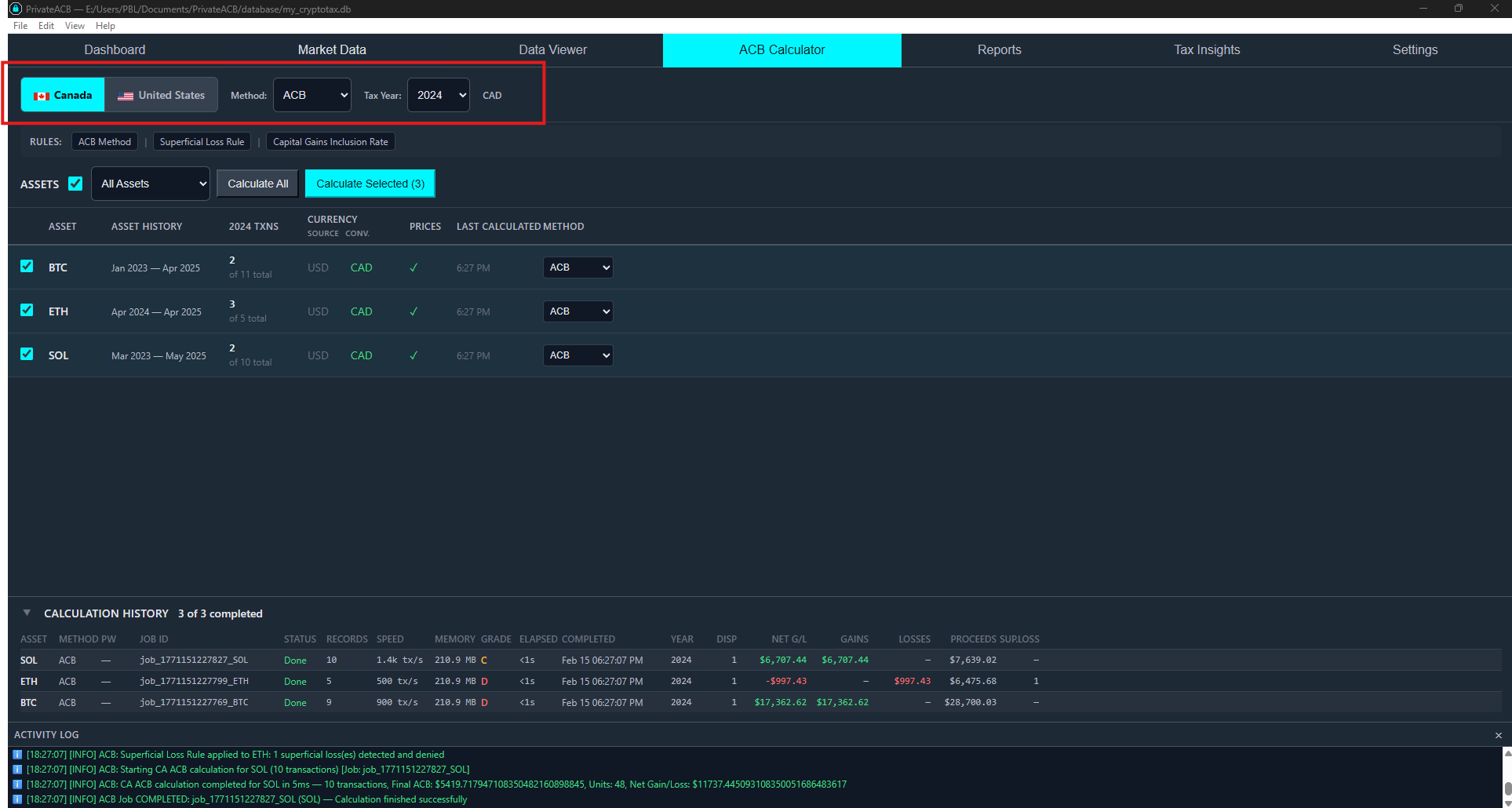
Jurisdiction: Click Canada. This tells PrivateACB to use CRA rules, convert all values to CAD, and apply the superficial loss rule.
Method: For Canada, the method is automatically set to ACB (Average Cost Basis). This is the only method available — Canadian tax law does not permit FIFO, LIFO, or HIFO.
Tax Year: Select the tax year you want to calculate (e.g., 2024). The tax year affects which transactions are highlighted in the asset table and which financial results are displayed.
Reporting Currency: Displays CAD automatically when Canada is selected. This is read-only.
Step 3: Review the Rules Banner (Zone B)
Section titled “Step 3: Review the Rules Banner (Zone B)”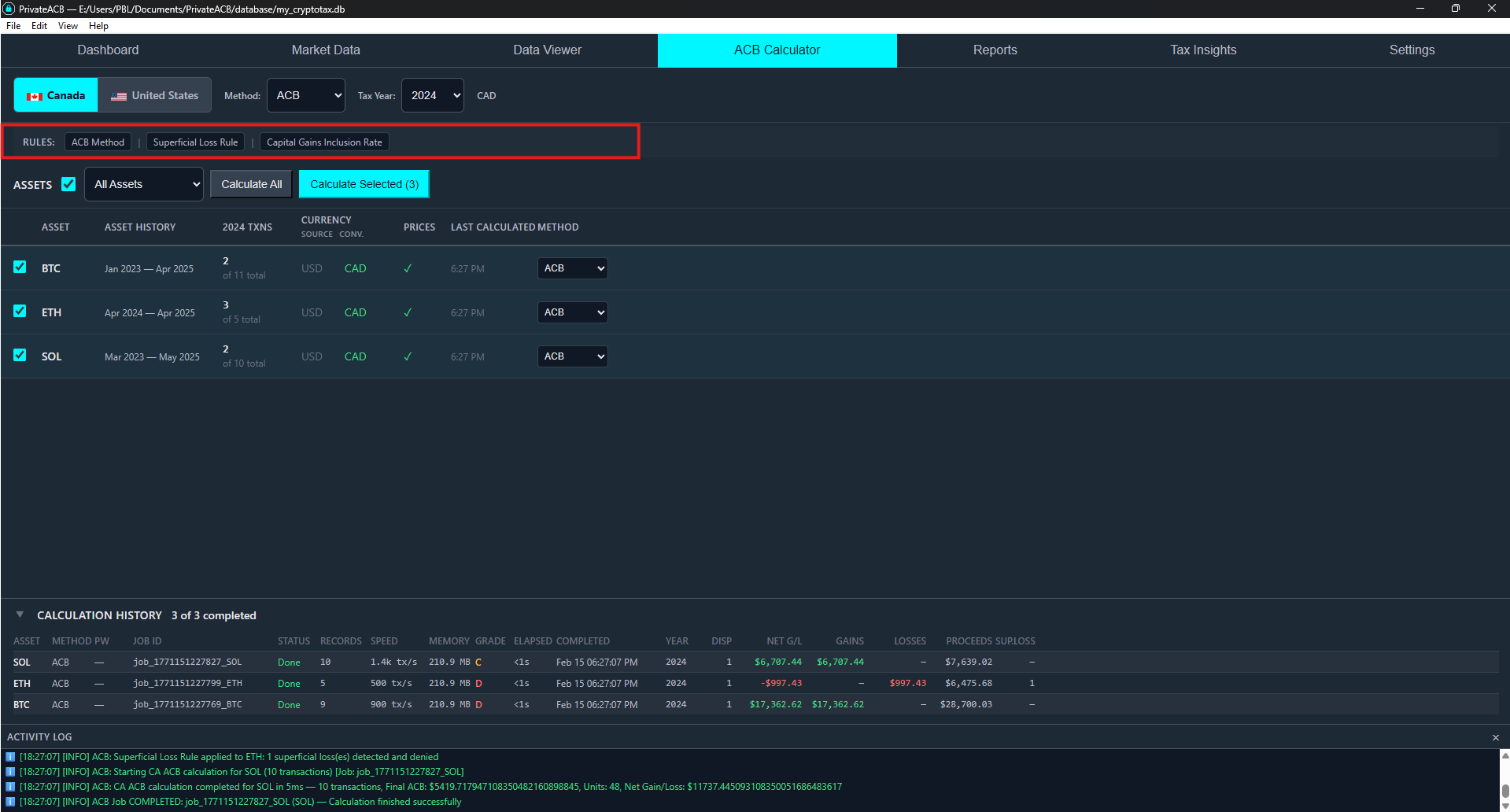
Below the Config Bar, you’ll see a rules summary showing which tax rules apply:
For Canada, you’ll see:
- ACB — Average Cost Basis method
- Superficial Loss Rule — Always enabled (mandatory under CRA rules)
This is informational only — no action needed.
Step 4: Review Your Assets (Zone C — Asset Table)
Section titled “Step 4: Review Your Assets (Zone C — Asset Table)”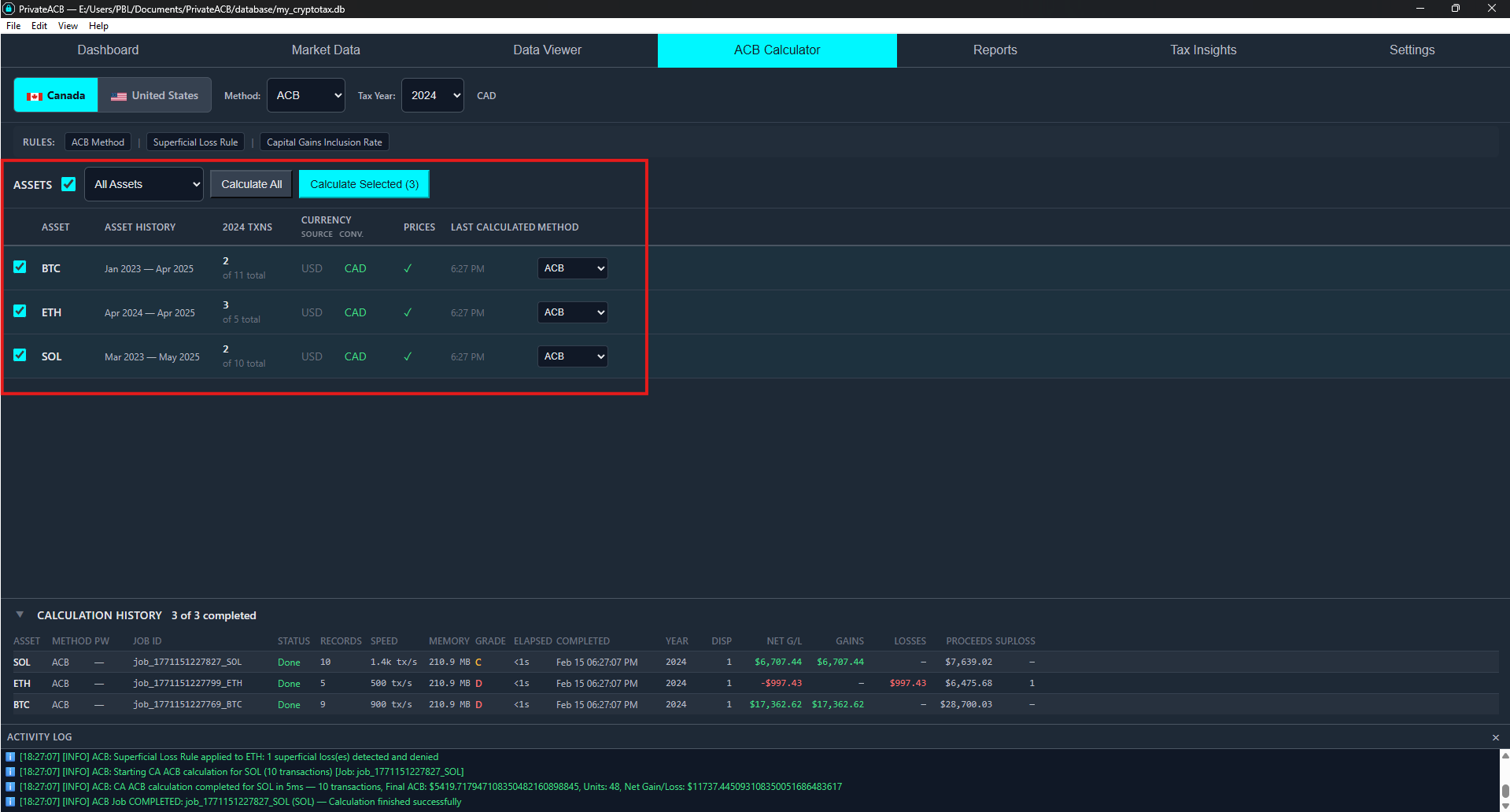
The Asset Table shows all your imported cryptocurrency assets. Above the table is a toolbar with filter and action buttons.
Table columns:
| Column | What It Shows |
|---|---|
| Checkbox | Select assets for batch calculation |
| Asset | Cryptocurrency symbol (BTC, ETH, etc.) |
| Asset History | All-time date range of your transactions (e.g., “Jan 2021 — Dec 2024”) |
| {Year} Txns | Number of transactions in the selected tax year, plus total count |
| Source | Original trading currency (CAD, USD, or Mixed) |
| Converted | Currency conversion status — shows “N pending” in red if conversions are needed |
| Prices | Shows a checkmark if all prices are available, or a count of missing prices |
| Last Calculated | When this asset was last calculated, or “Needs Calculation” if never run or stale |
| Method | Per-asset method override dropdown (locked to ACB for Canada) |
| Txn Types | Per-exchange transaction breakdown (buy/sell/income/deposit/send counts) |
Understanding the columns:
- {Year} Txns — Shows the transaction count for your selected tax year in bold (e.g., “47”), with “of 312 total” underneath showing all-time count. Hover for a breakdown by transaction type (Buy, Sell, etc.).
- Source / Converted — The Source column shows the original trading currency (CAD, USD, or Mixed). If the Converted column shows “N pending” in red, click it to navigate to the Market Data tab where you can import Bank of Canada exchange rates.
- Prices — A checkmark means all transaction prices are available. A red number means some prices are missing — you may need to fetch crypto prices from the Market Data tab.
- Last Calculated — Red “Needs Calculation” means the asset has never been calculated or has new data since the last calculation. A date/time means it’s up to date.
- Greyed-out rows — Assets with zero transactions in the selected tax year are dimmed and cannot be selected.
Step 5: Select Assets to Calculate
Section titled “Step 5: Select Assets to Calculate”You have three options:
Option A — Calculate individual assets: Check the boxes next to the specific assets you want to calculate, then click “Calculate Selected (N)” in the toolbar.
Option B — Calculate all assets: Click “Calculate All” in the toolbar. This calculates every asset that has transactions.
Option C — Select All then Calculate: Use the “Select All” checkbox to check every asset, then click “Calculate Selected”.
Before calculating, verify each selected asset shows:
- A checkmark in the Prices column (all prices available)
- No pending conversions in the Converted column (should show “CAD” in green, or ”—” if already in CAD)
Step 6: Monitor Calculation Progress (Zone D — Calculation History)
Section titled “Step 6: Monitor Calculation Progress (Zone D — Calculation History)”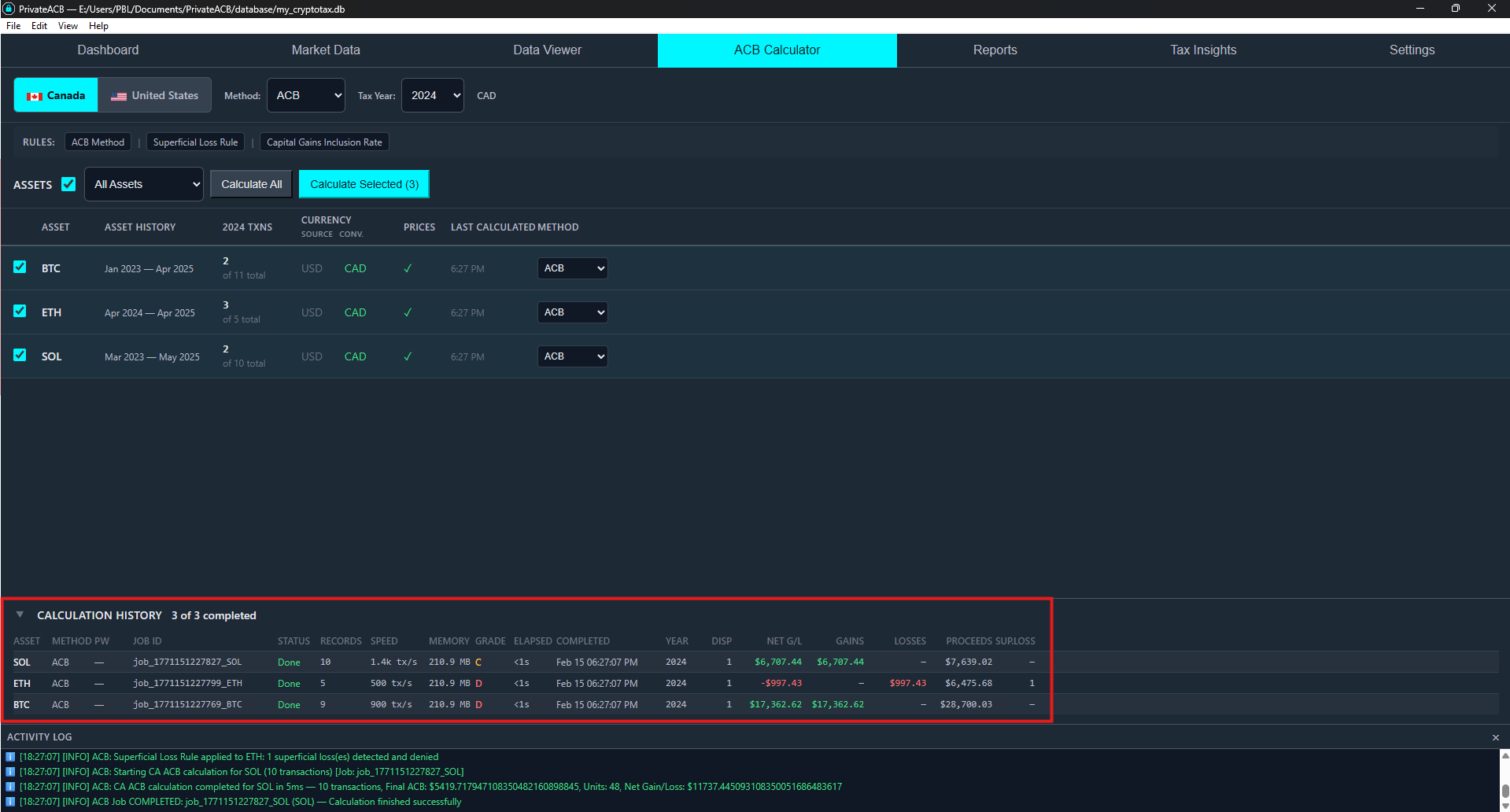
When you click Calculate, the Calculation History panel at the bottom activates.
During calculation, you’ll see:
- A progress bar showing overall completion
- The current asset being processed (e.g., “Calculating 2 of 5 — ETH”)
- Throughput in transactions per second (e.g., “1.2k tx/s”)
Each asset appears as a row in the history table with these columns:
| Column | Description |
|---|---|
| Asset | Which cryptocurrency |
| Method | ACB (for Canada) |
| Job ID | Unique identifier for this calculation run |
| Status | Percentage during calculation, “Done” when complete, or “Error” if failed |
| Records | Number of transactions processed |
| Speed | Processing throughput (transactions per second) |
| Memory | Peak memory usage |
| Grade | Performance rating (A through D) |
| Elapsed | How long the calculation took |
| Completed | Date and time of completion |
| Year | Tax year that was calculated |
After completion, financial result columns appear:
| Column | Description |
|---|---|
| Disp | Number of disposals (sales/trades) |
| Net G/L | Net capital gain or loss (green for gains, red for losses) |
| Gains | Total capital gains |
| Losses | Total capital losses |
| Proceeds | Total proceeds from all disposals |
| Sup.Loss | Number of superficial losses detected (Canada only) |
Assets are processed one at a time — each must complete before the next begins. You can watch each one progress in real time.
Step 7: Review Your Results
Section titled “Step 7: Review Your Results”After all calculations complete, review the results directly in Zone D:
For each asset, the history row shows:
- Net G/L — Your net capital gain or loss for that asset in the selected tax year
- Gains/Losses — Broken down into total gains and total losses separately
- Proceeds — Total proceeds from all disposals
- Sup.Loss — How many sales triggered the superficial loss rule
To see detailed transaction-by-transaction results: Go to the Reports tab and generate an ACB Summary Report or Schedule 3 for the asset.
Calculation history persists — even if you close and reopen PrivateACB, your past calculations and their financial summaries remain visible in Zone D.
Understanding Your Results
Section titled “Understanding Your Results”What is “Final ACB”?
Section titled “What is “Final ACB”?”The final ACB is the total cost base of all units you still own.
Example:
- You bought 1 BTC at $10,000
- You bought 1 BTC at $20,000
- You sold 1 BTC at $25,000
- Final ACB: $15,000 (you spent $30,000 total, sold $15,000 worth, $15,000 remaining)
- Remaining Units: 1 BTC
- Average Cost: $15,000/BTC
Why this matters: When you sell your remaining 1 BTC, you’ll use the $15,000 cost base to calculate your capital gain/loss.
What is “Average Cost”?
Section titled “What is “Average Cost”?”The average cost is how much you paid per unit, on average.
Formula: Average Cost = Final ACB / Remaining Units
This changes every time you buy or sell:
- Buy more: Average cost goes up (if buying above average) or down (if buying below average)
- Sell some: Average cost stays the same (you’re selling at the average price)
What are “Superficial Losses”?
Section titled “What are “Superficial Losses”?”A superficial loss occurs when:
- You sell cryptocurrency at a loss
- You repurchase the same cryptocurrency within 30 days
- You still own it 30 days after the sale
What happens:
- The loss is denied (you can’t claim it this year)
- The denied loss is added to your ACB (you can claim it later when you sell)
Example:
Jan 1:  Buy 1 BTC at $50,000    -> ACB = $50,000Feb 1:  Sell 1 BTC at $40,000   -> $10,000 lossFeb 15: Buy 1 BTC at $38,000    -> Repurchased within 30 daysMar 15: Still own 1 BTC         -> 30 days after sale, still holding
RESULT:- Original loss: $10,000- Superficial loss rule applies- Loss denied: $10,000 (cannot claim this year)- New ACB: $38,000 + $10,000 = $48,000- When you sell later at $45,000:  - Proceeds: $45,000  - Cost base: $48,000  - Loss: $3,000 (includes the deferred $10,000)
How PrivateACB handles this:
- Automatically detects superficial losses
- Adjusts your ACB to include denied losses
- Shows the count in the Sup.Loss column of your calculation history
- Full details available in the Superficial Loss Report (Reports tab)
Full guide: Superficial Loss Rules — Detailed explanation, proration formula, worked examples, and how to read the reports.
What is “Taxable Capital Gains”?
Section titled “What is “Taxable Capital Gains”?”In Canada, only 50% of capital gains are taxable.
CRA Publications: Capital Gains - 2024
Formula: Taxable Capital Gains = Total Realized Gains x 50%
Example:
- You sold BTC for $10,000 more than you paid
- Total Realized Gains: $10,000
- Taxable Capital Gains: $5,000 (this is what you report on Schedule 3)
This is automatic:
- PrivateACB calculates both values
- You report the taxable amount on your tax return
- Your tax software/accountant applies your marginal tax rate
Common Scenarios
Section titled “Common Scenarios”Scenario 1: First-Time Calculation for All Your Assets
Section titled “Scenario 1: First-Time Calculation for All Your Assets”Situation: You’ve imported all your transaction data and want to calculate ACB for the first time.
Steps:
- Open the ACB Calculator
- Set jurisdiction to Canada, tax year to your filing year (e.g., 2024)
- Verify the Asset Table — check that the Source, Converted, and Prices columns show no issues
- Click “Calculate All”
- Watch progress in the Calculation History panel
- Review the financial summary columns when each asset completes
What to check after completion:
- Net G/L column shows reasonable values
- Sup.Loss count is expected (if you traded actively within 30-day windows)
- No “Error” status on any assets
Scenario 2: Recalculating After Importing New Data
Section titled “Scenario 2: Recalculating After Importing New Data”Situation: You just imported your Q4 2024 transactions and need to update your calculations.
Steps:
- Delete the old calculations first:
- Go to the Data Viewer tab
- Use the deletion controls to delete old ACB jobs for the affected assets
- This ensures clean results without duplicate records
- Return to the ACB Calculator
- Select the assets that need recalculation
- Click “Calculate Selected”
Why delete first: Running multiple calculations for the same asset creates duplicate records in your database. Always delete the old calculation before running a new one.
Scenario 3: Calculating Multiple Assets in a Batch
Section titled “Scenario 3: Calculating Multiple Assets in a Batch”Situation: You own BTC, ETH, ADA, SOL, and DOGE.
Steps:
- Set your jurisdiction and tax year in the Config Bar
- Check the boxes for all five assets (or click “Calculate All”)
- Click “Calculate Selected (5)”
- PrivateACB processes them one at a time automatically
- Each asset’s results appear in Zone D as it completes
No need to calculate one at a time — the batch system handles the queue for you. You can watch each asset complete in the Calculation History panel.
Scenario 4: Superficial Loss Detected
Section titled “Scenario 4: Superficial Loss Detected”Situation: You sold Bitcoin at a loss in December 2024, then bought more in January 2025.
After calculation, Zone D shows:
- Sup.Loss column shows “1” (or more, depending on how many sales triggered the rule)
To see full details:
- Go to the Reports tab
- Generate the Superficial Loss Report for the asset
- The report shows each affected transaction: the original loss, the denied amount, and the ACB adjustment
What this means for your taxes:
- You cannot claim the denied loss on your 2024 Schedule 3
- The loss is not lost — it’s added to your ACB
- When you eventually sell, the higher ACB reduces your future gain
Scenario 5: Currency Issues on an Asset
Section titled “Scenario 5: Currency Issues on an Asset”Situation: You traded BTC on a US exchange (prices in USD), but CRA requires CAD reporting.
What you’ll see:
- The Source column shows “USD” or “Mixed” (the original trading currency)
- The Converted column shows “N pending” in red — indicating conversions are needed
- The “N pending” text is clickable
Steps to fix:
- Click the “N pending” text — this navigates you to the Market Data tab
- Import Bank of Canada exchange rates for the relevant date range
- Return to the ACB Calculator
- The Converted column should now show “CAD” in green
- Proceed with calculation
Cancelling a Calculation
Section titled “Cancelling a Calculation”If you need to stop a batch in progress:
- Click “Stop All” in the Asset Table toolbar (appears only during calculation)
- The current asset finishes its current operation, then stops
- Remaining queued assets are cancelled
- Already-completed assets keep their results
Note: Partial calculations (stopped mid-asset) are not saved. You’ll need to recalculate that asset from scratch.
Using Your Results for Taxes
Section titled “Using Your Results for Taxes”Schedule 3 (Capital Gains and Losses)
Section titled “Schedule 3 (Capital Gains and Losses)”After calculating ACB, go to the Reports tab:
- Navigate to the Canada section
- Click Schedule 3
- Review the report:
- Lists all capital gains/losses for the selected tax year
- Shows acquisition date, disposal date, proceeds, ACB, gain/loss
- Calculates total gains and taxable amount (50%)
- Export to PDF or CSV
- Use these values when filing your tax return
ACB Summary Report
Section titled “ACB Summary Report”For a transaction-by-transaction breakdown:
- Go to the Reports tab
- Click ACB Summary
- This shows every transaction and how it affected your ACB
- Useful for verifying calculations or providing to an accountant
T1135 (Foreign Income Verification)
Section titled “T1135 (Foreign Income Verification)”If you held more than CAD $100,000 in foreign property:
- Go to the Reports tab
- Click T1135
- Review foreign holdings:
- Lists cryptocurrency holdings by asset
- Shows maximum cost and year-end cost
- Export to PDF
- Include with your tax return
Technical Details
Section titled “Technical Details”For the full mathematical formulas behind ACB calculations — including acquisition/disposal formulas, the CRA superficial loss proration formula (MIN(S, P, B) / S), currency conversion, edge cases, and worked examples — see the Canadian ACB Formulas (Technical) guide.
Frequently Asked Questions
Section titled “Frequently Asked Questions”Q: Can I use FIFO or LIFO instead of ACB?
Section titled “Q: Can I use FIFO or LIFO instead of ACB?”A: No. Canadian tax law requires the average cost basis method (ACB). FIFO, LIFO, and HIFO are only available for US taxpayers.
Q: Do I need to calculate ACB every time I trade?
Section titled “Q: Do I need to calculate ACB every time I trade?”A: No. You only need to calculate ACB when you’re ready to file your taxes or want to check your current position. PrivateACB calculates ACB for all your transactions at once.
Q: What if I have transactions from before I started using PrivateACB?
Section titled “Q: What if I have transactions from before I started using PrivateACB?”A: Import them all. PrivateACB needs your complete transaction history from the first day you bought cryptocurrency. Even transactions from years ago affect your current ACB.
Q: Can I calculate ACB for multiple years at once?
Section titled “Q: Can I calculate ACB for multiple years at once?”A: Yes. PrivateACB calculates ACB for ALL your transactions regardless of year. The tax year selector in the Config Bar controls which year’s financial results are highlighted in the Calculation History and which year’s data appears in reports (Schedule 3).
Q: What if I lost access to old exchange accounts?
Section titled “Q: What if I lost access to old exchange accounts?”A: You need the data. CRA requires accurate records. Options:
- Contact the exchange for historical data export
- Reconstruct transactions from bank statements
- Consult a tax professional about how to handle missing records
Without complete data, your ACB calculation will be incorrect.
Q: Does the superficial loss rule apply to ALL cryptocurrencies?
Section titled “Q: Does the superficial loss rule apply to ALL cryptocurrencies?”A: Yes, per asset. Each cryptocurrency is treated separately (BTC and ETH are different properties), but the superficial loss rule applies to any crypto you sell at a loss and repurchase within 30 days.
Q: Can I disable the superficial loss rule?
Section titled “Q: Can I disable the superficial loss rule?”A: No. Unlike the US wash sale rule (which can be toggled), Canada’s superficial loss rule is MANDATORY. PrivateACB always applies it for Canadian calculations.
Q: Can I calculate multiple assets at the same time?
Section titled “Q: Can I calculate multiple assets at the same time?”A: Yes. Select multiple assets using the checkboxes in the Asset Table, then click “Calculate Selected”. PrivateACB processes them sequentially in a batch — you don’t need to wait for one to finish before starting the next.
Troubleshooting
Section titled “Troubleshooting”Converted column shows “N pending”
Section titled “Converted column shows “N pending””Cause: Some of your transactions were on exchanges that price in USD (shown in the Source column), but CRA requires CAD reporting. The Converted column shows how many transactions still need FX conversion.
Solution:
- Click the red “N pending” text in the Converted column — this navigates to the Market Data tab
- Import Bank of Canada exchange rates for the date range of your transactions
- Return to the ACB Calculator and verify the Converted column now shows “CAD” in green
Prices column shows a red number
Section titled “Prices column shows a red number”Cause: Some transaction prices are missing from your data.
Solution:
- Go to the Market Data tab
- Fetch crypto prices for the affected asset and date range
- Return to the ACB Calculator — the Prices column should show a checkmark
”Needs Calculation” badge won’t clear
Section titled “”Needs Calculation” badge won’t clear”Cause: You’ve imported new transaction data since the last calculation, making the old results stale.
Solution: Delete the old calculation (Data Viewer tab), then recalculate the asset.
Calculation shows “Error” status in Zone D
Section titled “Calculation shows “Error” status in Zone D”Cause: Something prevented the calculation from completing.
Solution:
- Check the error message in the status column (hover for details)
- Common causes:
- Missing currency conversion rates
- Missing transaction prices
- Database issues
- Fix the underlying issue, then recalculate
Net G/L seems wrong
Section titled “Net G/L seems wrong”Possible causes:
- Missing transactions: You didn’t import all your buy/sell data
- Duplicate transactions: You imported the same file twice
- Incorrect prices: Transaction data has wrong price values
- Currency conversion issues: USD trades not converted to CAD
How to verify:
- Go to the Reports tab and generate an ACB Summary report
- Review the transaction-by-transaction breakdown
- Cross-check against your exchange records
- If you find missing data, import it, delete the old calculation, and recalculate
Best Practices
Section titled “Best Practices”1. Import All Data Before Calculating
Section titled “1. Import All Data Before Calculating”Import ALL transactions from ALL sources before running your first calculation. Incomplete data produces incorrect ACB and may trigger CRA audits.
2. Check Currency and Prices First
Section titled “2. Check Currency and Prices First”Before calculating, scan the Asset Table:
- Converted column should show “CAD” (green) or ”—” (native) for each asset — not “N pending”
- Prices column should show a checkmark for each asset Fix any issues before calculating.
3. Delete Before Recalculating
Section titled “3. Delete Before Recalculating”If you need to recalculate (new data imported, error correction), always delete the old calculation first via the Data Viewer tab. Running multiple calculations for the same asset creates duplicate records.
4. Use Batch Calculation
Section titled “4. Use Batch Calculation”Don’t calculate assets one at a time. Select all the assets you need, click “Calculate All” or “Calculate Selected”, and let the batch system process them sequentially.
5. Export Reports After Calculating
Section titled “5. Export Reports After Calculating”After calculating, go to the Reports tab and export:
- Schedule 3 — For your tax return
- ACB Summary — For your records / accountant
- Superficial Loss Report — If any superficial losses were detected
- T1135 — If your foreign property exceeds $100,000 CAD
6. Back Up Your Database
Section titled “6. Back Up Your Database”Use “Export Database Copy” in the Settings tab to create a backup after calculating. Your calculation results are stored in the database.
Related Guides
Section titled “Related Guides”- Canadian Reports Guide — Detailed guide to Schedule 3, T1135, ACB Summary, and other Canadian reports
- Canadian ACB Formulas (Technical) — Mathematical details including the CRA superficial loss proration formula
- Superficial Loss Rules — Complete guide to the CRA superficial loss rule, proration formula, and worked examples
- Market Data Guide — Exchange rates and cryptocurrency prices
- Deletion Guide — How to delete old calculations
- Import Flow Guide — Importing transaction data from exchanges
Summary
Section titled “Summary”Key Takeaways:
- ACB = Average cost method — Required by CRA, automatic in PrivateACB
- Four-zone dashboard: Config Bar, Rules Banner, Asset Table, Calculation History
- Batch calculation: Select multiple assets and calculate them all at once
- Superficial loss rule is mandatory — PrivateACB applies it automatically
- Results in Calculation History: Net G/L, Gains, Losses, Proceeds, Superficial Loss count
- Export reports for taxes: Schedule 3, T1135, ACB Summary (Reports tab)
- Delete before recalculating — Prevents duplicate records
Quick Reference:
| Action | How |
|---|---|
| Calculate ACB | ACB tab > Canada > Tax Year > Select assets > Calculate |
| View financial results | Calculation History panel (Zone D) |
| Get detailed breakdown | Reports tab > ACB Summary |
| Export for taxes | Reports tab > Schedule 3 > Export PDF |
| Fix currency issues | Click the “N pending” text in the Converted column |
Jurisdiction: Canada Tax Authority: Canada Revenue Agency (CRA)
Need Help?
Section titled “Need Help?”If you have questions:
- Review this guide thoroughly
- Check the Calculation History panel for per-asset results
- Generate an ACB Summary report for transaction-by-transaction details
- Verify your transaction data is complete (Data Viewer tab)
- Consult a Canadian tax professional for specific tax advice
Remember: PrivateACB calculates ACB according to CRA rules, but you should verify results with a qualified tax professional, especially for complex situations.
Last Updated: February 2026 PrivateACB Version: 2.0